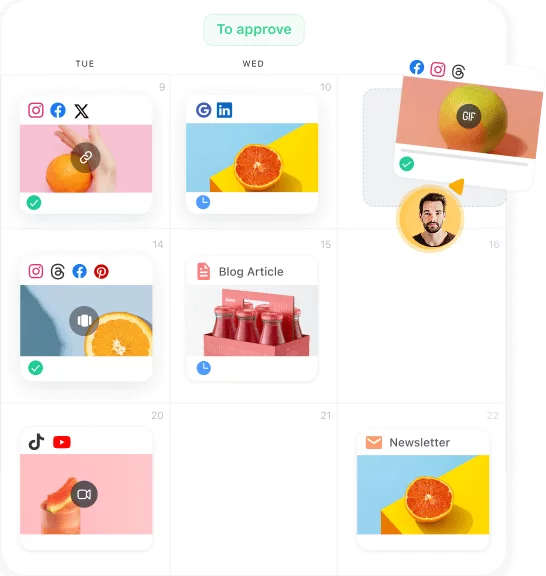
Whether you manage one or multiple IG accounts, scheduling posts on Instagram will save you from worrying about what to post on the go and help you focus on the most important aspects of your business. No more last-minute panic attacks trying to whip up a post, just...
Redesign For multi-location brands
all your locations, one content flow
For multi-brand companies
content collaboration at scale
For agencies
impress your clients and take on more
“The team loved it from the start. Planable helps us overview the entire marketing efforts.“
Running a campaign across a team often means information gets scattered: the brief in one place, assets in another, approvals in email threads, and the schedule in a spreadsheet that’s never fully up to date. Everyone is working on the same campaign, but few people can quickly answer: What’s done? What’s next? What’s approved?
Campaigns in Planable solves this by giving every campaign a dedicated space for:
the campaign brief and context
creative assets
content drafts and posts
approvals and feedback
campaign timeline + calendar visibility
campaign-level analytics
That keeps the team aligned on one source of truth, without rebuilding your workflow in a separate tool.
What a campaign is in Planable
A campaign in Planable is a workspace container for a specific marketing initiative. It centralizes the strategic context, creative assets, individual posts, and timeline so your team doesn’t have to reconstruct the campaign from multiple tools.
Planable campaigns page
Campaigns live inside your existing Planable workspace alongside the regular content calendar. That means you keep the same day-to-day workflow, but gain an extra layer of campaign organization.
What you can store inside a campaign
Planable campaign brief with goals, dates, links, and flavor launch details
When you create a campaign, you’re creating a “home base” your team can rely on. A campaign can include:
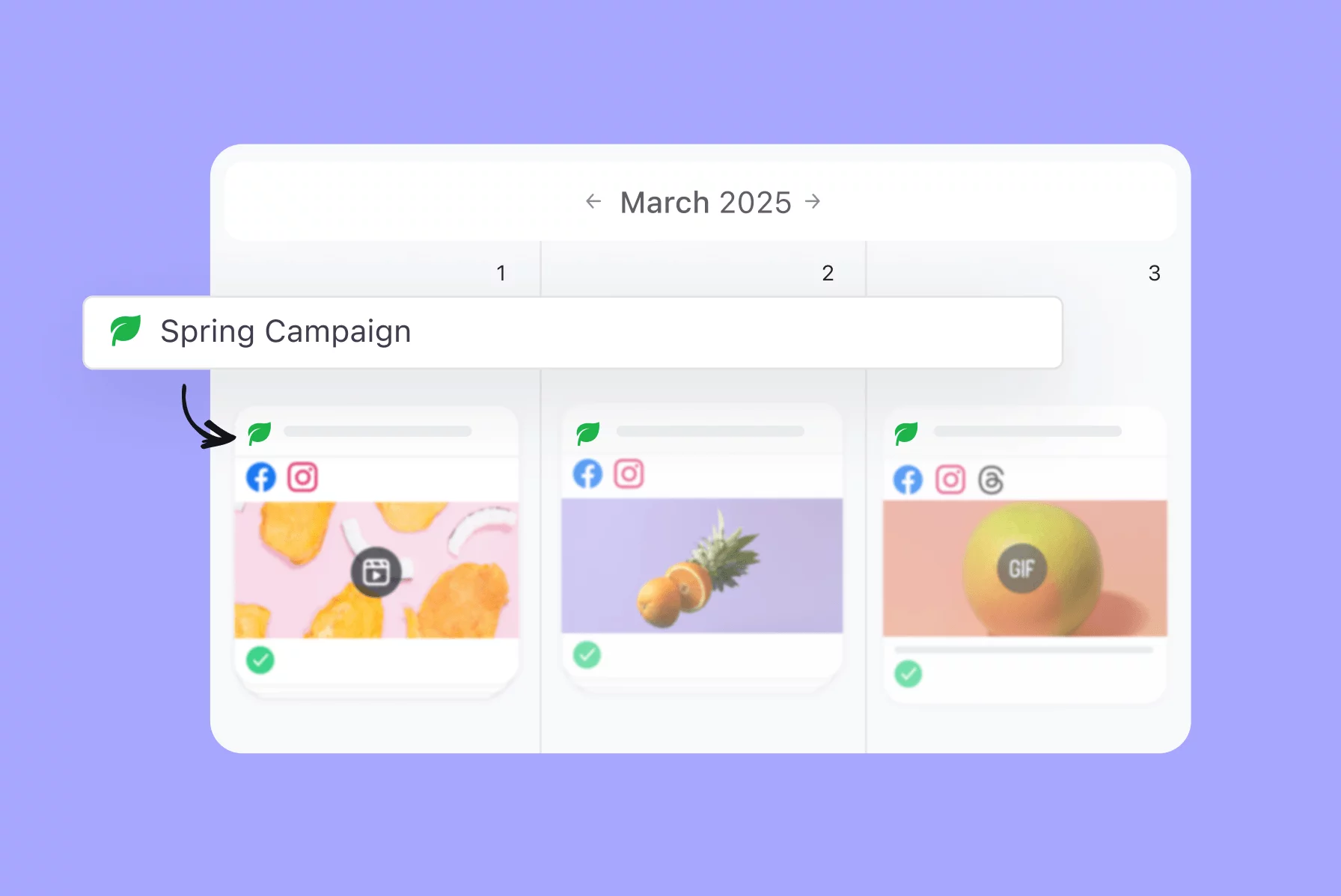
Campaign identity (so it’s easy to spot)
Name, icon, and color to visually label the campaign in the calendar
Status to show where it stands: Planning, Active, or Completed
Start and end dates to anchor the campaign to a timeline
Campaign context (so people don’t have to ask)
Description / brief for product context, target audience, channels, required assets, messaging notes, and goals
Links to external resources (Google Drive, Figma, research docs, landing pages, etc.)
Campaign execution (so work stays connected)
To-do list for campaign-specific tasks
Media assets in the campaign’s Media tab (upload, view, and manage assets in one place; bulk actions supported)
Campaign plan with teaser, launch tasks, and key marketing channels
How campaigns show up in your content calendar
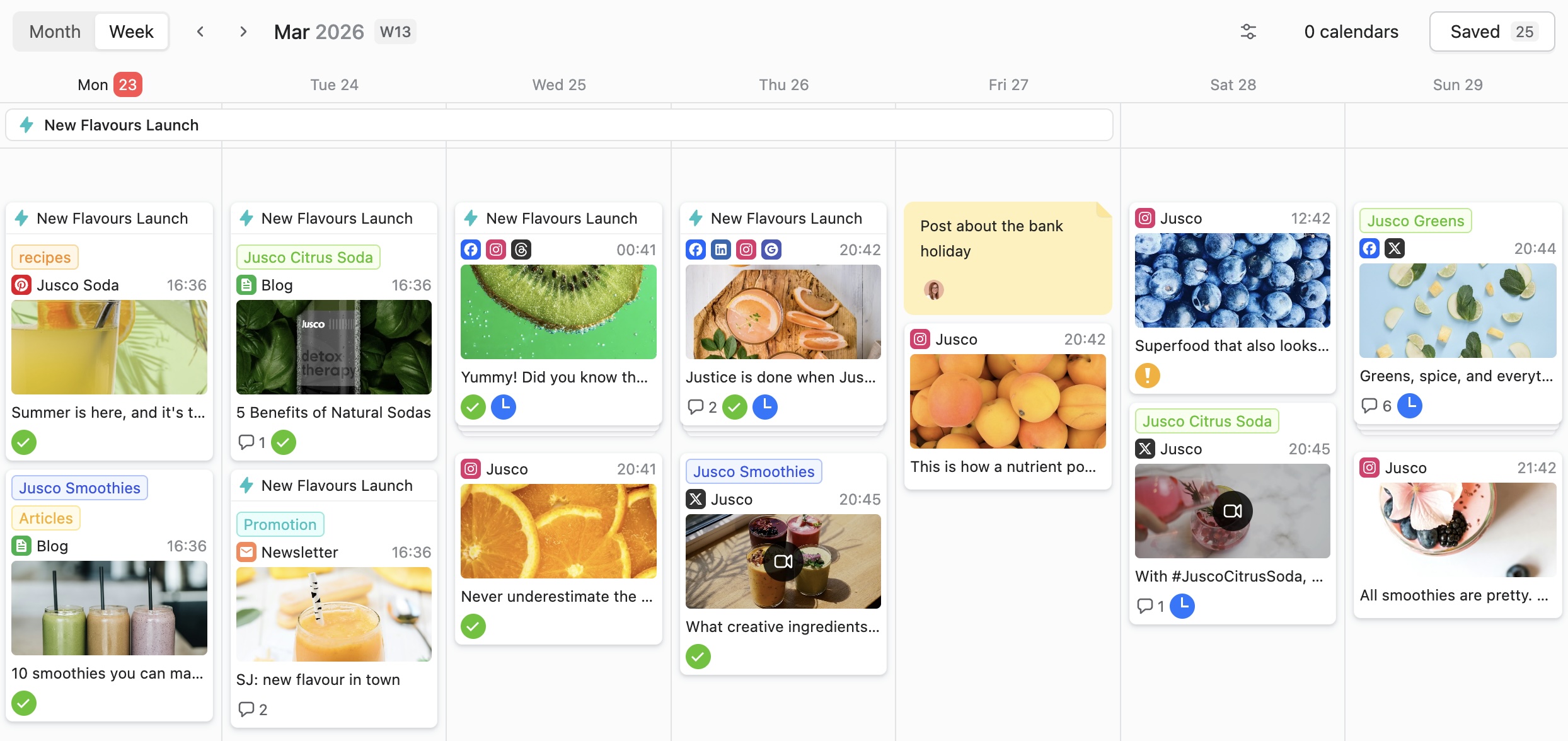
Weekly content calendar with scheduled campaign posts across channels
Campaigns aren’t just stored in a sidebar. They’re visible directly in the content calendar timeline, with the campaign’s icon and name.
This makes it easier to:
see what’s publishing across multiple campaigns in the same week
spot gaps (not enough coverage) or overlaps (too many posts at once)
understand scheduling conflicts before they become last-minute issues
manage multiple channels without a flat, confusing list of posts
Approvals still happen at the post level (inside the campaign)
Every post inside a campaign follows Planable’s approval workflow. Feedback and sign-off happen in the same place where the content lives — so you don’t have to chase decisions across email threads or scattered comments.
Planable post approval workflow with social team, manager, and client reviewers
If you use multi-level approvals, you can keep the structure that matches your process (for example: internal review first, then client sign-off).
Campaign analytics (without switching tools)
Campaign analytics dashboard in Planable with impressions, engagement, and top posts
Once a campaign is live, Planable pulls analytics for the posts associated with that campaign. That means you can review performance (such as engagement and reach) inside the campaign context — useful for stakeholder updates and client reporting.
How to create a Campaign in Planable
You can create a campaign in two ways:
1. From the Campaigns tab
Left sidebar → Campaigns → + New campaign
Best when you want to set up the campaign before creating content
2. From the post composer
In the composer → Campaign dropdown → Create new campaign
Best when you’re drafting and realize the post belongs to a new campaign
Both methods lead to the same setup fields: name, icon, color, status, dates, links, description, and to-do list.
Campaign limits by plan
Campaign capacity depends on your Planable plan:
Plan
Campaigns per workspace
Basic
Up to 3
Pro
Up to 10
Enterprise
Unlimited
Basic
Campaigns per workspace
Up to 3
Pro
Campaigns per workspace
Up to 10
Enterprise
Campaigns per workspace
Unlimited
For agencies or multi-brand teams, higher tiers are typically the most practical for running multiple campaigns at once.
Who Campaigns in Planable is for
Campaigns are especially useful for:
Agencies managing multiple client campaigns with separate briefs, assets, calendars, and approvals
Multi-brand or multi-location teams running parallel initiatives across products, regions, or audiences
Any team losing time to fragmented campaign information (missed deadlines, repeated questions, unclear status)
If your team regularly asks “Where’s the brief?” or “Which assets are final?” Campaigns are designed to eliminate that uncertainty.
FAQs
What is a Campaign in Planable?
A campaign is a dedicated space inside your Planable workspace that stores everything for a marketing initiative: brief/context, assets, posts, timeline, links, tasks, approvals, and analytics.
How do Campaigns appear in the content calendar?
Campaigns show up directly in the calendar using the campaign’s icon and color, making it easy to see which posts belong to which campaign and to spot overlaps or gaps.
Can I attach files and assets to a Campaign?
Yes. Each campaign has a Media tab where you can upload, view, and manage campaign assets.
Do posts inside a campaign still go through approvals?
Yes. Posts in a campaign follow the same Planable approval workflow corresponding to the whole workspace — from none-required, to optional, mandatory, and multi-level approvals.
Can I track performance at the campaign level?
Yes. Planable displays analytics for posts associated with a campaign so you can assess performance within the campaign context.
How many Campaigns can I create?
Basic: up to 3 campaigns per workspace. Pro: up to 10. Enterprise: unlimited.
Can I link external tools or docs to a Campaign?
Yes. You can add links (Drive folders, Figma files, research, landing pages, etc.) directly in the campaign.
What statuses can a Campaign have?
Campaigns have three statuses: Planning, Active, and Completed.
Where can I create a Campaign?
From the Campaigns tab (+ New campaign) or from the post composer (Campaign dropdown → Create new campaign).
As a senior product marketer, Monica leads product marketing campaigns, drives competitive intelligence initiatives, and contributes to Planable’s growth strategy through extensive user research and data analysis.







 Create
 Schedule
 Plan
Plan Engage
 Collaborate
 Analyze
 Approve