In my testing, almost every scheduler handles the first ten posts well. The friction starts later: a calendar that slows down past 100 posts a month, a client who wants to approve a draft without creating an account, and a platform connection that quietly drops the...
Redesign For multi-location brands
all your locations, one content flow
For multi-brand companies
content collaboration at scale
For agencies
impress your clients and take on more
“The team loved it from the start. Planable helps us overview the entire marketing efforts.“
Most approval problems aren’t approval problems. They’re coordination problems. Content sits in a shared doc waiting for a comment. Feedback arrives in a Slack thread three people aren’t in. The client approves a version that wasn’t the final one. And somehow, a post goes live that nobody’s quite sure was ready.
Planable’s approval system is built around one idea: the conversation about the content happens on the content itself, not somewhere else. Everyone who needs to weigh in (teammates, managers, clients) sees the same thing, leaves feedback in the same place, and signs off in the same flow.
This article explains how approvals work in Planable, which setup fits which team, and how to get it running correctly from the start.
The four approval modes
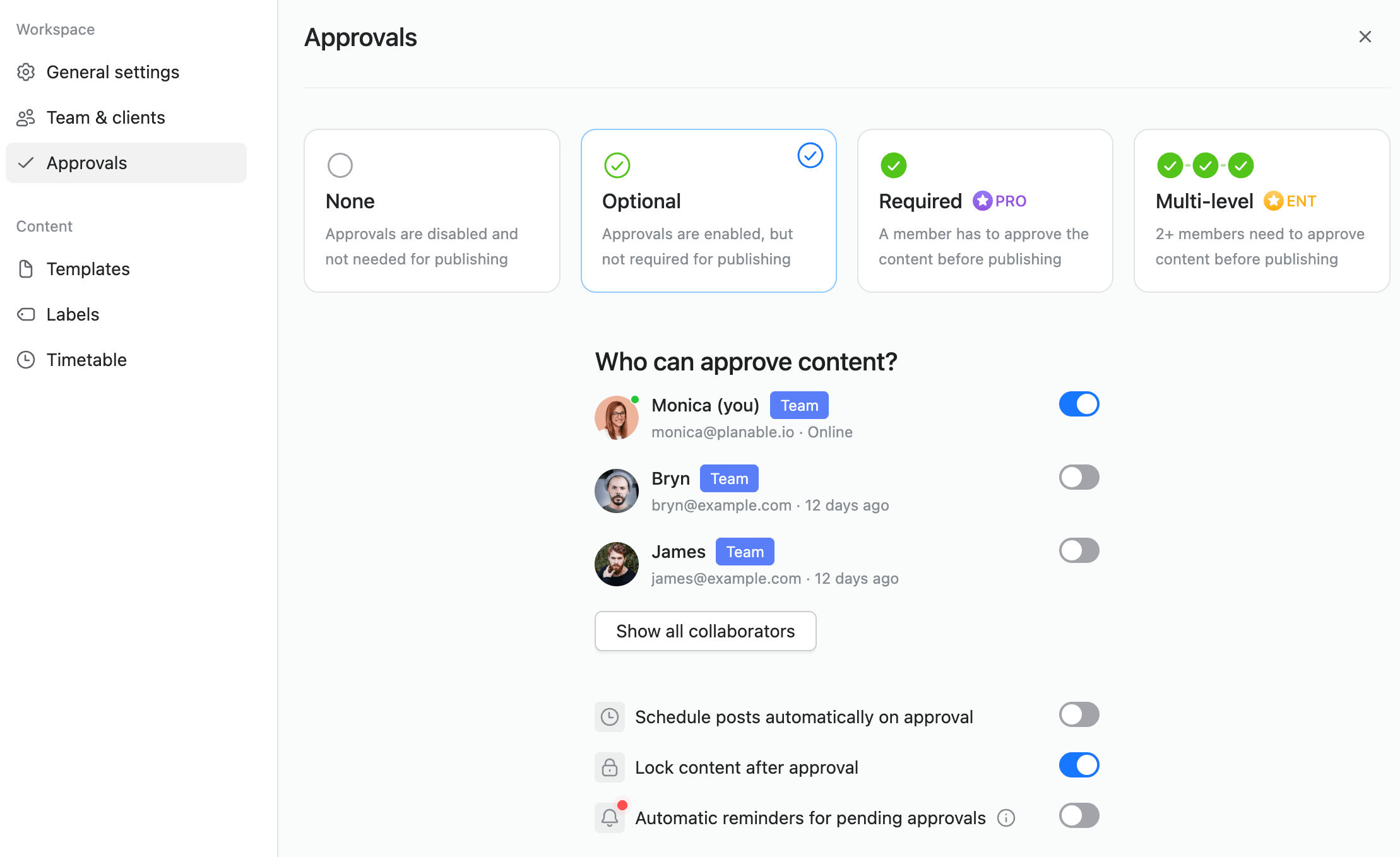
Planable has four approval configurations. Each is a workspace-level setting, meaning you choose one per workspace, and it applies to all content in that workspace.
1. No approval
Posts can be scheduled and published by anyone with publish permissions. There’s no approval button and no required sign-off. Best for solo users or small, fully-trusted teams where everyone has the same context and authority.
2. Optional approval
The approve button exists and works, but it’s not a gate. Posts can go live whether or not they’ve been approved. This is useful for teams that want a record of who reviewed what, or that like to flag confidence level on content, without blocking publication.
3. Required approval (Pro and above)
Posts cannot be scheduled or published until at least one person has approved them. This is the standard setup for agency-client workflows. Content moves through a defined sequence: Draft → Pending → Approved → Scheduled/Published. Nothing publishes accidentally.
4. Multi-level approval (Enterprise only)
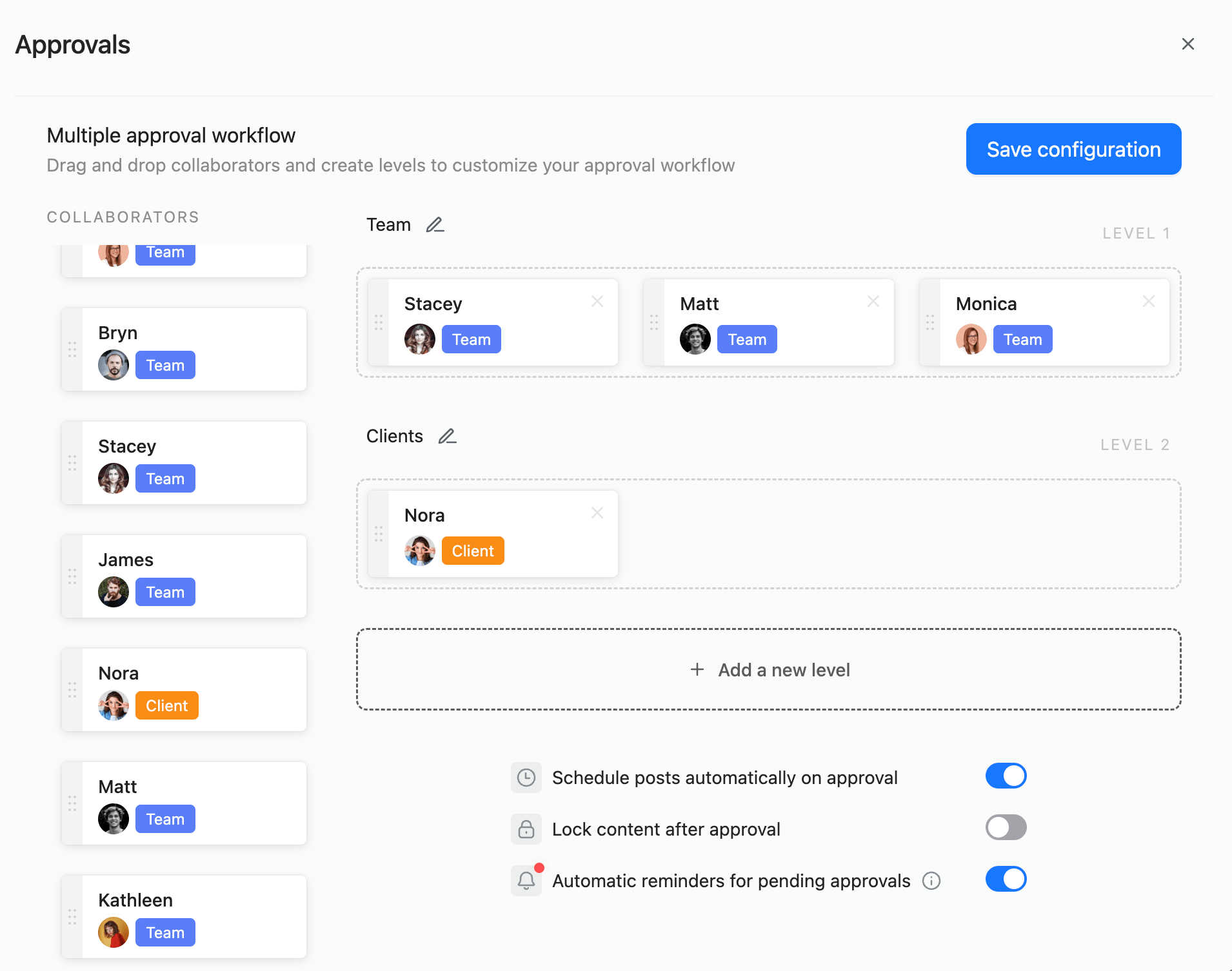
Multiple approval stages run in sequence. You define the order. For example: creative team → legal → CMO → client. Each stage has designated approvers. A post advances to the next stage automatically when the current stage approves. Only after all stages are complete can the post be scheduled.
This is designed for regulated industries, large organizations, or any workflow where different stakeholders need to sign off in a specific order.
Planable approval workflow builder with team and client levels
Who can approve content in Planable
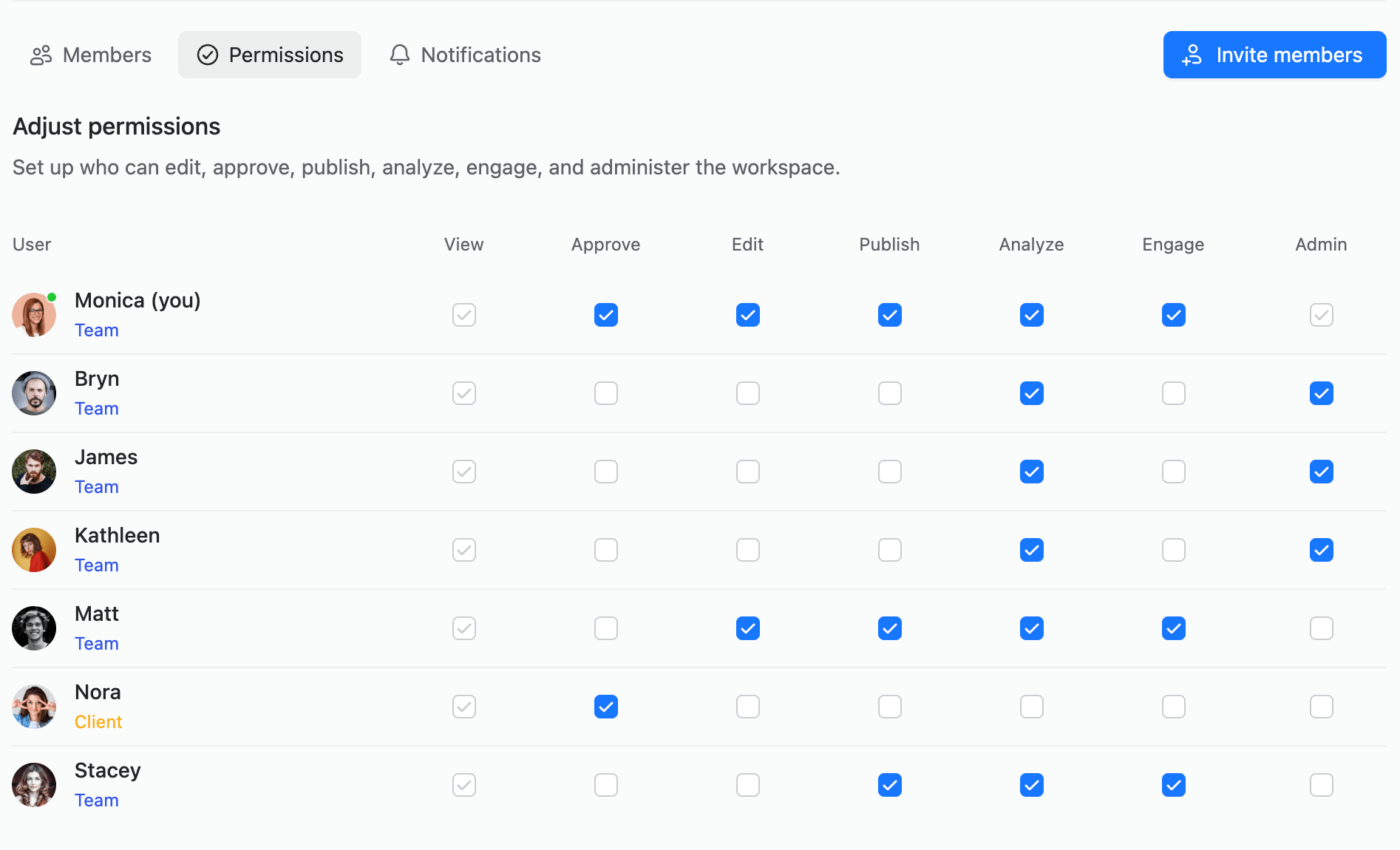
Approval rights in Planable are not purely role-based. Every workspace has a per-user toggle that controls whether a specific person can approve content, regardless of their role.
Roles with approval rights by default:
Owner
Administrator
Approver (can only approve and comment; cannot create or edit)
Roles without approval rights by default:
Writer (can create and edit, but not approve)
Contributor (can create, edit, view analytics and engage, but not approve)
Guest (view only; can comment on posts, but not approve)
These defaults can be overridden. In Workspace Settings → Team & clients → Permissions, admins can turn approval rights on or off for any individual user. This lets you, for example, give a client the ability to approve without giving them edit access or restrict a Contributor from approving even though their role would normally allow it.
Planable permissions settings with user roles and access toggles
How the approval flow works step by step
This is the standard flow for a Required approval workflow in an agency workspace:
1. A writer or contributor creates a draft post. The post is saved as a draft and is visible to the team. If the workspace has client members (Pro+), the post can be marked as internal so clients don’t see it yet.
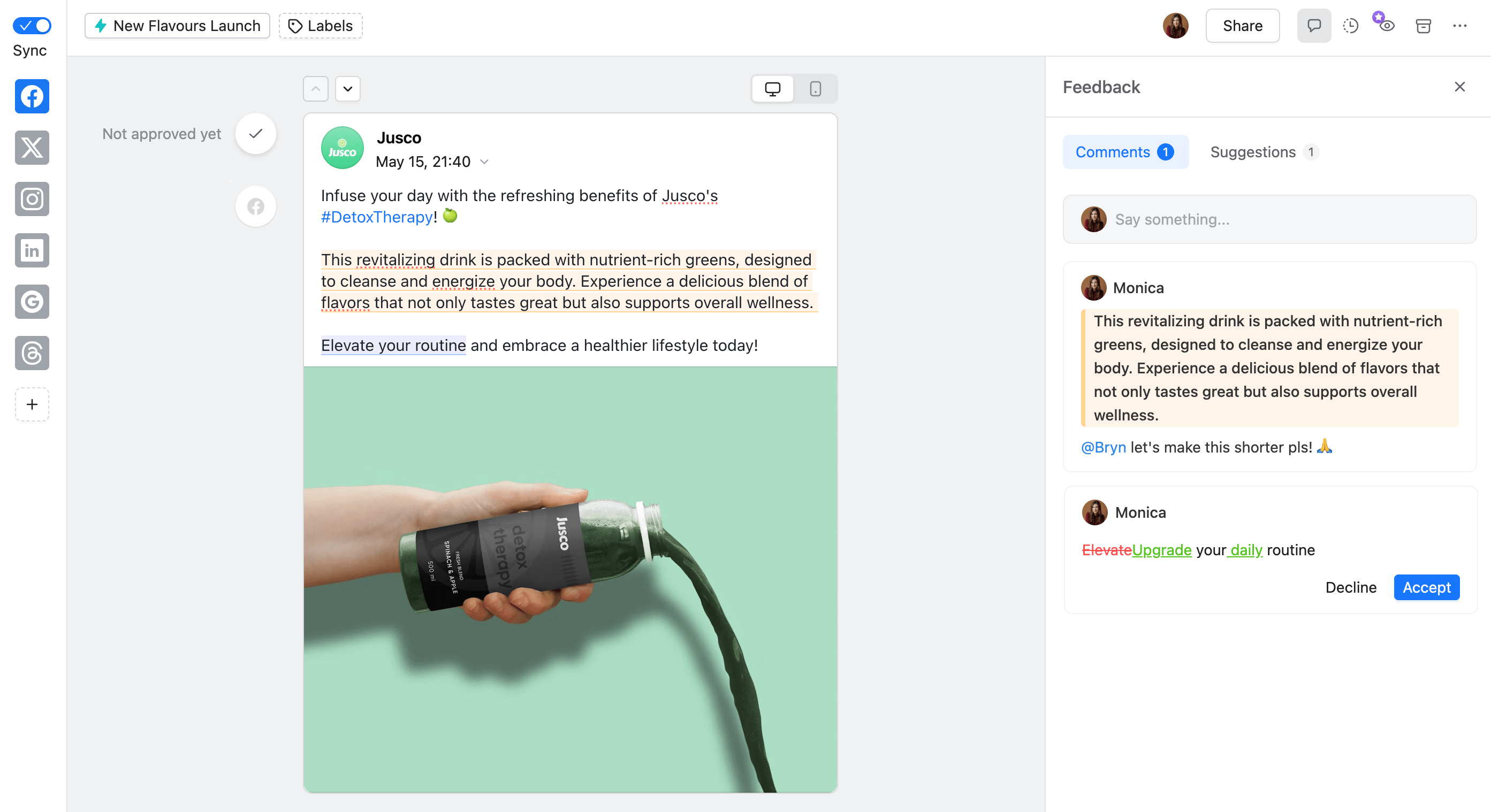
2. The team reviews the draft. Teammates leave comments, @mention each other, or suggest text edits directly on the caption using annotations. Internal comments (yellow background, Pro+) are only visible to team members, not to clients.
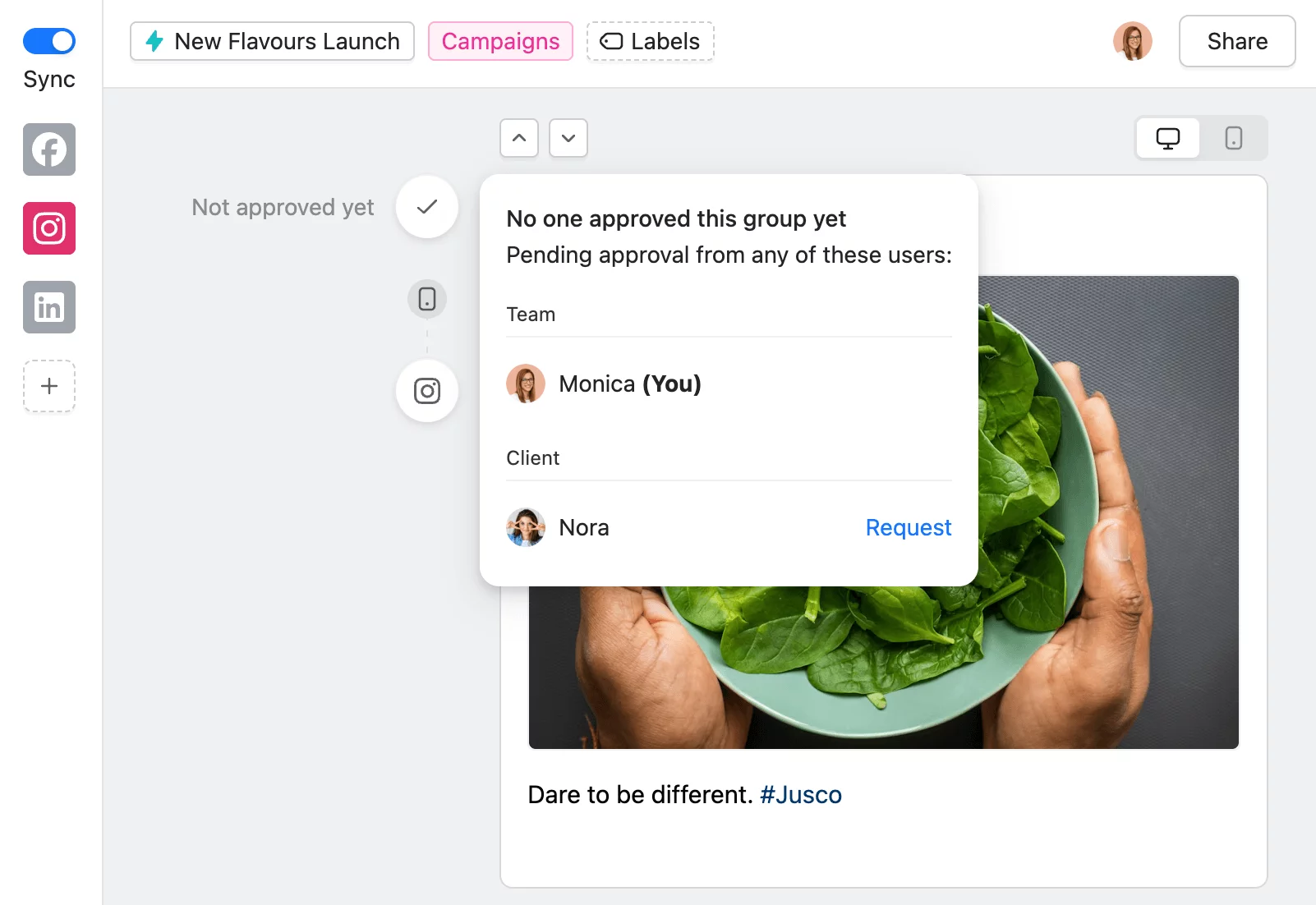
3. The post is submitted for approval. The creator clicks the approval checkmark icon on the post and selects who should approve (one specific person, or all approvers at once). The post status changes to Pending. The designated approver(s) receive a notification.
4. The approver reviews the post. In the feed or calendar view, the approver sees the post exactly as it will appear on the social platform. They can leave comments or, if satisfied, click Approve.
5. The post is approved. Status changes to Approved. If “Schedule on approval” is enabled in workspace settings, the post automatically schedules for its set date and time at this point.
6. The post publishes. On the scheduled date and time, Planable publishes directly to the connected social page.
To undo an approval: Click the approval icon again to unapprove the post. This requires approval permissions. If “Lock after approval” is enabled (see below), the post must be unapproved before any edits can be made.
Approval settings that change how the workflow behaves
Three optional settings in Workspace Settings → Approvals modify how the approval flow works. Each is a toggle.
Schedule posts automatically on approval
When this is on, approving a post that already has a scheduled date and time will automatically set it to Scheduled status. The approver doesn’t need to take a separate scheduling action. Approval and scheduling happen in one step.
This is especially useful in agency workflows where the client is the final approver. The moment they approve, the content is in the queue with no further action needed.
Lock content after approval
When this is on, an approved post becomes read-only. No one can edit the caption, media, posting time, image order, or link URL. To make any change, someone with approval permissions must unapprove the post first.
This prevents the common scenario where content is approved and then quietly edited before publishing. For compliance-sensitive accounts or clients who care about seeing exactly what they approved, this is the right setting.
When this is on, Planable automatically sends reminder notifications to approvers when posts are sitting in Pending state. This removes the need to manually follow up on outstanding approvals — the system does it.
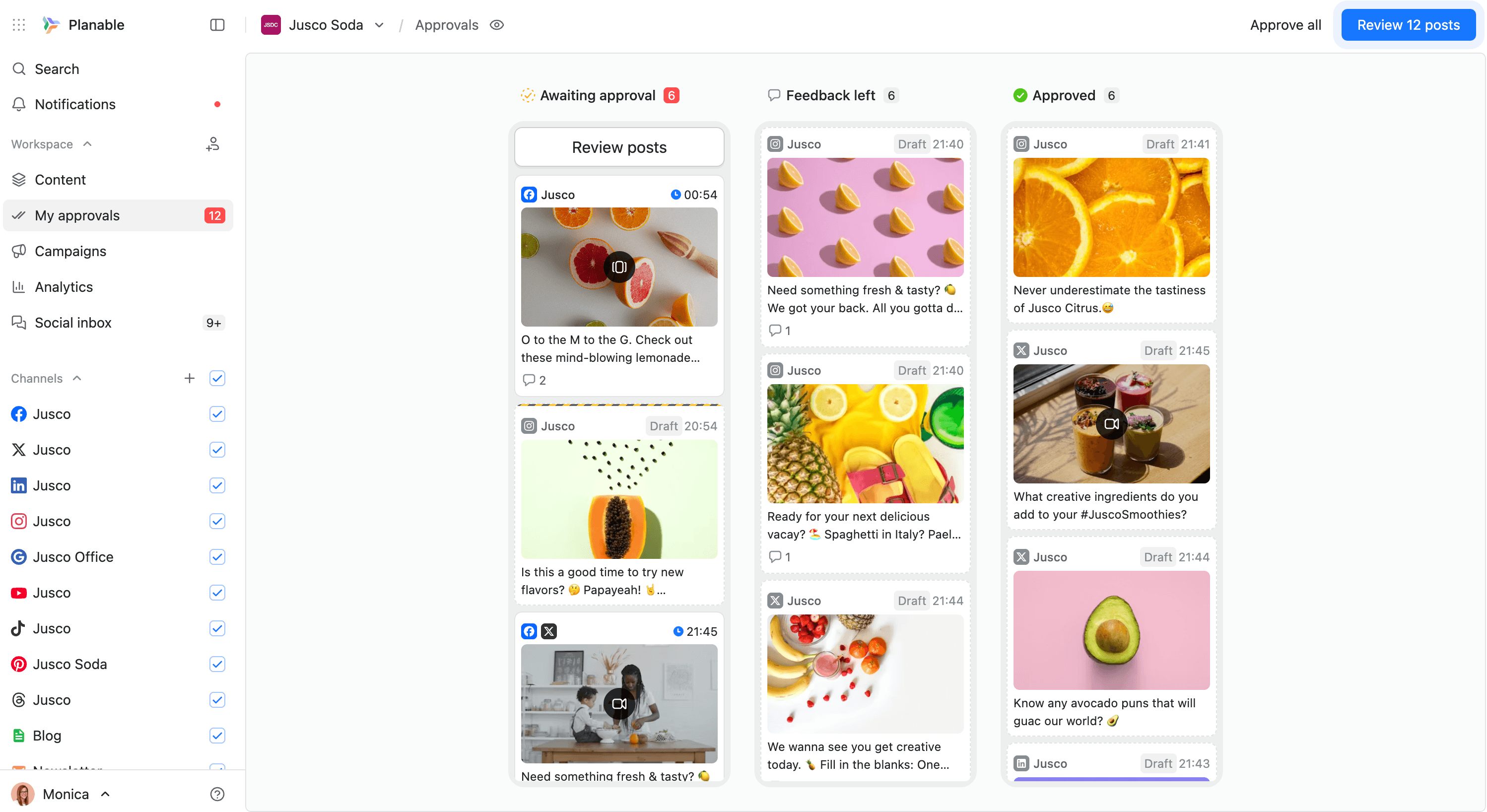
My approvals: the cross-workspace approval queue
For users who approve content across multiple client workspaces, My approvals is a dedicated inbox that aggregates everything waiting for their sign-off.
It’s accessible from the left sidebar (shows a count badge when posts are pending). Posts are organized into three columns:
Awaiting approval – posts pending your review
Feedback left – posts you’ve commented on but not yet approved
Approved – posts you’ve signed off on
Planable content approvals board with draft and approved posts
Two actions at the top right:
Approve all – bulk-approves everything in the “Awaiting” column in one click
Review X posts – steps through pending posts one by one, keeping context for each
This is the right view for agency account managers or clients who oversee multiple brands. Instead of switching between workspaces to check what’s pending, everything that needs attention is in one place.
Sharing content for client review
Clients don’t need a Planable account to see and comment on content. Planable has two ways to share content externally.
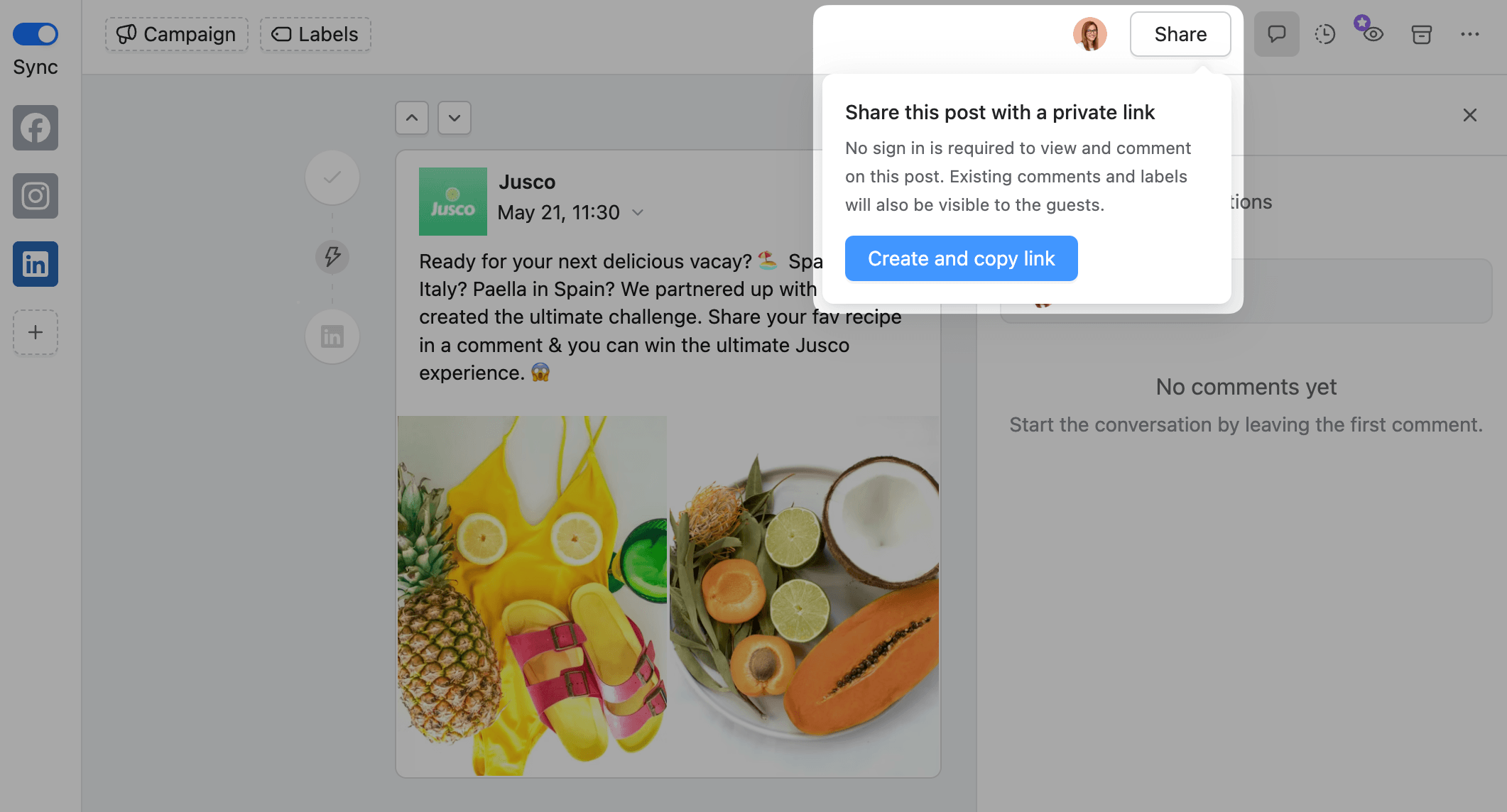
Share a single post
From the post’s options menu, select Create public share link. This generates a URL that anyone can open without logging in. External viewers can see the post, read public comments, and leave a comment by providing their name or email.
Planable modal to generate private link for sharing post
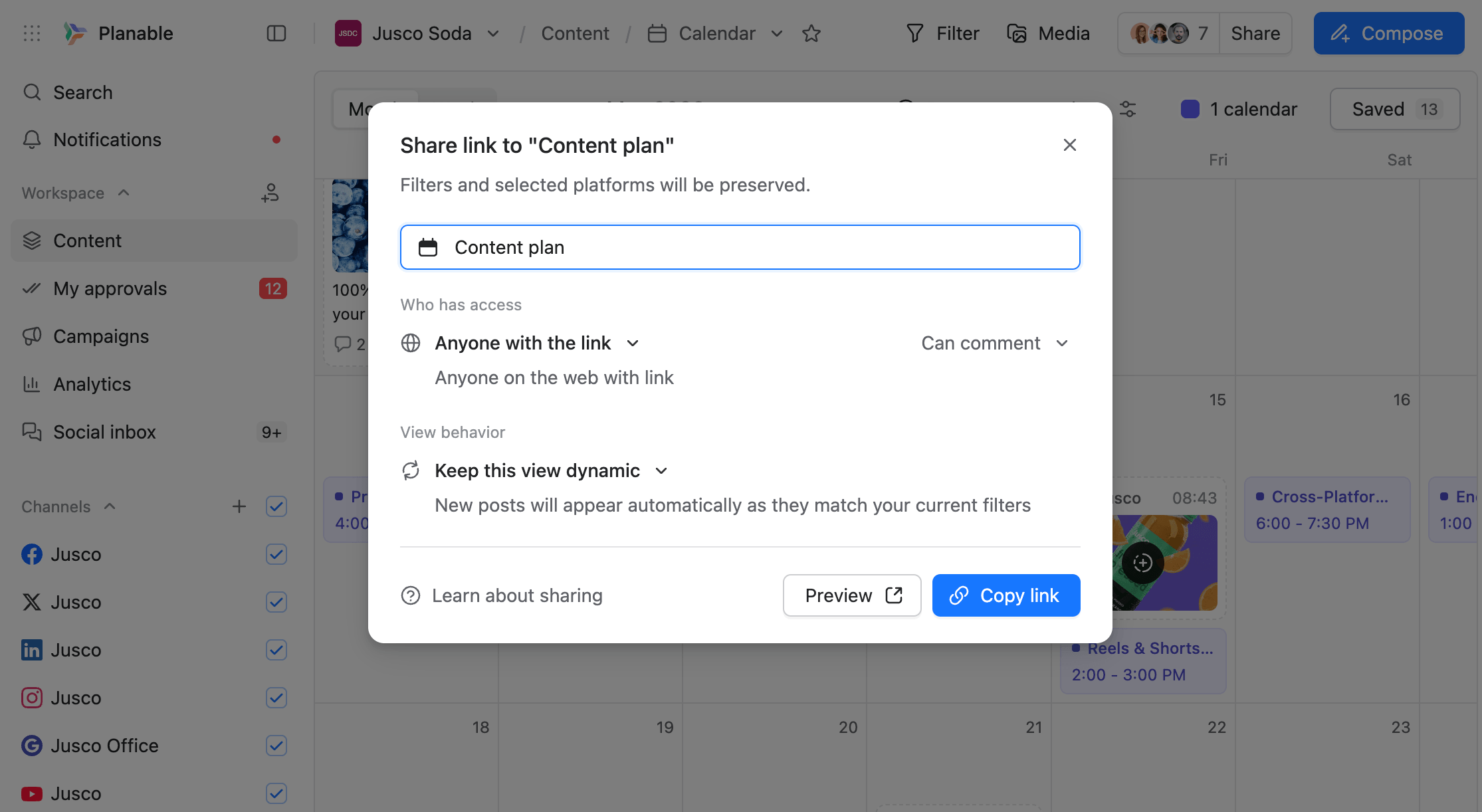
Share an entire view (custom view)
You can create a filtered calendar or feed view. For example, all posts for the next 14 days and share the URL with a client. The shared view can be set to update dynamically as new posts are added, so the client always sees the current state of the content calendar.
Set access to “Anyone with the link” and permission level to “Can comment” if you want the client to leave feedback directly.
Important: Public share links allow viewing and commenting, but not approving. To approve content, a client needs a Planable account with Approver role or approval permissions enabled. Approver accounts are free. The client just needs to be invited to the workspace.
Planable link sharing settings with access and comment options
Leaving feedback before approving
Approvals in Planable aren’t just a thumbs-up button. There are three ways to give feedback on a post before (or instead of) approving it.
Comments
Anyone in the workspace can leave a comment on a post. Comments appear in the right panel of any view. @mention a teammate to notify them directly. Attach revised media in a comment if you’re suggesting a file change. Comments can be resolved once addressed.
Internal comments (Pro+): A comment marked as internal has a yellow background and is visible only to team members. Clients cannot see internal comments, even if they have access to the workspace. This lets the team discuss drafts, flag concerns, or leave internal notes without the client seeing work in progress.
Annotations and text suggestions
Highlight any part of the post caption and type a suggested replacement. The annotation appears as strikethrough (original text) and new text (suggestion), and it is visible to everyone who reviews the post. The post author can accept the suggestion in one click (the caption updates automatically) or decline it.
Annotations can be marked as internal too (Pro+), keeping team-level copy edits separate from client-facing feedback.
Planable social post preview with team comments and edits
Version history
Every time a post is saved, Planable creates a version checkpoint. This means you can see exactly what the post looked like at any point in its editing history, compare versions, and restore a previous version if needed.
Version history is retained for 1 week on Basic, 30 days on Pro, and indefinitely on Enterprise.
Which approval mode is right for your team
No approval
Best for solo users or micro-teams where everyone publishes their own content and there’s no review layer needed.
Optional approval
Best for in-house teams where approval is useful as a signal but not a hard gate. Good for teams that are building towards a more structured review process but aren’t ready to enforce it yet.
Required approval (Pro+)
Best for agencies managing client accounts and any team where content needs explicit sign-off before publishing. This is the most common setup for professional social media teams. At least one approval is required before a post can be scheduled or go live.
Multi-level approval (Enterprise)
Best for large organizations, regulated industries (finance, healthcare, legal), or any workflow where different stakeholders need to approve in a specific order. Each stage — brand, legal, executive, client — runs sequentially, and the post only advances when the current stage is complete.
Plan availability
Feature
Basic
Pro
Enterprise
No approval
✅
✅
✅
Optional approval
✅
✅
✅
Required approval
❌
✅
✅
Multi-level approval
❌
❌
✅
Bulk approval
❌
✅
✅
Internal comments
❌
✅
✅
Client membership (Team/Client distinction)
❌
✅
✅
Version history
1 week
30 days
Unlimited
No approval
Basic
✅
Pro
✅
Enterprise
✅
Optional approval
Basic
✅
Pro
✅
Enterprise
✅
Required approval
Basic
❌
Pro
✅
Enterprise
✅
Multi-level approval
Basic
❌
Pro
❌
Enterprise
✅
Bulk approval
Basic
❌
Pro
✅
Enterprise
✅
Internal comments
Basic
❌
Pro
✅
Enterprise
✅
Client membership (Team/Client distinction)
Basic
❌
Pro
✅
Enterprise
✅
Version history
Basic
1 week
Pro
30 days
Enterprise
Unlimited
Planable pricing starts at $39/workspace/month (Basic) and $59/workspace/month (Pro). Enterprise is available from 5 workspaces and is negotiated based on the number of workspaces and specific feature needs.
FAQs
Can a client approve content in Planable without creating an account?
No. To approve content formally, a client needs a Planable account with approval permissions. They can be invited to the workspace as an Approver (approve and comment only, no editing access) at no extra cost. To view and comment only, a public share link works without an account.
What happens to a post if I edit it after it’s been approved?
If “Lock after approval” is on, you can’t edit the post at all until someone with approval permissions unapproves it first. If that setting is off, edits are possible after approval, but the post status reverts to reflect that it’s been changed and it will need to be re-approved depending on your workflow.
Can I require approval from a specific person, not just anyone?
Yes. When submitting a post for approval, you can request approval from one specific person or from all approvers at once. You can also control who counts as an approver in workspace settings by toggling individual users’ approval rights on or off (it’s not based purely on role).
What’s the difference between “Pending” and “Approved” post status?
Pending means the post has been submitted for approval but no one has approved it yet. Approved means at least one approver has signed off. In a Required workflow, only Approved posts can be scheduled or published.
Can I set up multi-level approvals with different people at each stage?
Yes, on Enterprise. Multi-level approval lets you define sequential stages (each with specific designated approvers). The post moves from stage to stage automatically as each approves, and can only be scheduled once all stages are complete.
Can I approve multiple posts at once?
Yes. In the My approvals view (accessible from the left sidebar), the Approve all button bulk-approves all pending posts in one action. Bulk approval is available on Pro and Enterprise plans.
What does “Schedule on approval” actually do?
When this setting is on, approving a post that has a scheduled date and time automatically moves it to Scheduled status. The approver doesn’t need to do anything else. The act of approving is enough to put the post in the publishing queue.
Does the Basic plan have any approval features?
Basic has no-approval and optional-approval modes. Required approval, multi-level approval, bulk approval, and client-facing collaboration features (internal comments, client membership, hide from client) require Pro or Enterprise.
Can I see all content waiting for my approval across all workspaces?
Yes. The My approvals view in the left sidebar aggregates pending approvals from every workspace you have approval responsibilities in. It’s organized into three columns: Awaiting approval, Feedback left, and Approved.
Monica leads product marketing at Planable. She owns go-to-market for new features and shapes how Planable fits into the broader SE Ranking product family. She joined in 2023 as Planable's first product marketer, built the function from scratch, and now runs the team's competitive intelligence program. With a background in product management and Romania's startup scene (How To Web, MVP Academy), she writes about competitor analysis, product launches and marketing workflows from the builder's side. Before Planable, she spent almost five years managing Orange Fab Romania, Orange's startup acceleration program, where she supported 40 startups and helped generate over €2.2M in commercial value.







 Creation
 Scheduling
 Planning
 Social Inbox
 Collaboration
 Analytics
 Approval
 Social Listening