You already write captions in ChatGPT. Then you copy them into Planable by hand, one post at a time. Or it’s Monday morning and you’re opening five client workspaces just to see what’s stuck in approvals before anyone else logs on. Two tools, two tabs, and a lot of copy-paste in between.
Planable is now an official app in ChatGPT’s Apps directory. No connector to set up, no API key to generate.
You search “Planable,” open a chat, and it can draft posts straight into the right client workspace, tell you what’s waiting for sign-off across every account you manage, and pull a performance summary, all from the same window you’re already writing in.
This guide covers what the app can actually do, how to connect it, use cases worth trying (and what to screenshot for each), an idea for setting it up per client, and which plans include it.
What the Planable app for ChatGPT does
It’s an official app in ChatGPT’s Apps directory, ready to use straight from the app card with no separate setup. From one chat, it can:
- Draft posts directly into the right client workspace: captions written and formatted per platform, labeled, ready for review
- Show what’s pending approval, and for whom, across every workspace you have access to
- Audit a week’s content calendar: what’s scheduled, what’s still a draft, what has no date at all
- Pull a performance summary from live analytics for one client or several
- Find and update text across a batch of posts in a workspace: a disclaimer change, a renamed product, a hashtag swap
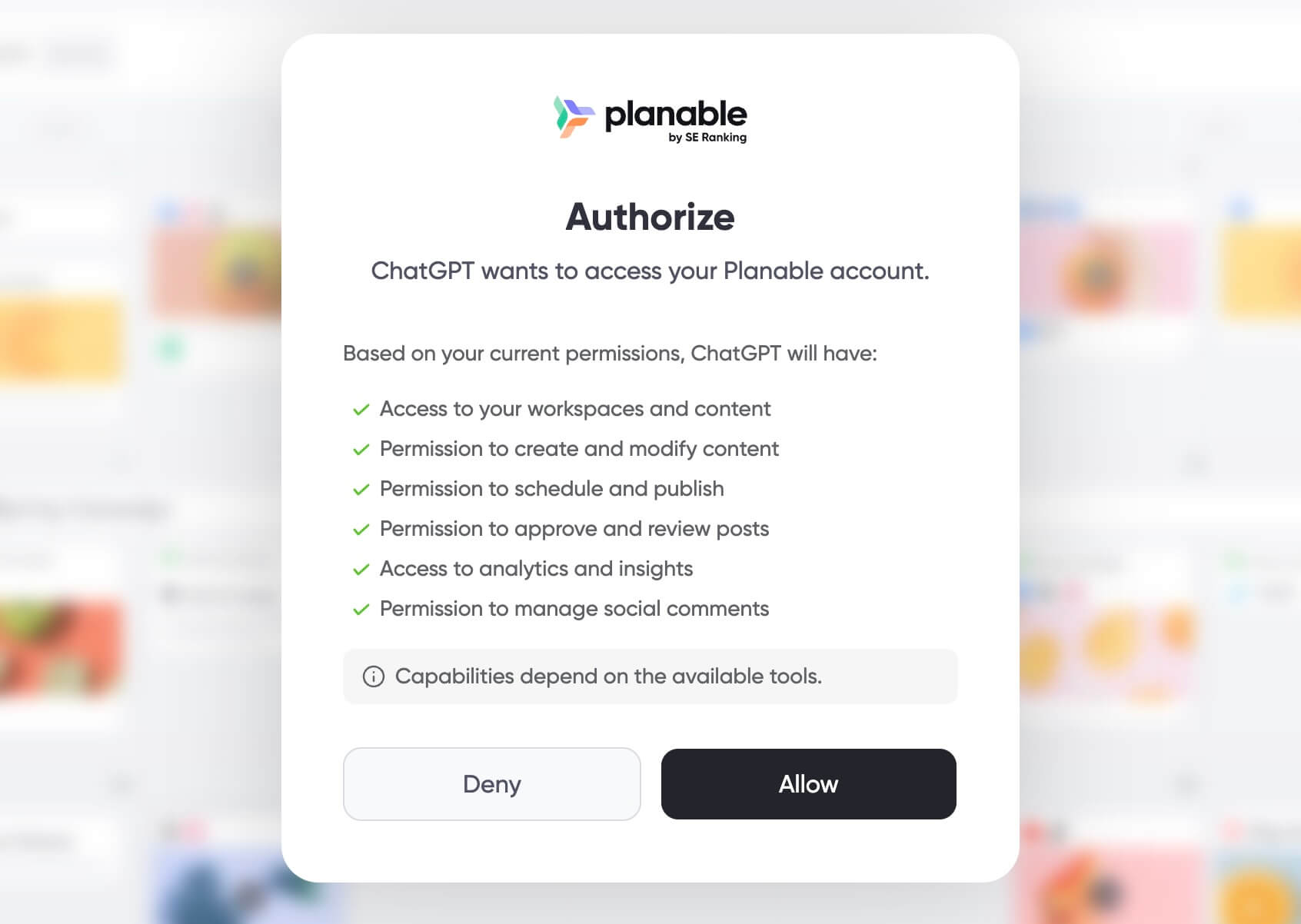
When you connect it, ChatGPT shows you exactly what it’s asking permission for: access to your workspaces and content, creating and editing content, scheduling and publishing, approving and reviewing posts, analytics access, and managing social comments.
In practice, it works within whatever your Planable role already allows. If you want it to stick to drafting, keep your prompts to drafting. It can also approve or publish a post if you ask it to and your role permits it.
How it works in practice
The app works inside your existing Planable account and role. It doesn’t get more access than your account already has. If your role can’t approve or publish in Planable, it can’t do either through ChatGPT.
Anything it creates or changes syncs back to Planable in real time, so what you see in the chat matches what’s sitting in the workspace. You’ll see the full list of permissions it’s requesting the first time you connect, worth a quick read before you click Allow.
A few things it doesn’t handle yet: attaching images or video to a post directly (you need to provide an external link to the media).
You can also add media directly in Planable once the post is created. And if you’re checking a very large number of workspaces in a single request (15 or more) it might take a while to get the answer, as there’s a lot of info to process.
How to connect Planable in ChatGPT
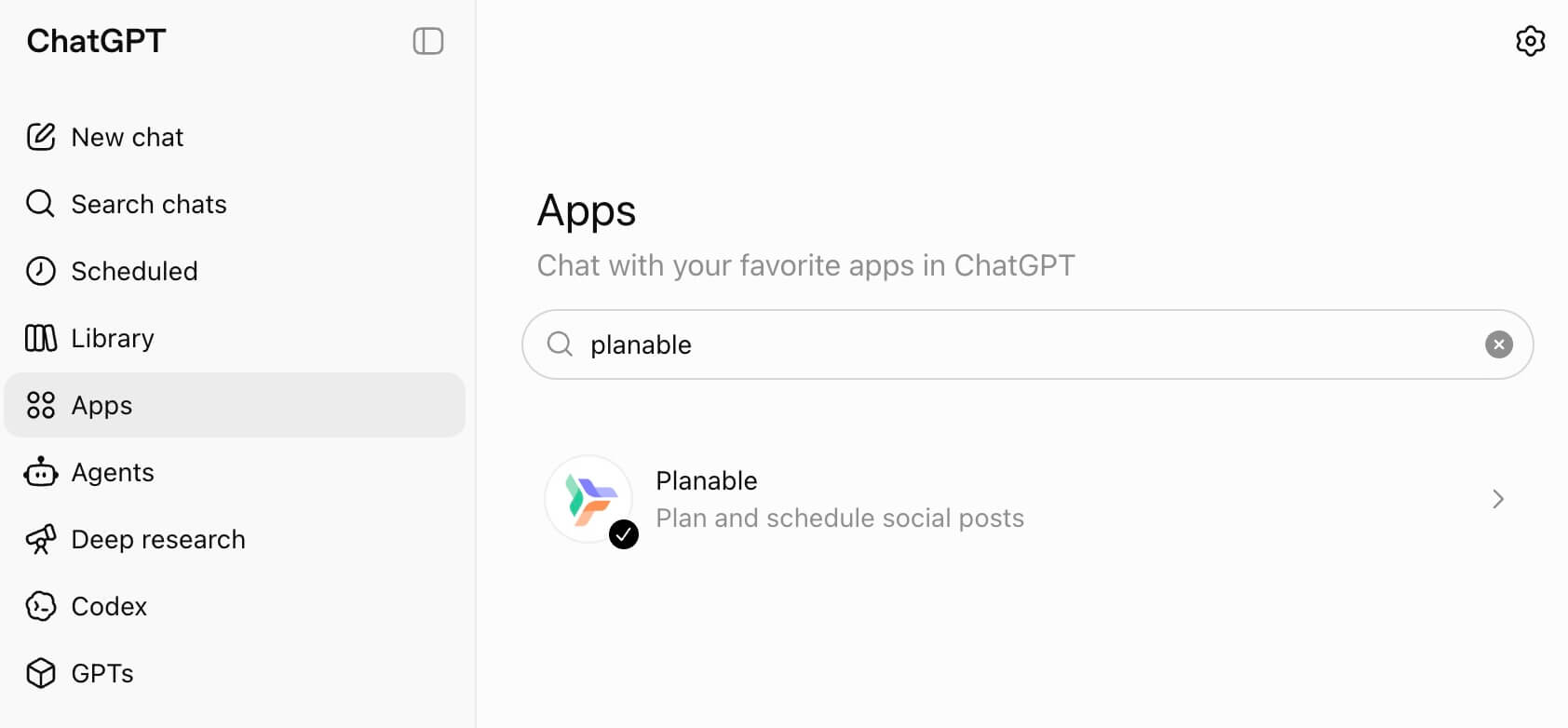
Step 1. Open ChatGPT, click Apps in the left sidebar, and search “Planable.”
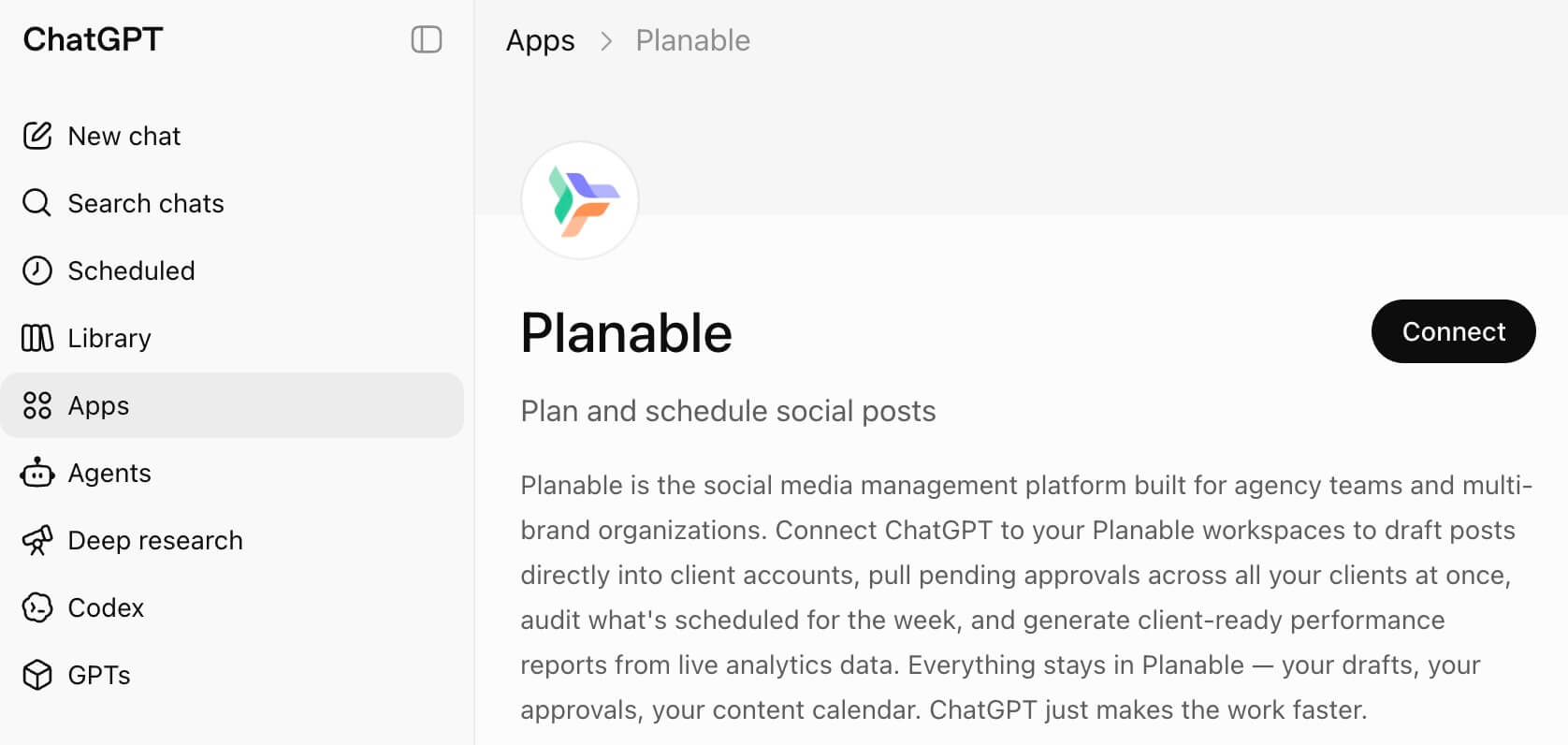
Step 2. Open the Planable app card. Before you’ve connected an account, it shows a Connect button.
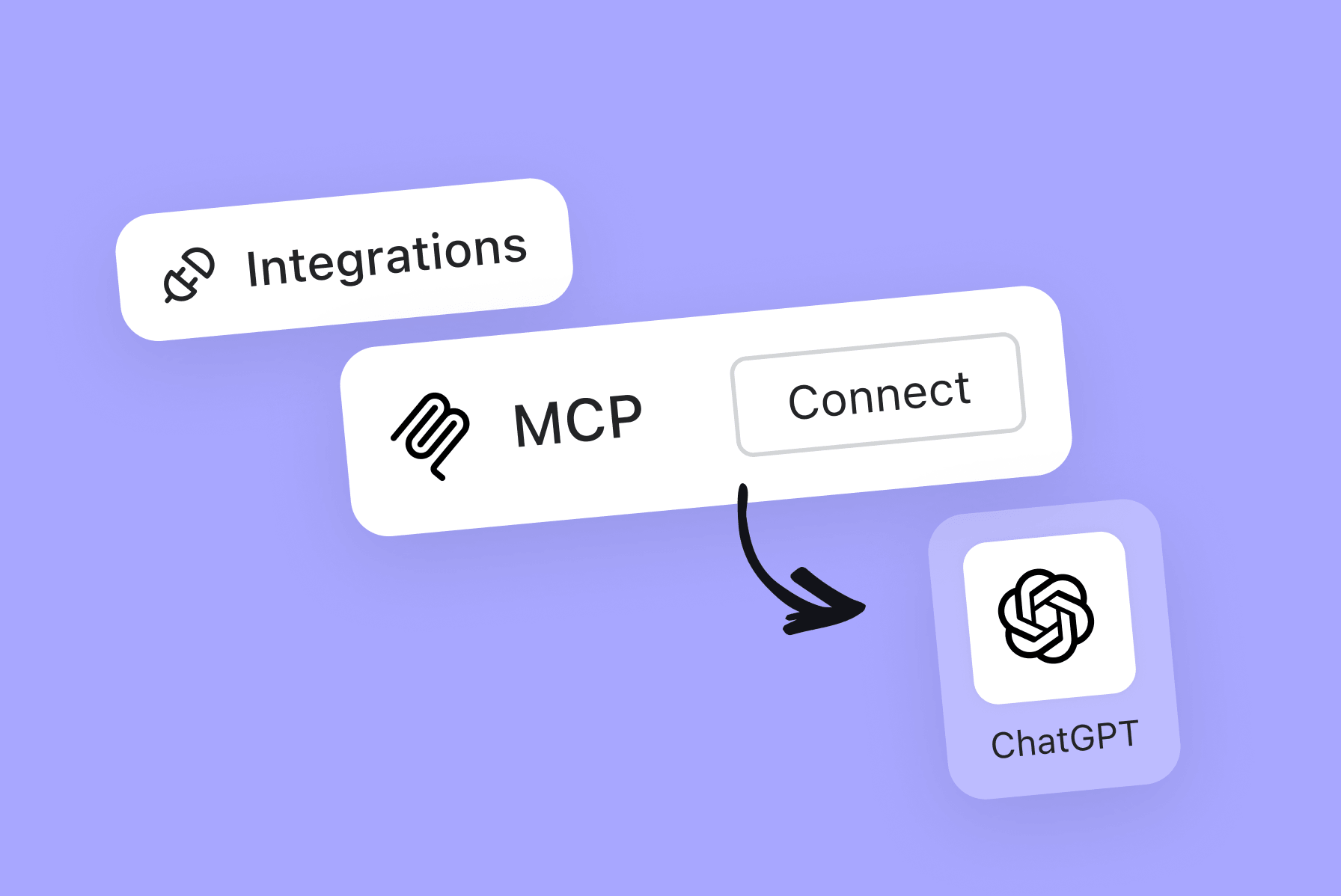
Step 3. Click Connect. A prompt titled “Add Planable to ChatGPT” appears. Click Sign in with Planable.
Step 4. Log in, then review the Authorize screen. It spells out exactly what ChatGPT is asking for: access to your workspaces and content, permission to create and modify content, permission to schedule and publish, permission to approve and review posts, access to analytics and insights, and permission to manage social comments. Click Allow.
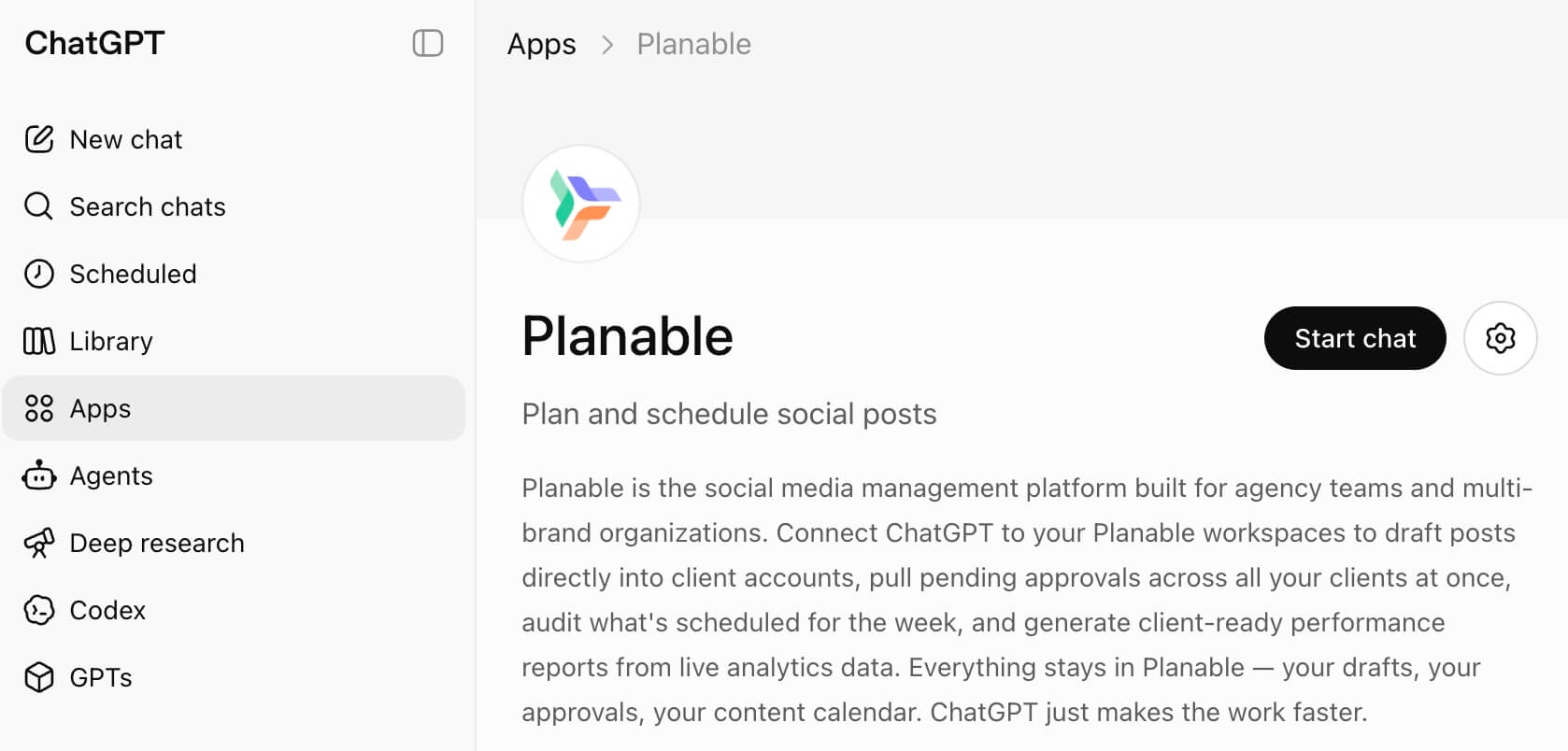
Step 5. Once you’ve allowed access, the app’s detail page now shows Start chat instead of Connect.
Step 6. Start a new chat and type “Planable”. ChatGPT tags the app in your message so it knows to use it. From there, talk to it the way you’d brief a teammate: name the client, the platform, and what you need.
There’s no endpoint to configure by hand. The connect-and-authorize flow above is the whole setup.
Plan availability
Available on every Planable pricing plan, including the free trial. There’s no add-on or upgrade required to connect it or use it. It runs within whatever role and permissions your Planable account already has.
Beyond ChatGPT
This app runs on Planable’s MCP connector, the same integration that also works with Claude, Gemini, Cursor, and other AI tools that support MCP.
Planable and ChatGPT use cases
A few workflows worth trying, based on what it actually does well. Swap in your own client, platform, and topic.
1. Batch content drafting for a launch or campaign
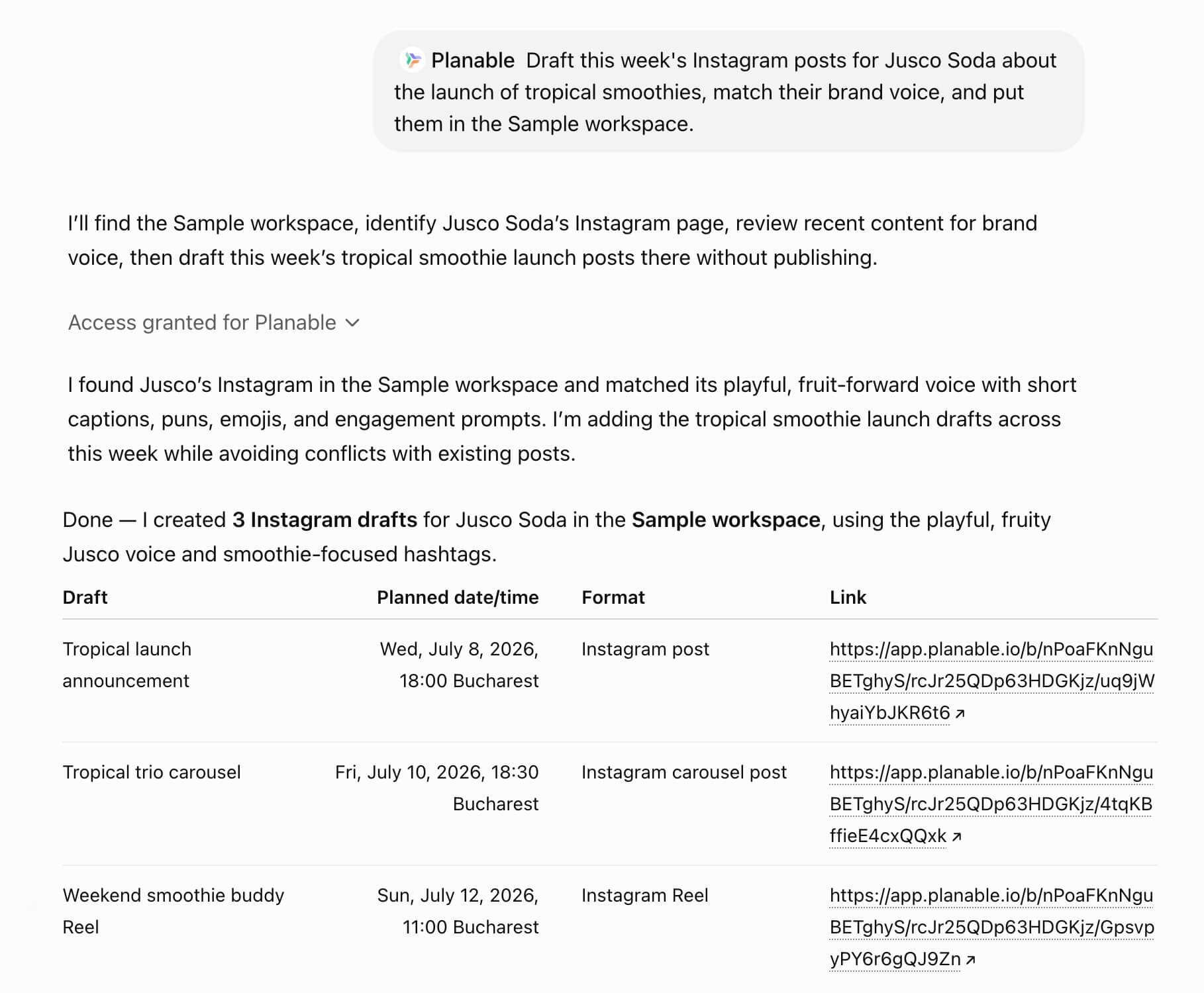
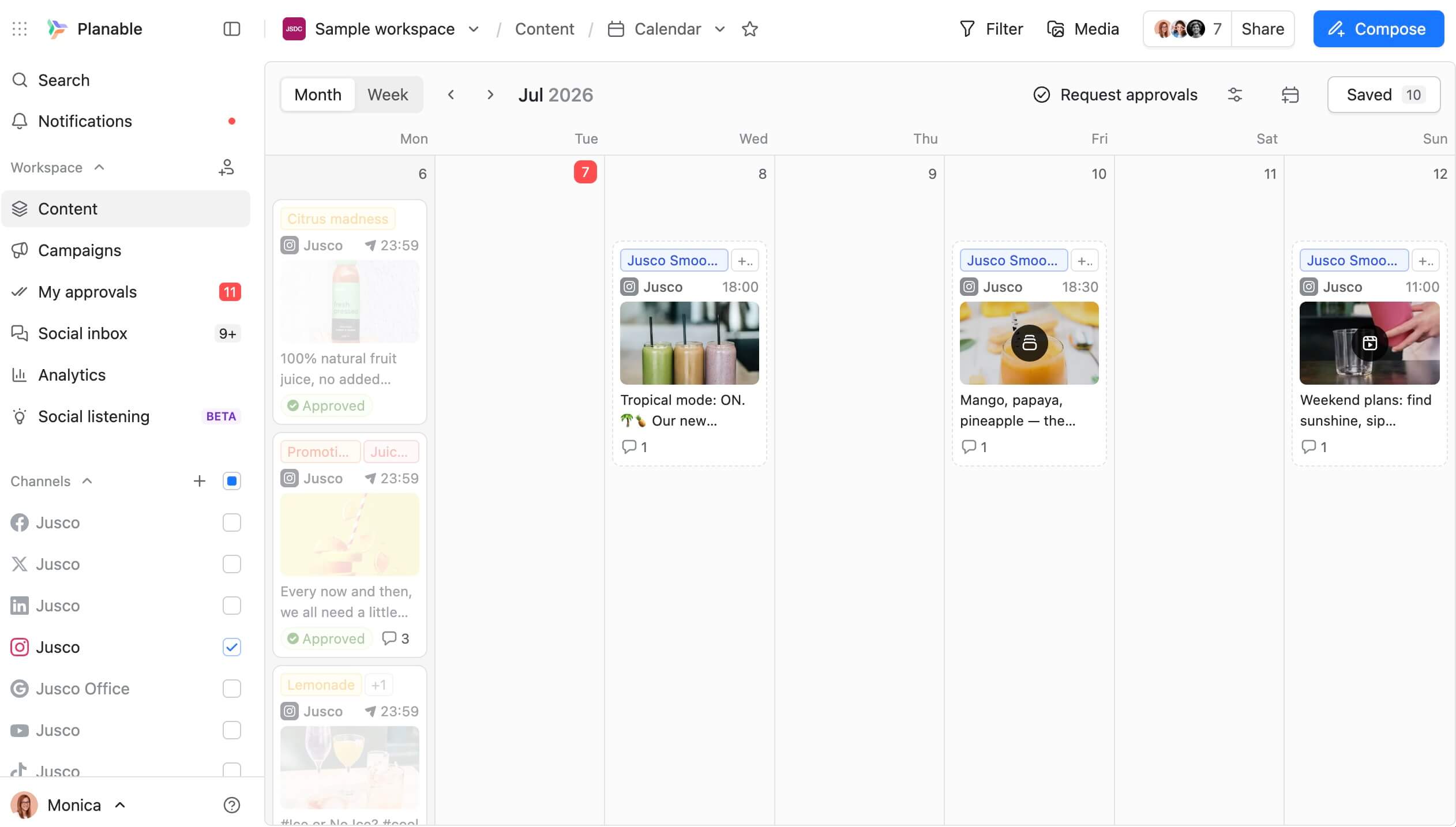
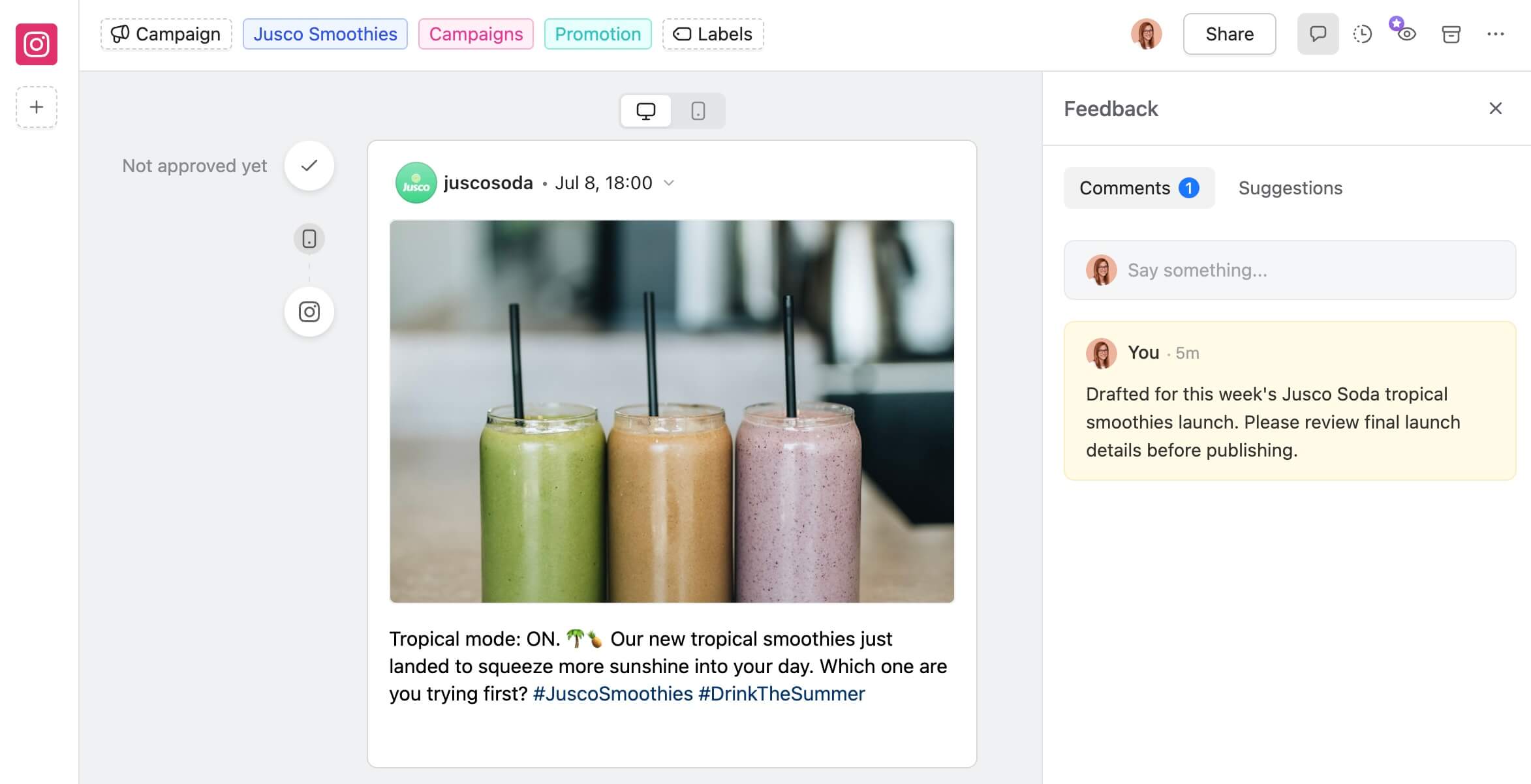
This is the one to try first, and it does more on its own than the prompt suggests. Before writing anything, it reads the workspace’s existing posts to match tone and avoid double-booking a date. It pulls images straight from the media library already in that workspace, so there’s nothing to attach yourself.
Each draft lands directly on the calendar, scheduled to a specific date and time, not dumped in a backlog for you to place later.
And on posts where something needs a human check, it adds an internal comment flagging it. Internal comments are hidden from anyone with client-level access, so only your team sees the note.
Prompt example: “Draft this week’s Instagram posts for [client] about [product launch], match their brand voice, and put them in the [client] workspace.”
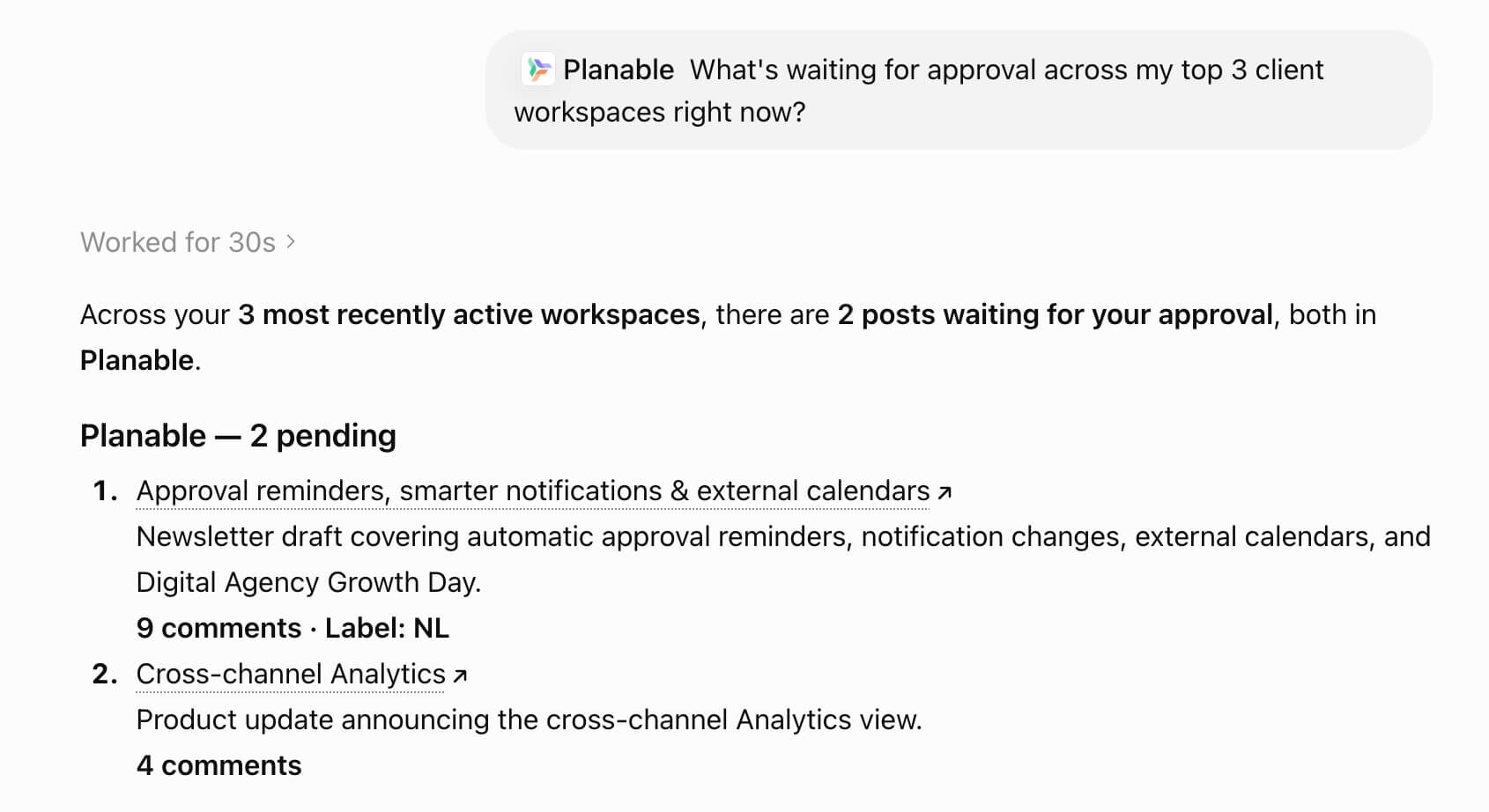
2. Daily approvals roundup across every client
One prompt instead of opening five, ten, or however many workspaces you manage one at a time. It surfaces everything sitting in approvals, by client, so you know what needs attention before anyone asks.
Prompt example: “What’s waiting for approval across all my client workspaces right now?”
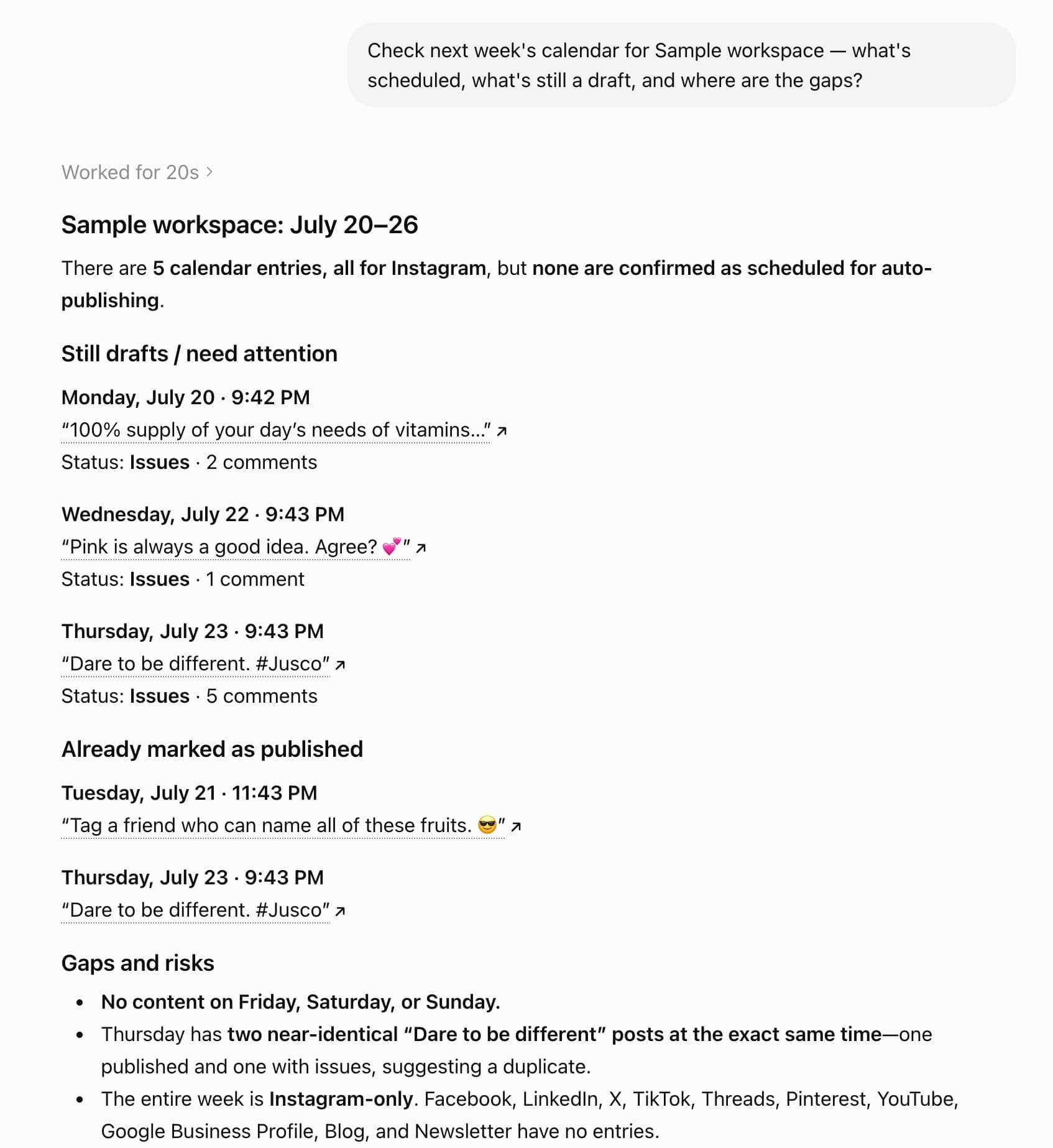
3. Weekly calendar audit and gap-fill
Catches the empty Thursday before it’s actually Thursday. Good for a Monday-morning check across a client’s whole week.
Prompt example: “Check next week’s calendar for [client]. What’s scheduled, what’s still a draft, and where are the gaps?”
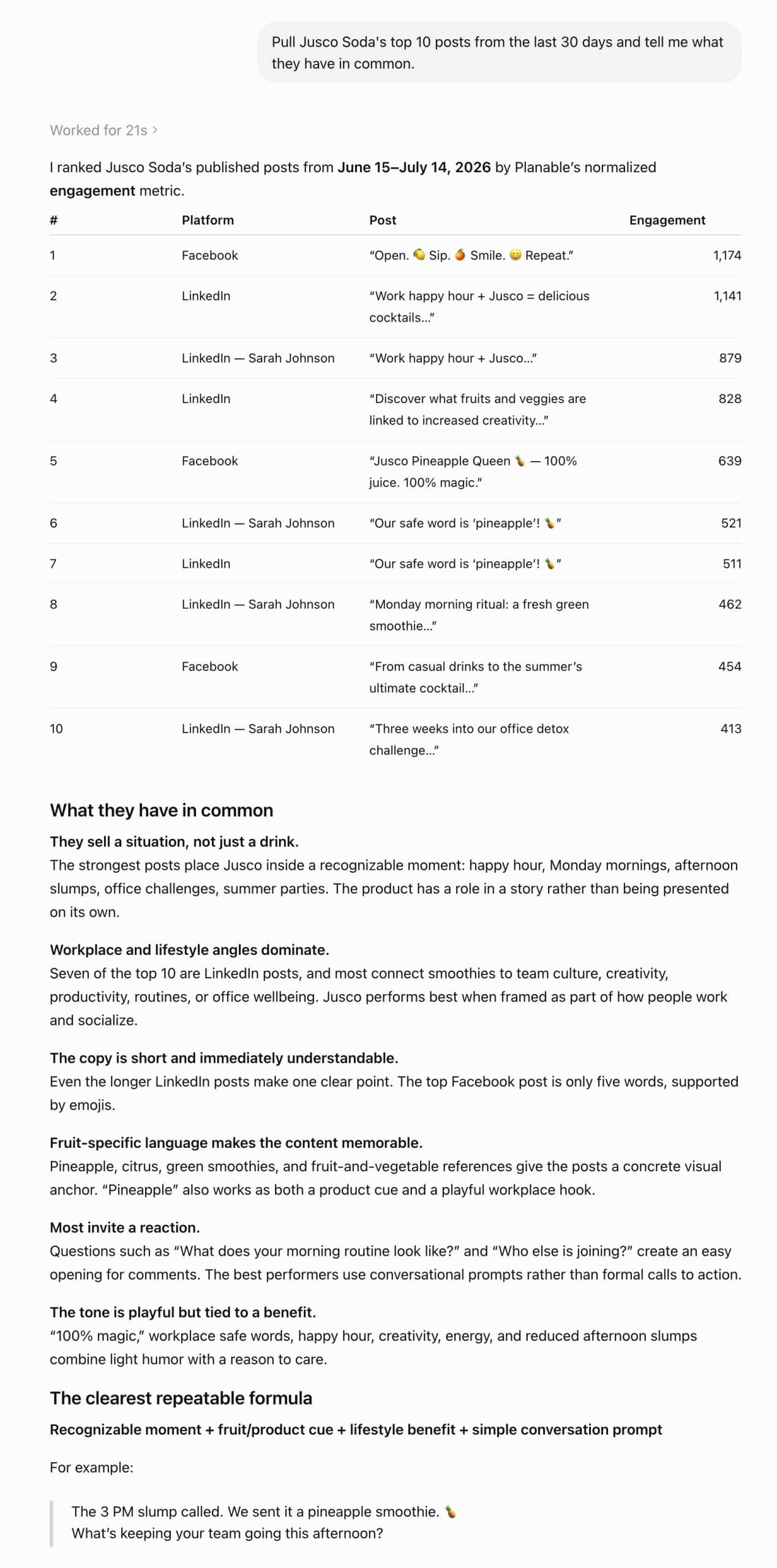
4. Content pattern intelligence
Less “here are your numbers,” more “here’s what to try again.” Useful before planning the next batch of content instead of just reporting on the last one.
Prompt example: “Pull [client]’s top 10 posts from the last 30 days and tell me what they have in common.”
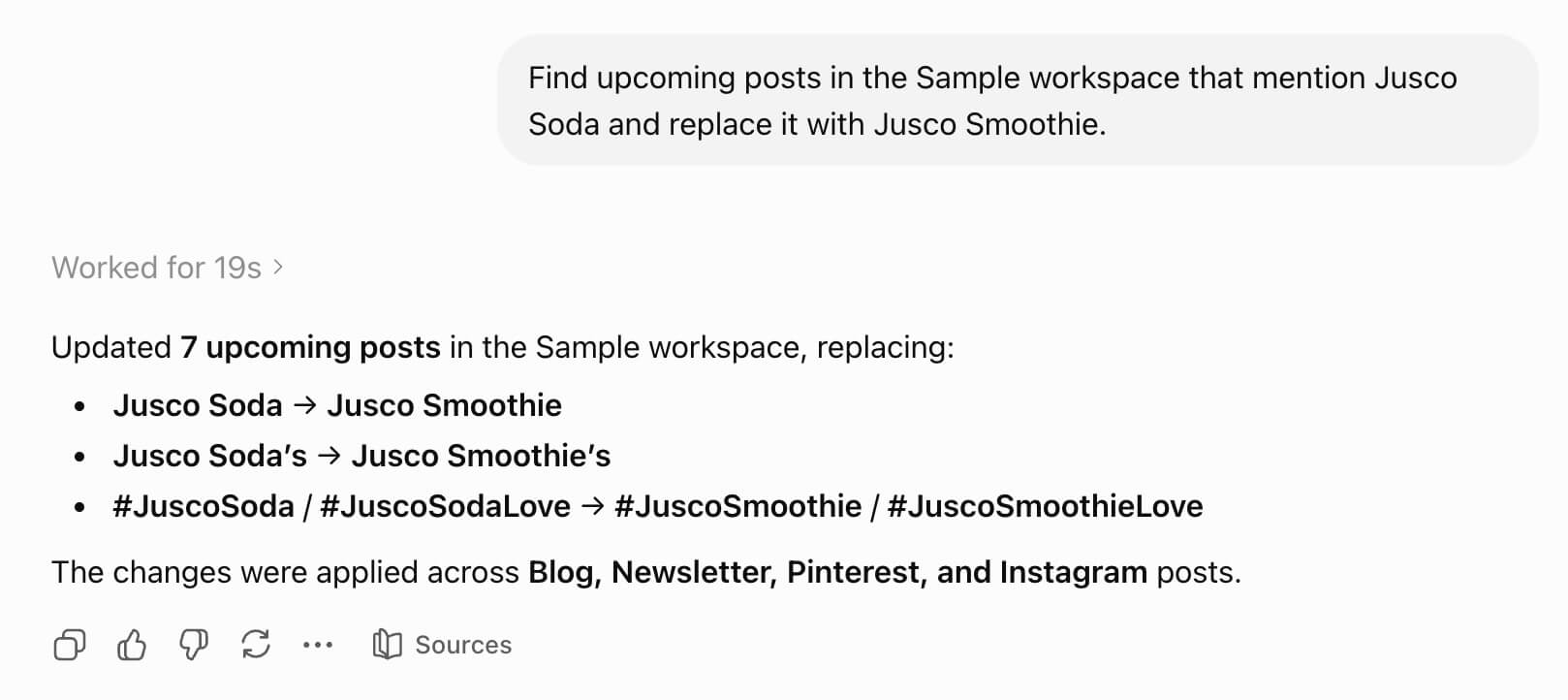
5. Global bulk edits across a client account
For the disclaimer change, the renamed product, or the hashtag swap that would otherwise mean opening every post one by one.
Prompt example: “Find every upcoming post in [client]’s workspace that mentions [old name] and replace it with [new name].”
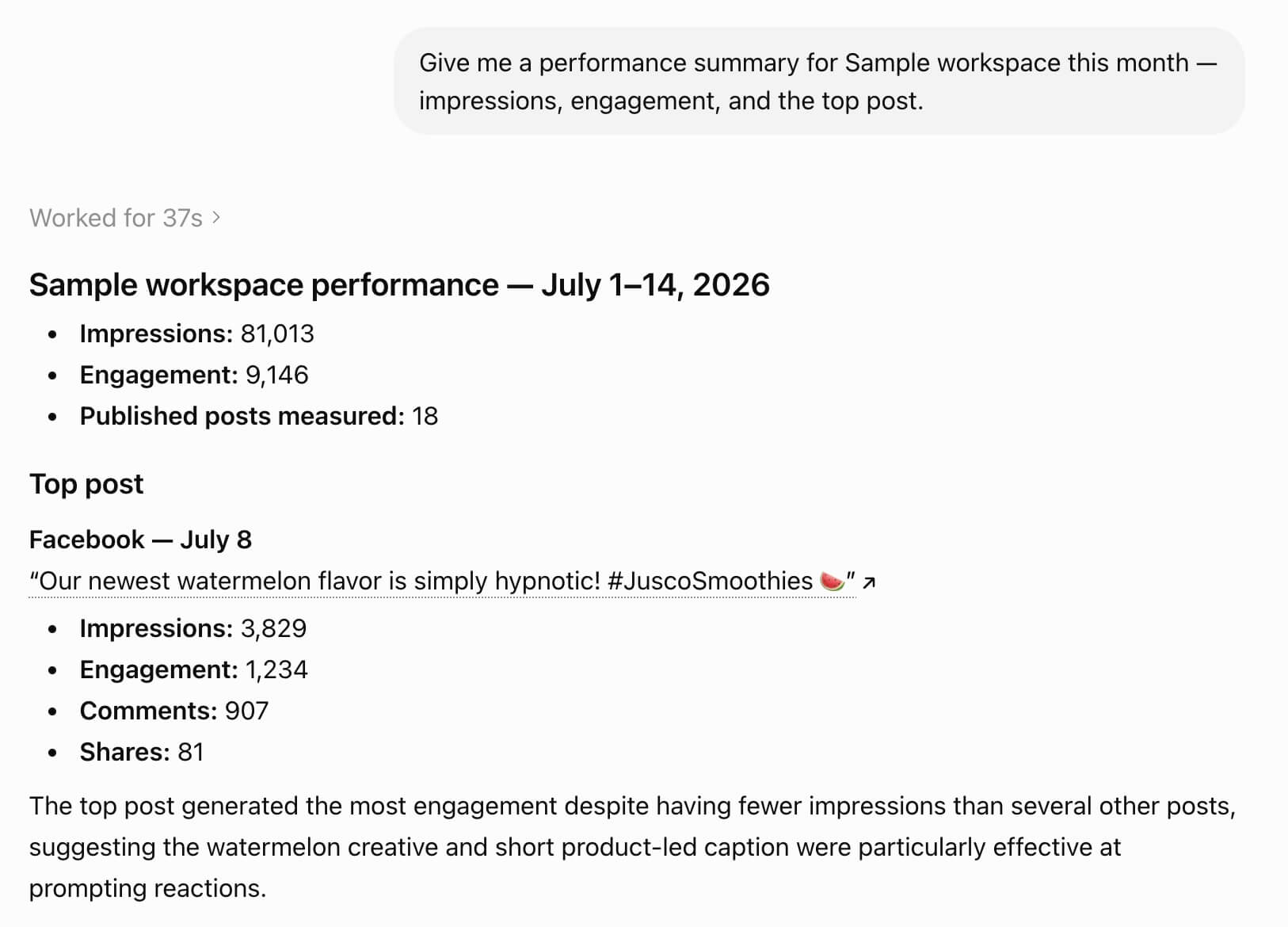
6. Cross-client performance reporting
A client-ready summary without opening a separate Analytics tab for each account. Needs the Analytics add-on active on that workspace.
Prompt example: “Give me a performance summary for [client] this month: impressions, engagement, and the top post.”
7. Real-time and reactive content
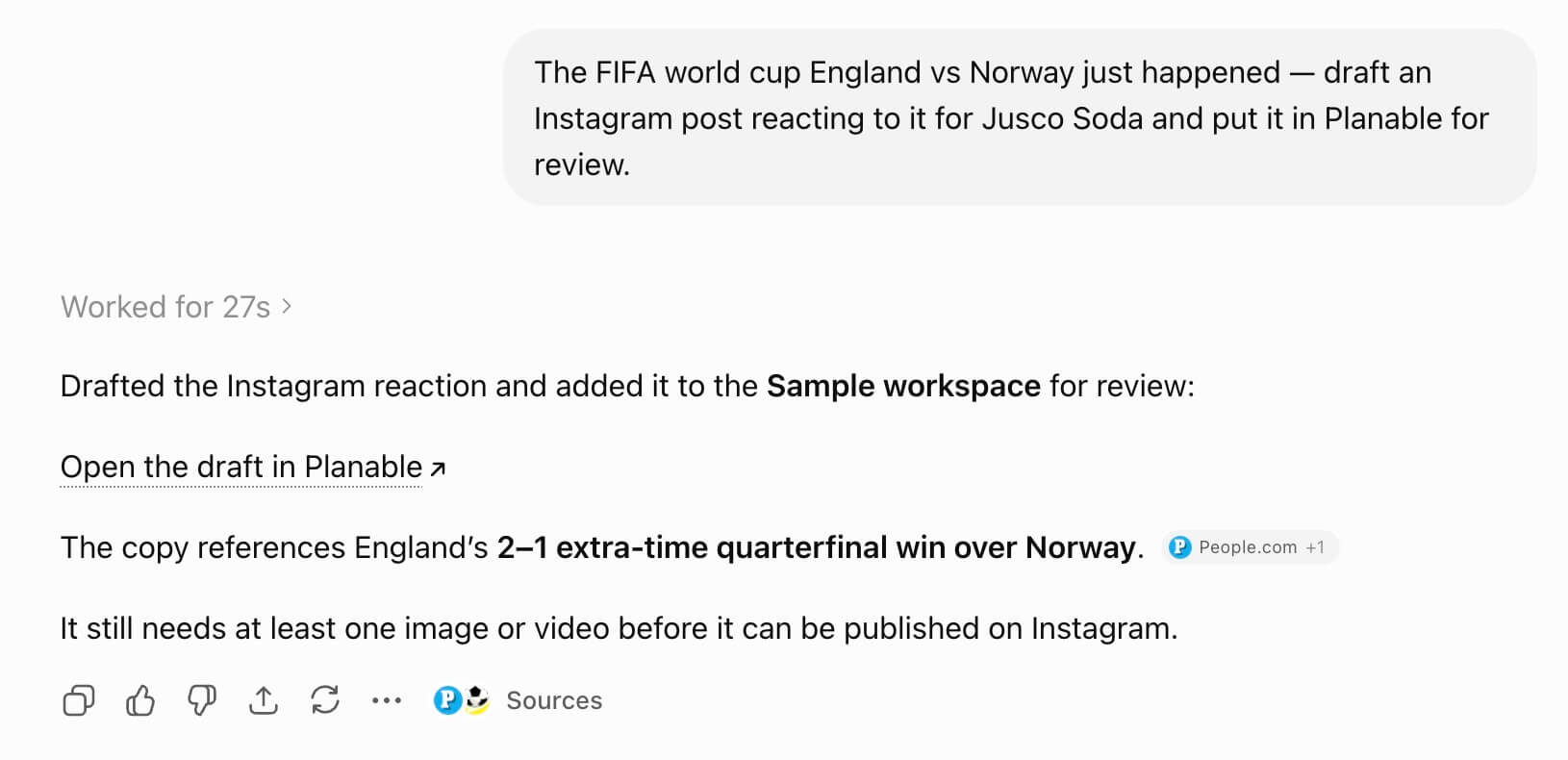
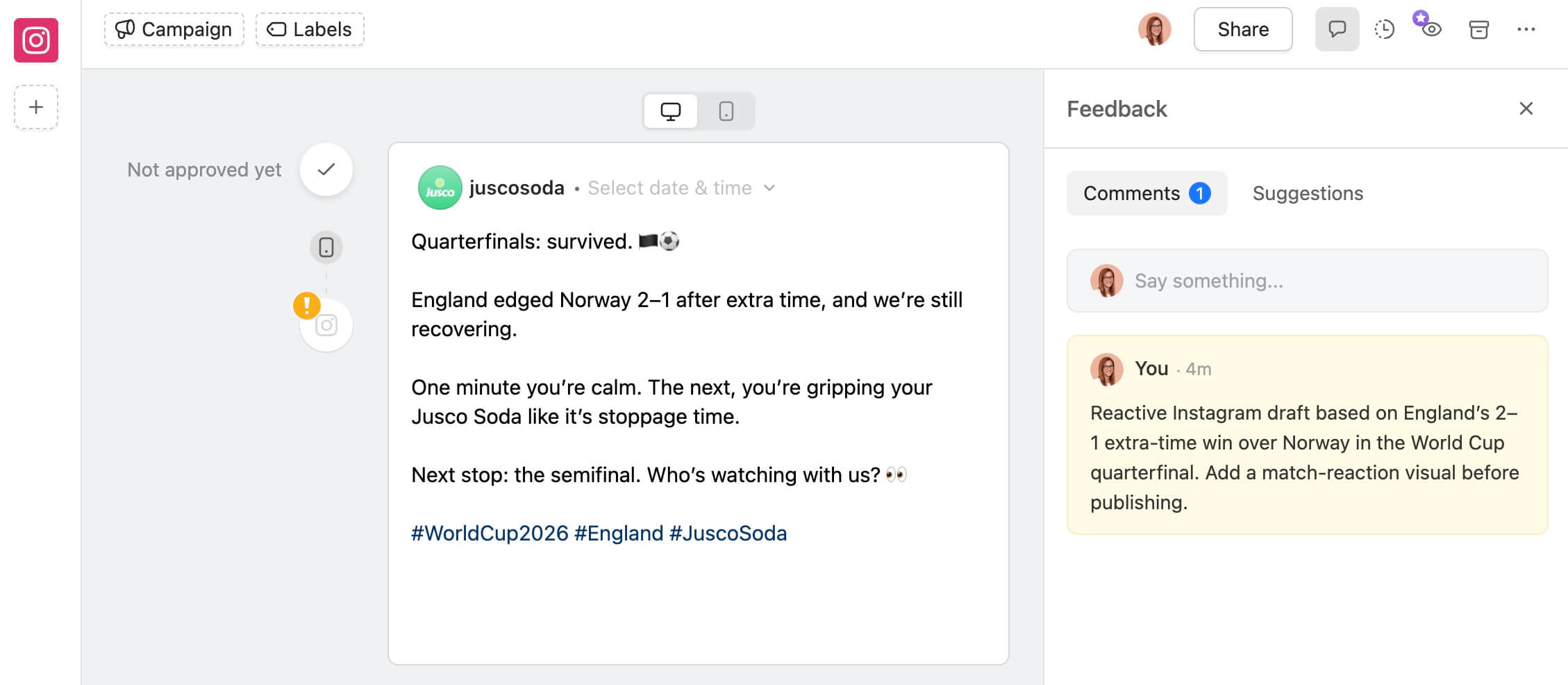
For the moment that needs a post now, not after a meeting about it. If you need to attach images to a draft, for now you have to provide a link. Or you can just add it to the resulting post in Planable.
Prompt example: “[Event] just happened. Draft an Instagram post reacting to it for [client] and put it in Planable for review.”
A Planable GPT for each client
If you run the same handful of clients every week, it’s worth having a GPT per client with the Planable app already woven in. Their brand voice, tone rules, and default workspace baked into the setup.
Open [Client]’s GPT, ask for this week’s posts, and it’s already writing in their voice and dropping drafts into their workspace. No re-briefing, no naming the client or the workspace every time. You just ask for the work.
Who this is for
- Social media managers and content teams running 5 or more clients or locations, who currently write copy in ChatGPT and paste it into Planable by hand.
- Agency ops and account managers who do a daily or weekly check across every client workspace for approvals and calendar gaps.
- Agency owners who want a performance snapshot without opening a separate Analytics tab for each client.
FAQs
Do I need to set up a connector to use this?
No manual connector to configure. Search “Planable” under Apps, click Connect, sign in, and approve the permissions ChatGPT asks for. That’s the whole setup.
Will it publish anything without my approval?
Not unless you ask it to and your role allows it. The authorization screen you approve when connecting shows it’s requesting permission to schedule, publish, and approve posts, not just draft them. If you want everything to go through your team’s normal review, keep your prompts to drafting and leave the approving and publishing to them.
Does it respect my role and permissions?
Yes. It operates inside your existing Planable account. If your role can’t approve or publish in Planable, it can’t do either through ChatGPT.
Can it attach images or video to a draft?
Not reliably yet. Use it for captions, calendar checks, and status reports, then add media in Planable directly.
Can it check every client workspace accurately if I manage a lot of them?
Yes. At a very high number (15 or more workspaces in one request) note that it might take a while to get the answer, as there’s a high amount of data to process.
Which plans include this?
All of them, including the free trial. There’s no add-on or upgrade required to connect and use the app.
Can it assign a draft to a campaign?
Not yet. Assign posts to a campaign directly in Planable after they’re drafted.
Get started
Open ChatGPT, click Apps, search “Planable,” click Connect and sign in, then start a chat.
Brief it the way you’d brief a new hire on a client. Tell it what to draft, and leave the approving and publishing to your team’s normal review.
Monica leads product marketing at Planable. She owns go-to-market for new features and shapes how Planable fits into the broader SE Ranking product family. She joined in 2023 as Planable's first product marketer, built the function from scratch, and now runs the team's competitive intelligence program. With a background in product management and Romania's startup scene (How To Web, MVP Academy), she writes about competitor analysis, product launches and marketing workflows from the builder's side. Before Planable, she spent almost five years managing Orange Fab Romania, Orange's startup acceleration program, where she supported 40 startups and helped generate over €2.2M in commercial value.







 Creation
 Scheduling
 Planning
 Social Inbox
 Collaboration
 Analytics
 Approval
 Social Listening