If your Instagram keeps disconnecting, your scheduler swallows the post and silently fails, your support ticket has been “with the team” for a week, or your monthly bill creeps up every time you add a channel, you’re not the only one running out of patience with...
Redesign For multi-location brands
all your locations, one content flow
For multi-brand companies
content collaboration at scale
For agencies
impress your clients and take on more
“The team loved it from the start. Planable helps us overview the entire marketing efforts.“
Your social media team runs on Planable. Your AI assistant, whether that’s Claude, ChatGPT, or Gemini, runs alongside it. Useful for brainstorming and writing, but disconnected from where the actual work lives: your client workspaces, your content calendar, your approval queues.
The Planable MCP connector closes that gap. It gives any compatible AI tool direct, authorized access to your Planable account. Instead of copying briefs into a chat window and pasting copy back into the platform, you describe what you need and the AI acts on your real account data.
This article explains what MCP is, exactly what actions the Planable connector enables, which AI tools support it, and how to set it up in a few minutes.
What is MCP, and why does it matter?
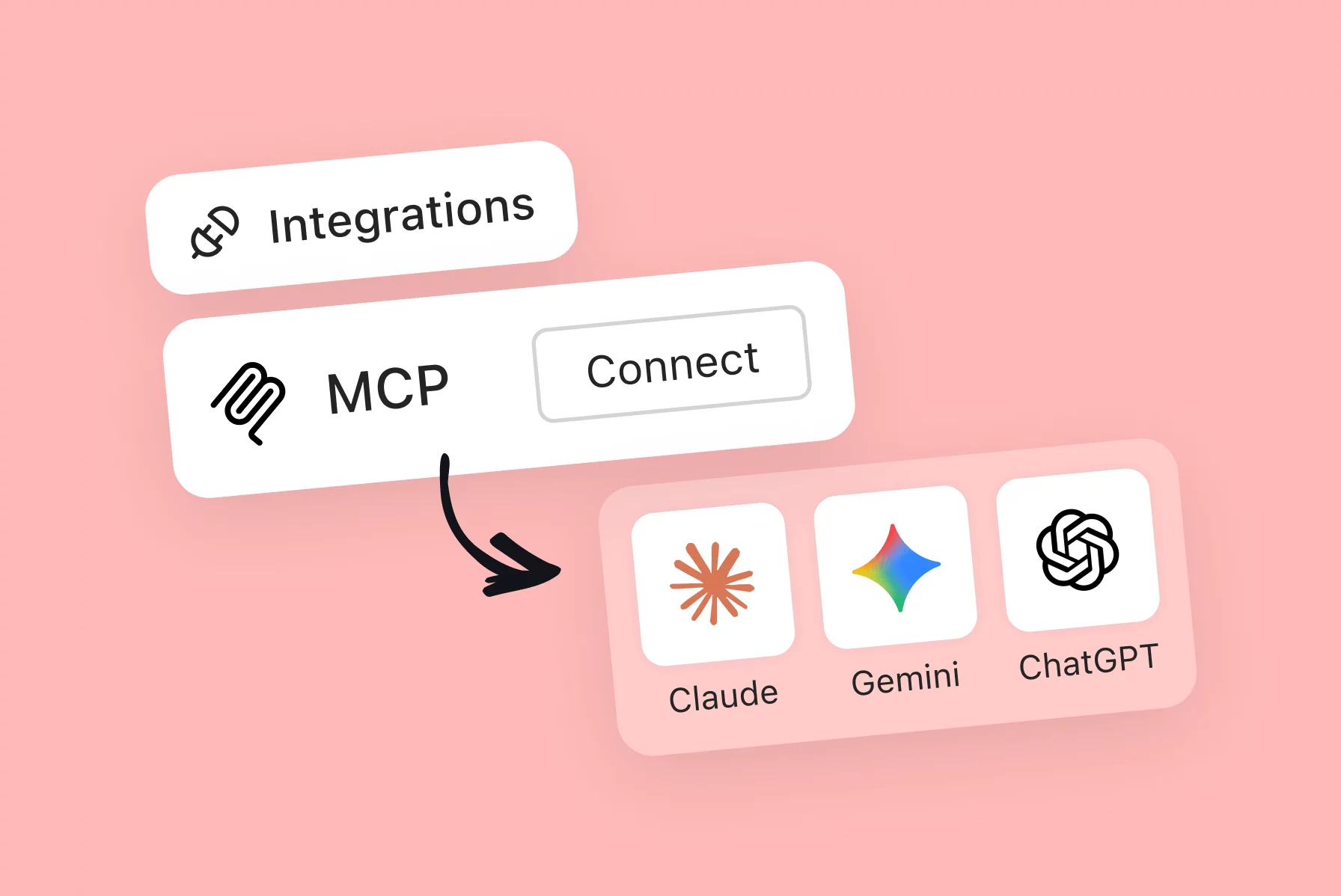
MCP stands for Model Context Protocol. It’s an open standard, originally developed by Anthropic and now adopted across the AI industry, that gives AI tools a consistent way to connect to external applications.
Before MCP, every AI-to-app integration was a custom build: a different API contract, a different authentication flow, a different set of limitations for each pairing. MCP replaces that with a shared protocol. An app publishes a single MCP server that describes what it can do. Any AI tool that speaks MCP can connect to it.
For you, this means two practical things:
One connection, any compatible tool. Connect Planable once. Whether you use Claude, ChatGPT, or Gemini, the connector works the same way.
Real actions, not just answers. The AI isn’t searching its training data for information about Planable. It’s reading your live account, creating actual drafts, and moving posts through your real approval workflow.
What the Planable MCP connector does
Once you authorize the connection, your AI tool gains read and write access to your Planable account. Here’s the full breakdown of what it can do.
Browse your account structure
Your AI can navigate the full shape of your Planable account without you needing to specify IDs or open the app.
List all companies and workspaces you belong to
Check which add-ons (Analytics, Social Inbox) are active on each workspace
See all social pages connected within any workspace
List workspace members and their roles
List available post labels
Get post counts per workspace for a quick snapshot of what’s in flight
Read and review content
Your AI can read your content calendar, inspect individual posts, and surface comments and feedback, giving you a full picture without switching tabs.
List posts in any workspace, filterable by status (scheduled, draft, published, errors), approval state, and date range
Read the full content of individual posts: text, media, labels, approval history
Read internal team notes and external client comments on any post
Surface posts going live without approval, posts with publishing errors, or drafts with no scheduled date
Create and edit content
Your AI creates content directly in Planable as drafts. You retain control over what gets approved and published.
Create a draft post on a single platform page
Create a synced group post across multiple platforms at once (for example, LinkedIn, Instagram, and Facebook in one go, all kept in sync)
Attach media via public URL (up to 10 items per post), or upload directly to the workspace media library
Add a first comment on platforms that support it (Instagram, for example)
Add internal team notes directly on a post at the time of creation
Create new labels for the workspace
Handle approvals
Your AI can move posts through your approval workflow without you opening each workspace individually.
Approve posts, including multi-level approval flows
Reject and disapprove posts that need revisions
Leave internal notes or public-facing comments to explain feedback
Work with the media library
List all media assets in the workspace library
Get details on any media item: type, dimensions, processing status
Upload new media to the library from a public URL
Pull analytics
Your AI can pull live performance data from Planable and use it to build reports, identify patterns, or compare client results, all through conversation.
Get per-page metrics: audience size, impressions, engagement, engagement rate, and platform-specific data (Instagram reach, TikTok profile views, etc.)
Get aggregated metrics across all pages in a workspace
Get per-post metrics: impressions, views, likes, comments, shares
Get aggregated post-level summaries
Trigger a metrics refresh from source platforms before pulling a report
Analytics access requires the Analytics add-on on the relevant workspace. Your AI will check whether it’s active before attempting any analytics calls.
Which AI tools support it
The Planable MCP connector works with any MCP-compatible AI tool. Currently that includes:
Claude (Anthropic) — Desktop and web
ChatGPT (OpenAI)
Gemini (Google)
MCP adoption is growing fast. More tools are adding support, so this list will expand. If your preferred tool supports MCP server connections, try connecting it using the Planable MCP server URL from the help center guide.
What your AI can and can’t do
It inherits your permissions, nothing more. Your AI tool acts as an extension of your Planable account. If your role doesn’t include approve permissions on a workspace, the AI can’t approve posts there. If the Analytics add-on isn’t active, analytics calls on that workspace will fail. Plan limits, workspace roles, and company-level access all apply in full.
It creates drafts, not published posts. Content created by the AI lands in Planable as a draft. It goes through your normal approval and scheduling workflow before anything goes live. The AI does not bypass that process.
It can approve posts, but only where your account has the permission to do so. Approval remains a human-controlled step.
It cannot change account settings, billing, workspace configurations, or anything requiring admin access outside your own account.
How to connect
The setup process is the same across all supported AI tools and takes a few minutes.
Open your AI tool and go to its connector or integrations settings
Add the Planable MCP server URL as a new custom connector
Find Planable in the connector list and click Connect
4. Log in with your Planable account to authorize the connection
Once authorized, your AI has live access to your Planable workspaces.
Managing your connection
You stay in control of the connection at all times.
View active permissions — see exactly what your AI tool can access in Planable
Revoke access — disconnect the AI tool instantly from your Planable account settings
Session and authorization details:
Connections expire after 8 hours of inactivity and refresh automatically
Your authorization is valid for 180 days — after that, reconnect
Each team member connects using their own Planable account. Connections are individual: the AI inherits that person’s permissions, not a shared set
Who gets the most out of it
The Planable MCP connector delivers the most value for teams managing content across multiple clients or brand locations, not single-workspace users with straightforward scheduling needs.
The workflows where it pays off most:
Approval management at scale — reviewing and acting on approval queues across 10+ client workspaces without opening Planable once
Recurring client reporting — pulling analytics and building reports through conversation instead of manual platform exports
High-volume content creation — briefing the AI once on a batch of posts and having them land directly in Planable as drafts, ready for review
Pre-publish calendar QA — asking the AI to scan the upcoming schedule for gaps, missing approvals, or publishing errors before anything goes live
If you’re a social media manager, operations lead, or agency head dealing with the coordination overhead of multi-client work, this is where the Planable MCP connector earns its place.
FAQs
What is MCP?
MCP (Model Context Protocol) is an open standard that defines how AI tools connect to external applications. It gives tools like Claude, ChatGPT, and Gemini a shared protocol for interacting with apps like Planable: reading data, taking actions, and working with live account information rather than relying on training data.
Is the Planable MCP connector free?
The connector is included with Planable, and there’s no separate charge for connecting your AI tool. You’ll need an active Planable account. Some capabilities (such as analytics) require the relevant add-on on your workspace.
Do I need a paid Planable plan?
The connector is available on all Planable paid plans. Analytics access requires the Analytics add-on.
Which AI tools can I connect Planable to?
Currently: Claude (Anthropic), ChatGPT (OpenAI), and Gemini (Google). Any MCP-compatible AI tool can connect. The list will expand as more tools adopt the MCP standard.
Can the AI publish posts directly?
No. The AI creates posts as drafts in Planable. Publishing requires going through your normal approval and scheduling workflow. This is intentional, your team stays in control of what goes live.
Can the AI approve posts on my behalf?
Yes, if your Planable account has approve permissions on the relevant workspace. The AI acts as an extension of your account and can only approve posts you could approve yourself.
What data does the AI access?
The AI can access the workspaces, posts, comments, media, and analytics data that your Planable account has permission to view. It cannot access workspaces you’re not a member of.
Is my data safe?
The connection uses your authorized credentials. You control what access is granted, and you can revoke it instantly from your Planable account settings. The AI only reads or writes data when you actively request it in a conversation. Planable’s standard data security and privacy practices apply.
How long does the connection stay active?
Connections expire after 8 hours of inactivity and refresh automatically. Authorization is valid for 180 days. After that, you’ll need to reconnect.
Can multiple team members connect their own AI tools?
Yes. Each team member connects using their own Planable account. Connections are individual:. The AI inherits that person’s permissions and workspace access, not a shared set.
Monica leads product marketing at Planable. She owns go-to-market for new features and shapes how Planable fits into the broader SE Ranking product family. She joined in 2023 as Planable's first product marketer, built the function from scratch, and now runs the team's competitive intelligence program. With a background in product management and Romania's startup scene (How To Web, MVP Academy), she writes about competitor analysis, product launches and marketing workflows from the builder's side. Before Planable, she spent almost five years managing Orange Fab Romania, Orange's startup acceleration program, where she supported 40 startups and helped generate over €2.2M in commercial value.







 Creation
 Scheduling
 Planning
 Social Inbox
 Collaboration
 Analytics
 Approval
 Social Listening