The chart dips, and many social media sentiment analysis tools stop right there: the reply happens in another inbox, and the client or location report gets rebuilt by hand somewhere else. Scoring the mood is the easy part of social media sentiment analysis. The...
Redesign For multi-location brands
all your locations, one content flow
For multi-brand companies
content collaboration at scale
For agencies
impress your clients and take on more
“The team loved it from the start. Planable helps us overview the entire marketing efforts.“
When you manage content for multiple clients or brands, the biggest operational risk is mixing workstreams. A clear workspace structure prevents the two things that break scale fast: visibility leaks (clients seeing the wrong things) and workflow drifts (one client’s process getting mixed up with another’s).
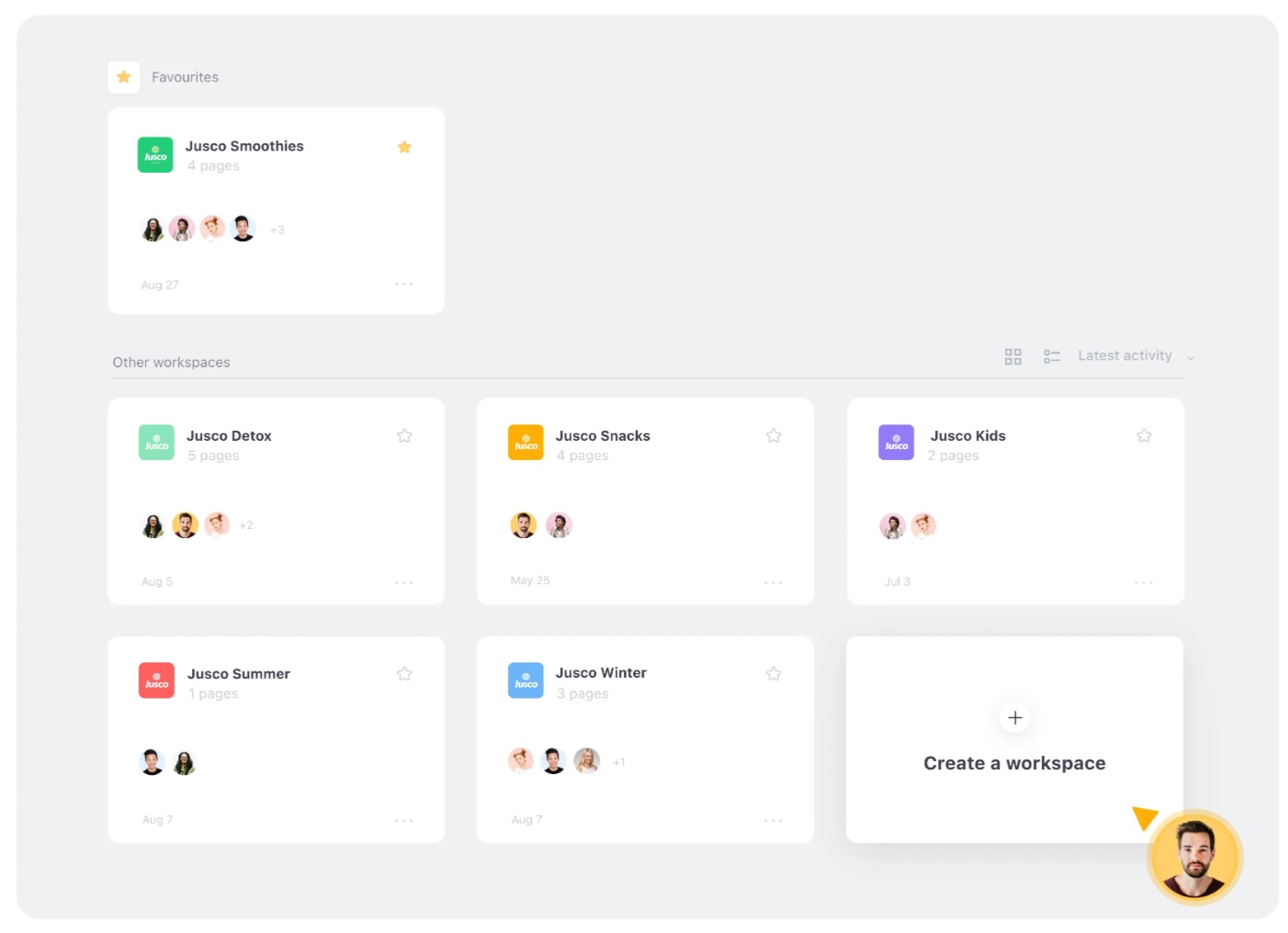
In Planable, a workspace is a self-contained environment for one client or one brand. Everything for that client lives inside that workspace:
Connected social pages
Content calendar and posts
Team members and client members
Approval rules and publishing safeguards
Labels, templates, and timetable presets
Analytics access (by permission)
Nothing from another client “bleeds in,” because settings and access are workspace-specific.
Recommended structure: one workspace per client or brand
Rule of thumb: if the audience, stakeholders, or approval process differs, use a separate workspace.
Why it matters
Clean client access: a client who logs in only sees their own workspace.
Different permissions per client: the same person can have different roles and permissions across workspaces.
Different workflows per client: approvals, defaults, labels, templates, and timetable can be tailored per client without affecting others.
Social pages per workspace
The number of social pages you can connect depends on your plan: up to 10 pages per workspace on Pro and up to 4 on Basic.
Enterprise: page limits are custom and can include more pages, with pricing discussed during negotiations.
Within a workspace, you can connect any mix of pages (multiple pages from the same social network and/or pages across different networks). The only limit is the total page cap for your plan.
What’s inside a workspace
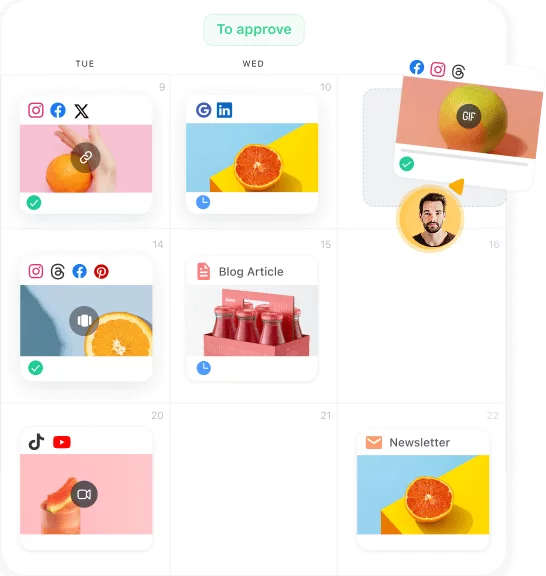
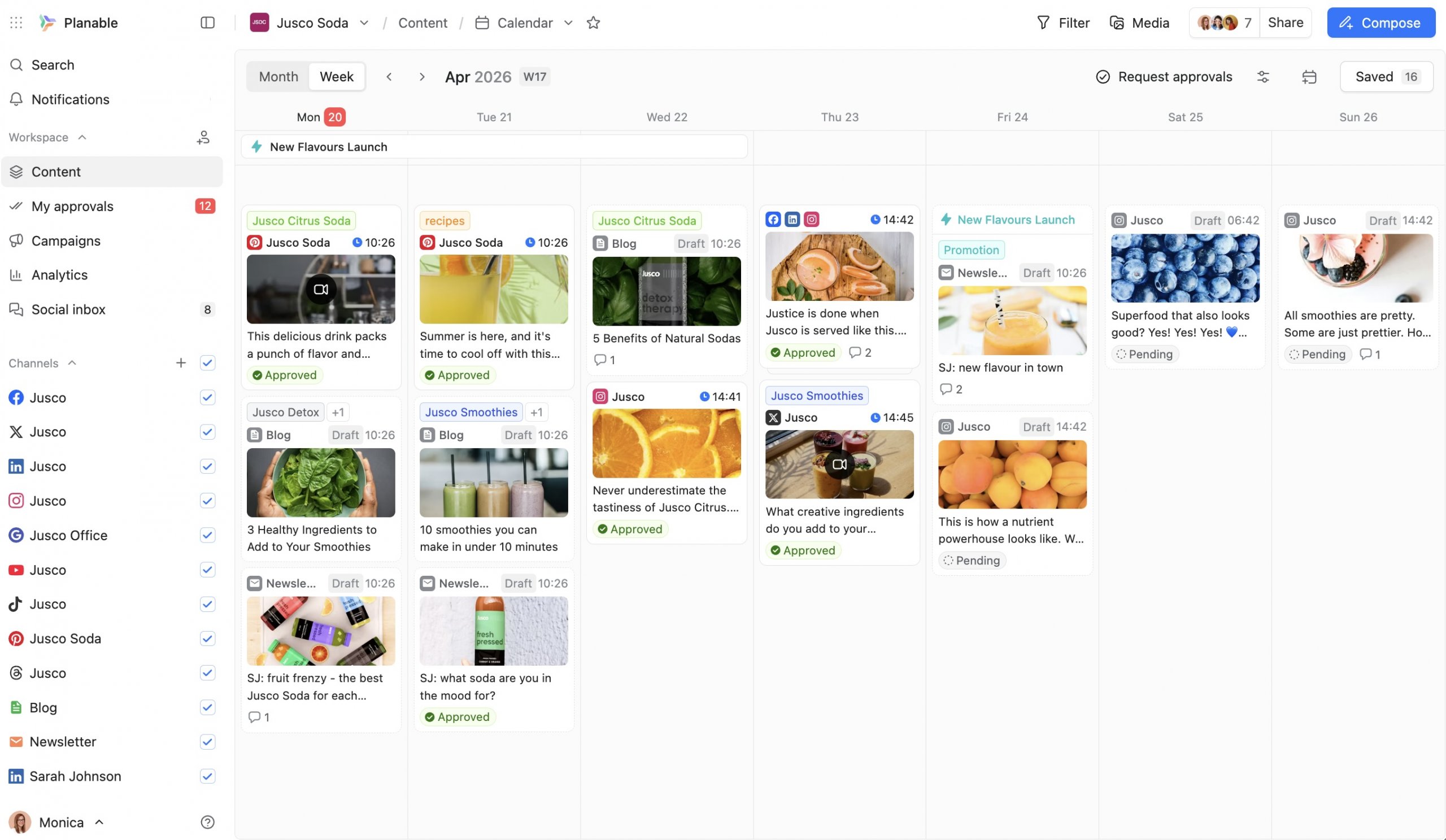
Content calendar with all posts across connected pages, with month and week views
Approval status on every post so you can quickly see what’s approved, pending, or in draft
In-context collaboration with comments directly on the content (not in a separate channel)
Shared media library for assets tied to that client
Workspace analytics for the pages connected to that workspace
Social inbox to manage messages and comments from one place
What you can configure inside each workspace
Workspace settings are accessible under the workspace name (top-left). Settings are grouped into six areas:
General settings
Team & clients
Approvals
Templates
Labels
Timetable
Everything here is independent per workspace.
General settings: name, timezone, and default post visibility
General settings cover:
Workspace name
Timezone
A toggle to create new posts as internal by default
Why timezone is not “just admin”
If you manage clients in different regions, aligning the workspace timezone to the client’s local time ensures scheduling matches their expectations. A post scheduled for 9:00 AM publishes at 9:00 AM in their market, not yours.
When to enable “create new posts as internal”
Turn it on when your default workflow includes drafts that should stay invisible to clients until your team is ready to share.
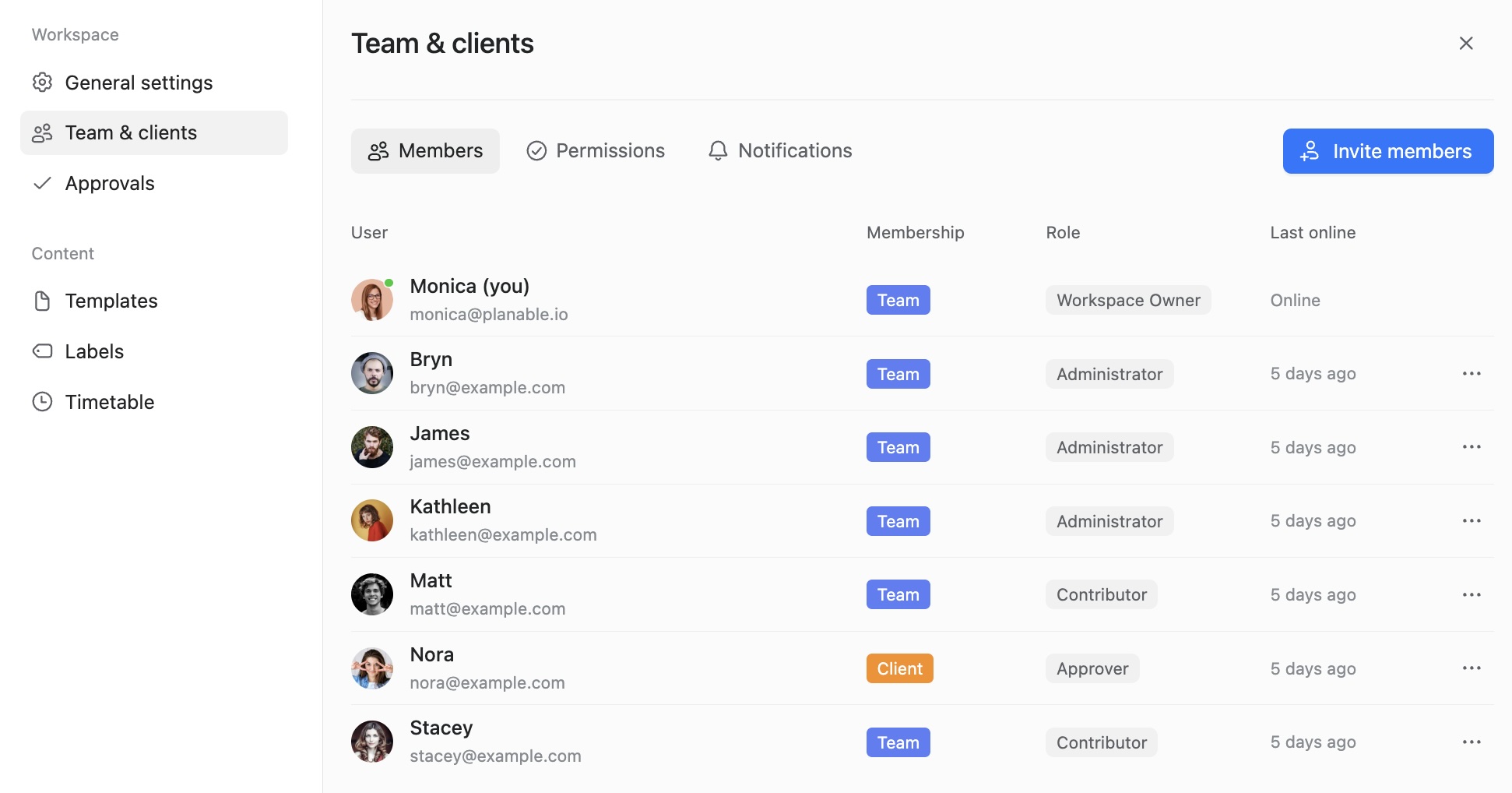
Team & clients: who’s in the workspace and what they can do
Every workspace has its own member list and access rules. The same person can be in multiple workspaces with different permissions.
Team members vs client members
Everyone in a workspace is either:
Team member: sees everything, including internal notes, internal comments, and drafts not shared with clients
Client member: sees only external-facing content and comments
This enables real collaboration without exposing internal working context to clients.
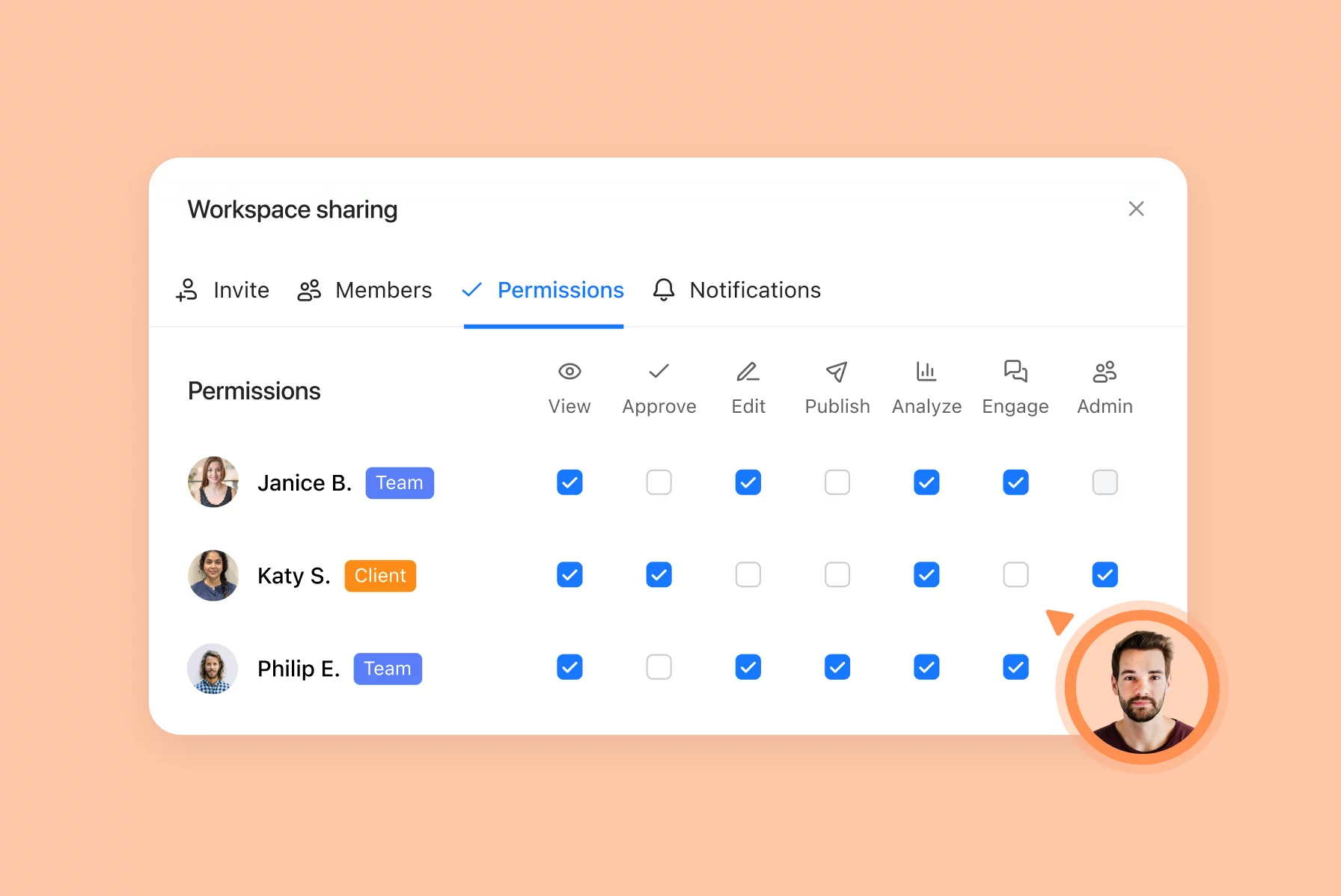
Roles: a baseline for capabilities
When inviting someone, you assign a role that sets a default permission baseline:
Notification control: per workspace, per person, per channel
Notifications are configured per workspace per person under Team & clients → Notifications. You can toggle notifications* for:
Post updates
Approvals
Conversations
Social Inbox activity
This helps avoid noise (clients don’t need internal chatter) while keeping the right people alerted (community managers do need Inbox updates).
*These settings apply to all email, browser, and Slack notifications sent. Each user can further manage their preferred communication channels from their own Personal settings.
Approvals are configured per workspace, so each client can have the review rigor they require.
Approval modes
None: approvals disabled; content can be published without sign-off
Optional: approvals enabled but not required for publishing
Required (Pro): at least one approval is required before publishing
Multi-level (Enterprise): two or more approvals required before publishing
You can also configure:
Who is allowed to approve (per team member toggle)
Schedule posts automatically on approval (approved posts go directly to the scheduled queue)
Lock content after approval (prevents edits unless approval is reset)
Automatic reminders for pending approvals (nudges when posts are awaiting sign-off)
Why this matters operationally
Different clients demand different safeguards. A flexible approval model lets you standardize your agency workflow while keeping each client’s compliance needs intact.
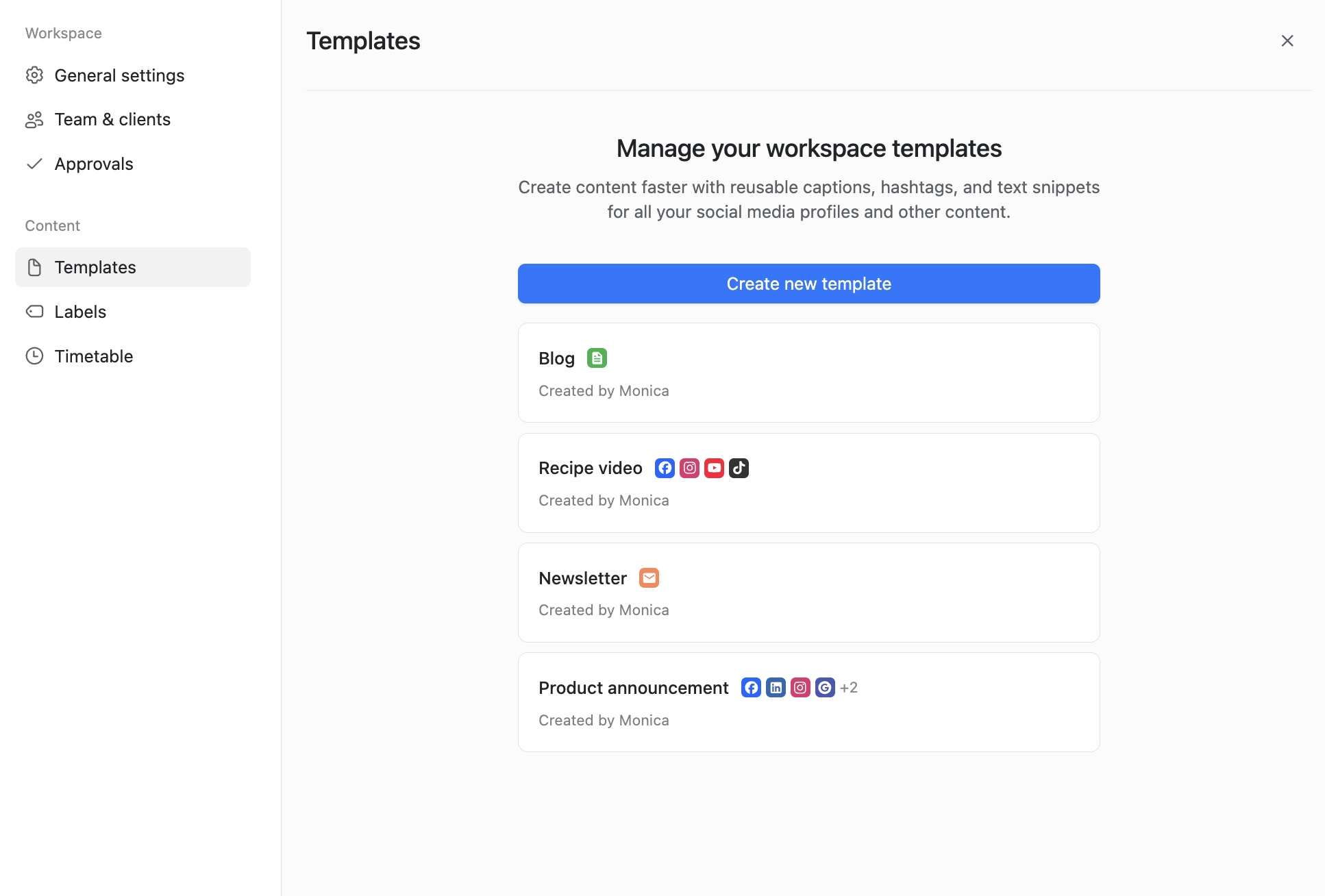
Templates: reusable post structures for faster creation
Templates store reusable building blocks such as:
Caption formats
Hashtag sets
Text snippets
Templates are per workspace, so client-specific tone and formats stay isolated.
Labels: color-coded organization across the calendar
Labels are color-coded tags you apply to posts to make the calendar readable at a glance.
Use labels for:
Campaigns
Content types
Product lines
Owners or responsible teams
Status or stage (draft, ready for review, approved)
Labels are per workspace, so meanings don’t carry across clients.
Timetable: preferred publishing times as one-click scheduling
The timetable lets you define preferred posting times by day of week for the workspace. Those times appear as quick-select scheduling options.
Best for
Accounts with a stable cadence (e.g., Monday evenings, Tuesday mid-day, Thursday evening)
Teams who want consistency without relying on memory or manual time entry
FAQs
What is a workspace in Planable?
A workspace is a self-contained environment for one client or brand. It includes that client’s social pages, content calendar, members, approvals, and settings, separated from other workspaces.
How many workspaces can I have?
It depends on your Planable plan. Each workspace can hold up to 10 social media pages, with 7–8 recommended for best performance.
Can the same person be in multiple workspaces?
Yes. The same person can have different roles and permissions in each workspace.
How many social pages can I connect per workspace?
Basic supports up to 4 pages per workspace, Pro supports up to 10, and Enterprise limits are custom (more pages available with negotiated pricing).
Can I connect multiple pages from the same social network?
Yes. You can connect multiple pages from the same network and/or across different networks—up to your plan’s total page limit.
What’s the difference between Team and Client membership?
Team members can see internal drafts, notes, and internal comments. Client members only see external-facing content and comments.
Can I control permissions beyond roles?
Yes. You can toggle View, Approve, Edit, Publish, Analyze, Engage, and Admin permissions per person.
Can approval requirements differ per client?
Yes. Approval modes and approval options are configured per workspace.
What is the timetable used for?
The timetable defines preferred posting times by day. Those times appear as quick-select options when scheduling posts.
Can clients be invited via a link?
Yes. Admins can create invite links with predefined access. Links expire after 7 days and can be revoked.
Can I transfer ownership of a workspace?
Yes. The current owner can transfer ownership to another member from Members settings. This action is irreversible.
What happens if I remove a workspace?
Removing a workspace deletes all workspace data (posts, comments, pages, and more). This action is irreversible.
Monica leads product marketing at Planable. She owns go-to-market for new features and shapes how Planable fits into the broader SE Ranking product family. She joined in 2023 as Planable's first product marketer, built the function from scratch, and now runs the team's competitive intelligence program. With a background in product management and Romania's startup scene (How To Web, MVP Academy), she writes about competitor analysis, product launches and marketing workflows from the builder's side. Before Planable, she spent almost five years managing Orange Fab Romania, Orange's startup acceleration program, where she supported 40 startups and helped generate over €2.2M in commercial value.







 Creation
 Scheduling
 Planning
 Social Inbox
 Collaboration
 Analytics
 Approval
 Social Listening