Google and AI search engines love companies with strong omni-channel visibility, and Semrush’s tool suite seems to make that possible. If you use Semrush for AI, organic, and paid search strategies, it probably makes sense to upgrade to its Social Media Toolkit too. I...
Redesign For multi-location brands
all your locations, one content flow
For multi-brand companies
content collaboration at scale
For agencies
impress your clients and take on more
“The team loved it from the start. Planable helps us overview the entire marketing efforts.“
Draft lives in a tool (Planable, docs, spreadsheets).
Feedback arrives in email.
Revisions happen in DMs.
Approval gets lost, and nobody is sure which version was signed off.
Planable keeps the draft, feedback, discussion, suggested edits, and approval in one workflow, so the approved version is clear. It also separates team-only collaboration from client-visible review inside the same workspace.
Collaboration basics: what happens on every post
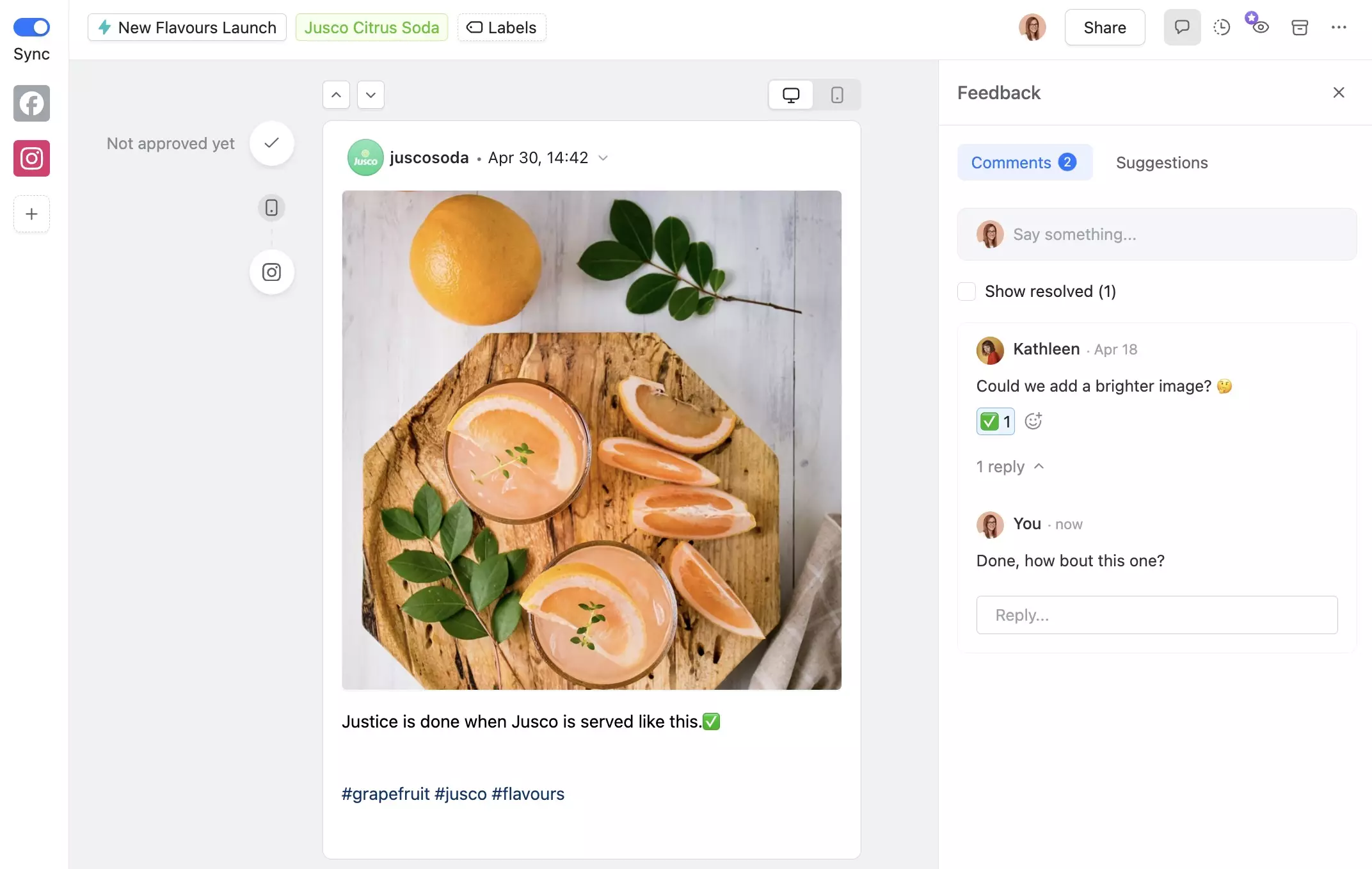
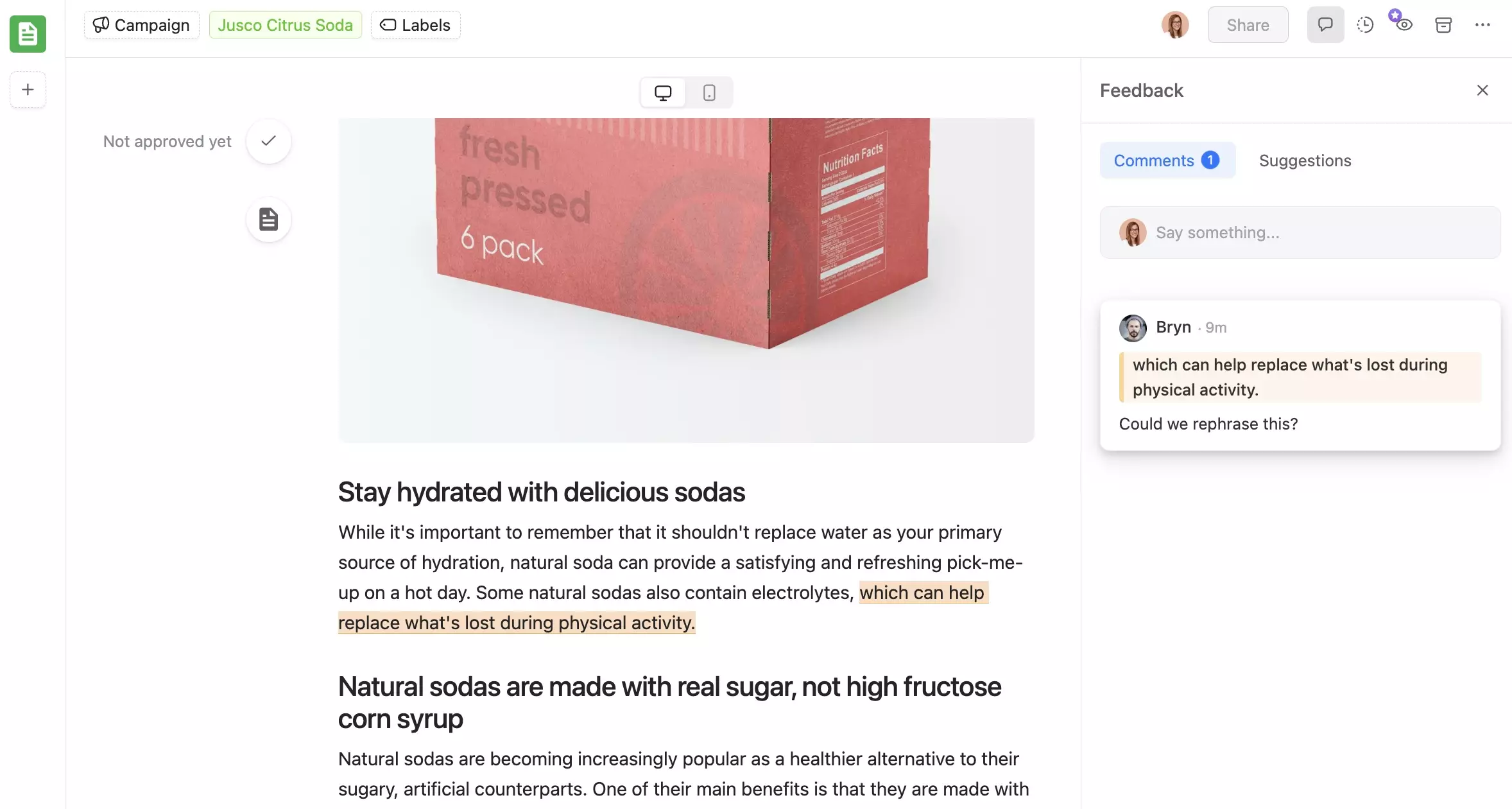
Each post in Planable includes a feedback panel alongside the content. This is where review happens, without moving the conversation to email or chat.
Comments (general feedback)
Use comments for feedback that applies to the post overall.
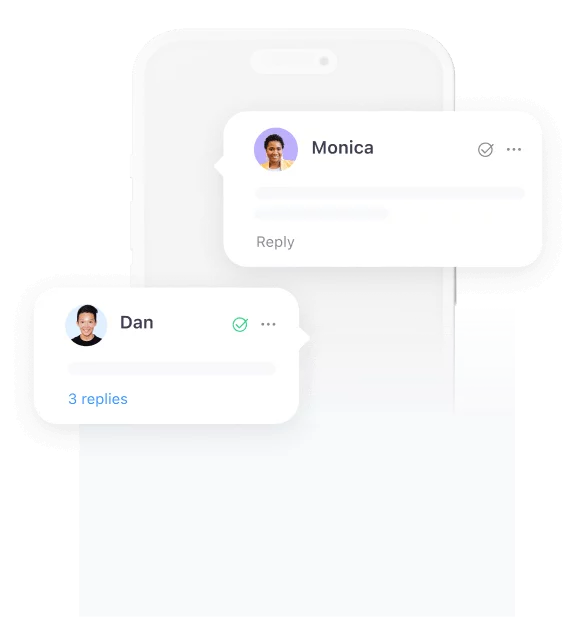
Reply in-thread to keep context.
React with emojis for quick acknowledgement.
Attach media files when an example image communicates faster than text.
Resolve comments once addressed to keep the panel tidy (resolved items remain accessible).
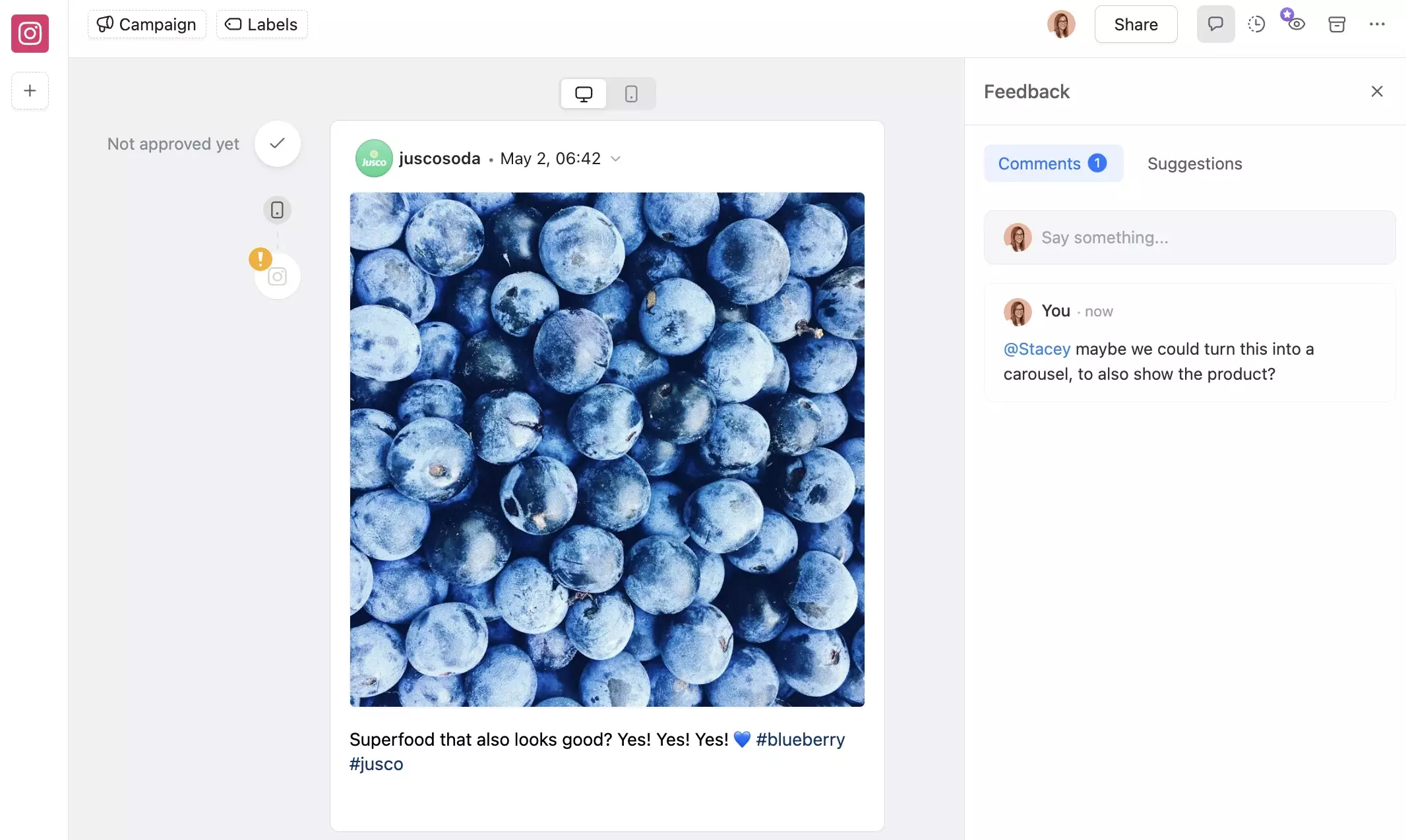
Mentions (route feedback to the right person)
Type @name to tag someone in a comment.
They receive notifications by email and in-app.
Useful when a post is ready for review, or when a specific person needs to decide.
Annotations (pin feedback to exact words)
Annotations let you highlight specific text and attach a comment to that exact selection.
The annotation also appears in the feedback panel.
Best for longer copy or captions where “this part” must be unambiguous.
Suggestions (propose an exact edit, not just feedback)
Suggestions are structured edits:
Highlight text and propose a replacement.
Both versions appear in the Suggestions tab.
The post owner can accept or reject each suggestion with one click.
If accepted, the post updates automatically. No copy-paste, no version confusion.
Permission note: anyone with at least View permission can leave suggestions (they propose changes, they do not directly change the content).
Internal vs. client-facing collaboration (without separate tools)
Not every discussion should be client-visible. Planable supports a two-layer workflow so teams can debate and refine internally, then share a clean version for client review.
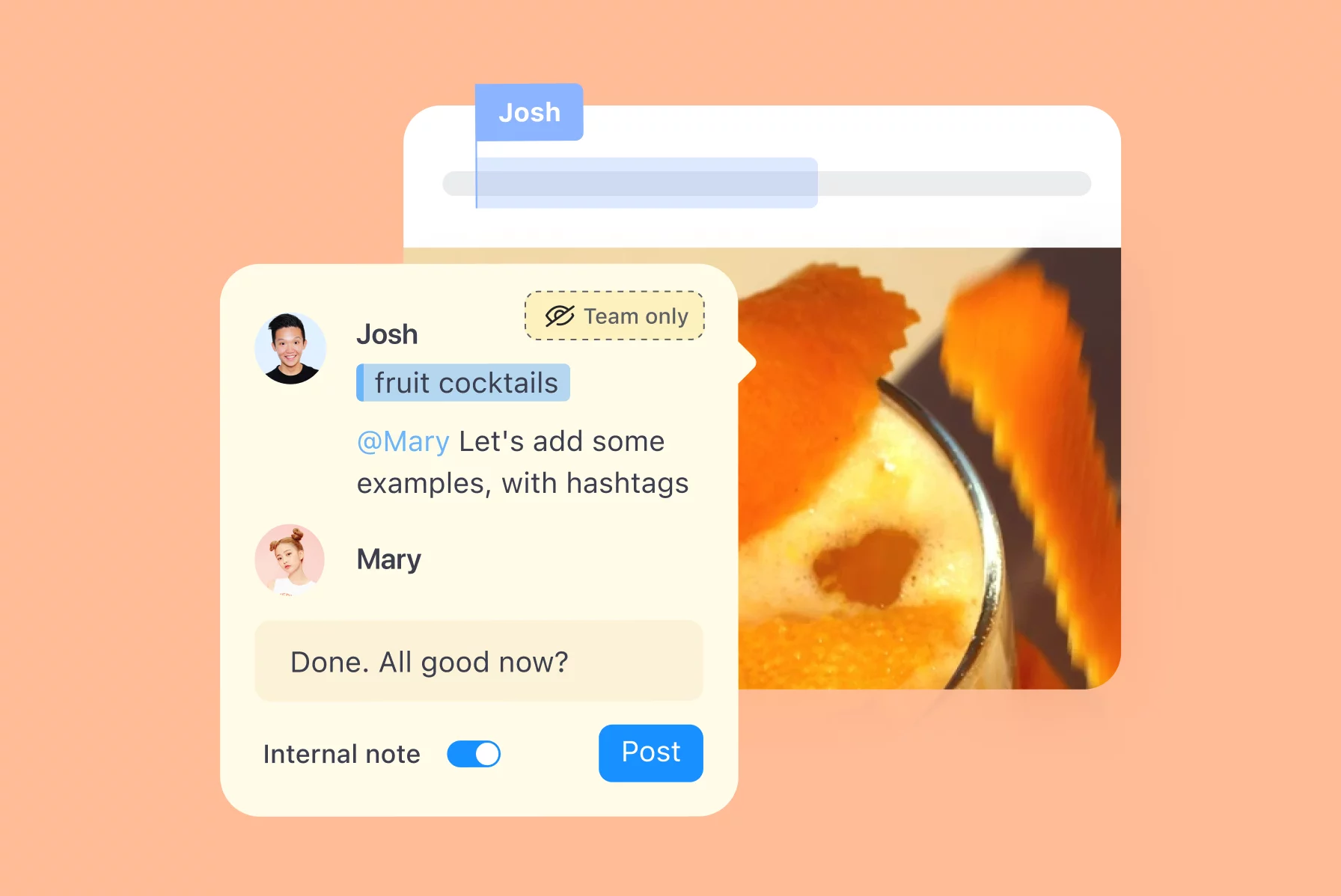
Internal comments (team-only feedback)
Any comment, annotation, or suggestion can be marked as internal.
Internal feedback is visible only to Team members.
It is visually marked (yellow background) so it is easy to spot.
Clients in the same workspace cannot see internal feedback.
Use internal comments for:
Rough thoughts and early feedback.
Questions for teammates.
Disagreements you want to resolve before the client sees anything.
Team vs. Client membership (controls what people can see)
Each workspace member is assigned one role:
Team member: sees all posts, internal posts, and internal comments.
Client member: sees only client-facing posts and comments (nothing marked internal).
This allows clients to collaborate in the same workspace without seeing the internal working layer.
You set the role when inviting someone and can change it later in Members settings.
Internal posts (hide drafts until they are ready)
Posts can also be marked internal.
Internal posts are visible only to Team members.
When ready, you can switch visibility so clients can review.
Use internal posts for:
Early drafts not ready for client eyes.
Team-first review before client approval begins.
Review and sharing without a Planable account
Some stakeholders only need lightweight access. Planable supports link-based review and reporting.
Share a single post via link (quick external review)
Generate a shareable link for one post.
Anyone with the link can open the post and leave a comment.
No Planable account required.
Share an entire view via link (calendar, week plan, campaign view)
Generate a link to a full view (for example, a week of posts or a campaign view).
Stakeholders can browse content and comment on individual posts.
No Planable account required.
Both link types can be configured with access levels and revoked at any time.
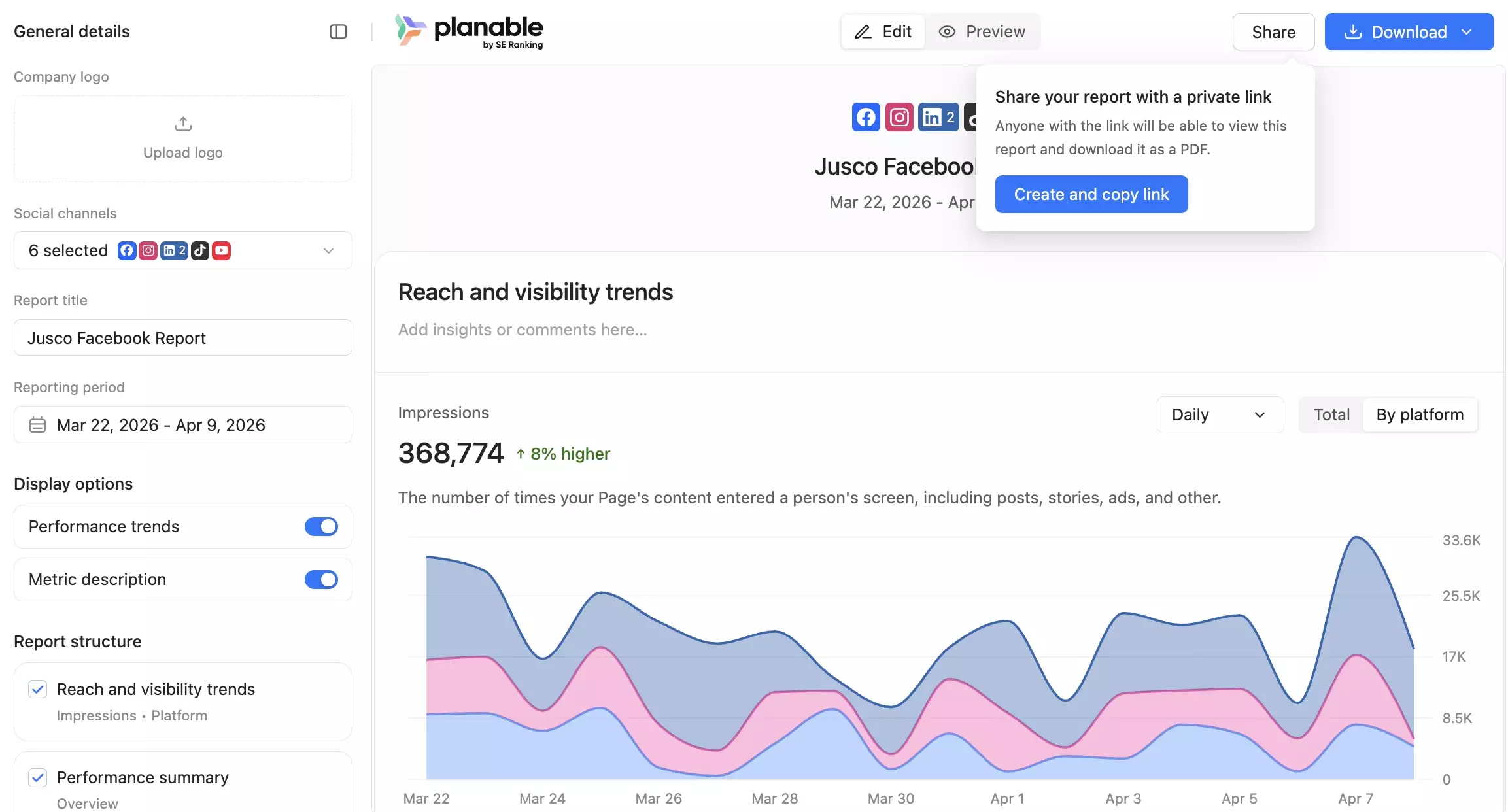
Share analytics reports via link (or export as PDF)
Can also be exported as a PDF and CSV if stakeholders prefer a downloadable report.
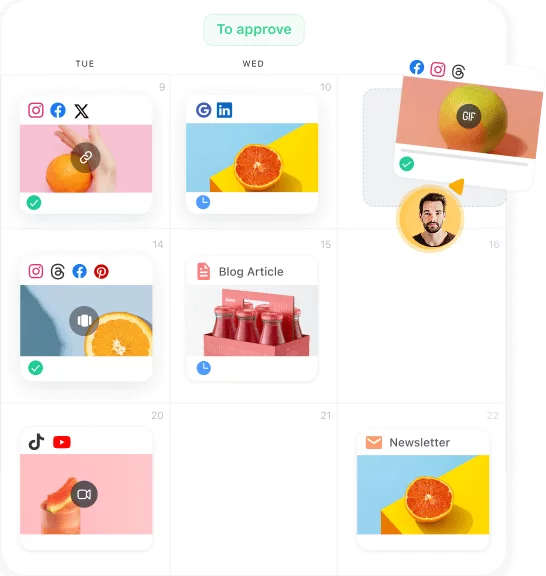
Notes on the content calendar (for ideas, reminders, and dependencies)
You can place notes directly on the calendar.
Notes are not posts and are not scheduled or published.
They sit next to planned content for visibility.
Notes are useful for:
Capturing content ideas before they become posts.
Marking important dates or dependencies.
Leaving reminders the team can see at a glance.
Notes can be color-coded, kept private, or shared with the team. If a note turns into a real item, you can convert it into a post.
FAQs
What’s the difference between a comment, an annotation, and a suggestion in Planable?
Comment means general feedback on the post, annotation means feedback attached to a specific text selection, and suggestion means a proposed replacement edit that can be accepted or rejected. All appear in the post’s feedback area, and suggestions also appear in the Suggestions tab.
Can clients leave feedback in Planable?
Yes, clients can comment on posts they can access. Clients can also leave suggestions if they have at least View permission. Clients cannot see internal comments or internal posts.
What are internal comments?
Internal comments are comments, annotations, or suggestions marked as team-only. They are not visible to Client members.
Can I share a post for review without giving someone a Planable account?
Yes, you can share an individual post or an entire view with a link. People with the link can review and comment without an account.
How do I control what a client sees in my workspace?
Use Team vs. Client membership:
Team members see everything, including internal posts and internal feedback.
Client members see only client-facing posts and non-internal comments.
What are internal posts?
Internal posts are drafts hidden from Client members until you make them visible.
What are calendar notes?
Calendar notes are non-post items that live on the calendar for ideas, key dates, and reminders. Notes can be private or shared, and can be converted into a post.
Do I need special permissions to leave a suggestion?
No. Anyone with at least View permission can leave a suggestion. Accepting or rejecting suggestions (which changes the copy) requires editing permissions.
Monica leads product marketing at Planable. She owns go-to-market for new features and shapes how Planable fits into the broader SE Ranking product family. She joined in 2023 as Planable's first product marketer, built the function from scratch, and now runs the team's competitive intelligence program. With a background in product management and Romania's startup scene (How To Web, MVP Academy), she writes about competitor analysis, product launches and marketing workflows from the builder's side. Before Planable, she spent almost five years managing Orange Fab Romania, Orange's startup acceleration program, where she supported 40 startups and helped generate over €2.2M in commercial value.







 Creation
 Scheduling
 Planning
 Social Inbox
 Collaboration
 Analytics
 Approval
 Social Listening