If your Instagram keeps disconnecting, your scheduler swallows the post and silently fails, your support ticket has been “with the team” for a week, or your monthly bill creeps up every time you add a channel, you’re not the only one running out of patience with...
Redesign For multi-location brands
all your locations, one content flow
For multi-brand companies
content collaboration at scale
For agencies
impress your clients and take on more
“The team loved it from the start. Planable helps us overview the entire marketing efforts.“
Running social media for one client fits in a spreadsheet. Running it for five, or fifty, is a different job: more login details, more approval chains, more versions of “did the client actually see this?” Add a team that needs to review drafts before any client does, and the spreadsheet becomes the thing slowing everyone down, not the thing keeping them organized.
If you’re running an agency, here’s how to set Planable up so it holds up at the fiftieth client, not just the first — the setup hundreds of paying agencies converge on once they’re running Planable for real, backed up by what they say about it on G2, where Planable holds a 4.6-star rating across more than 1,100 reviews.
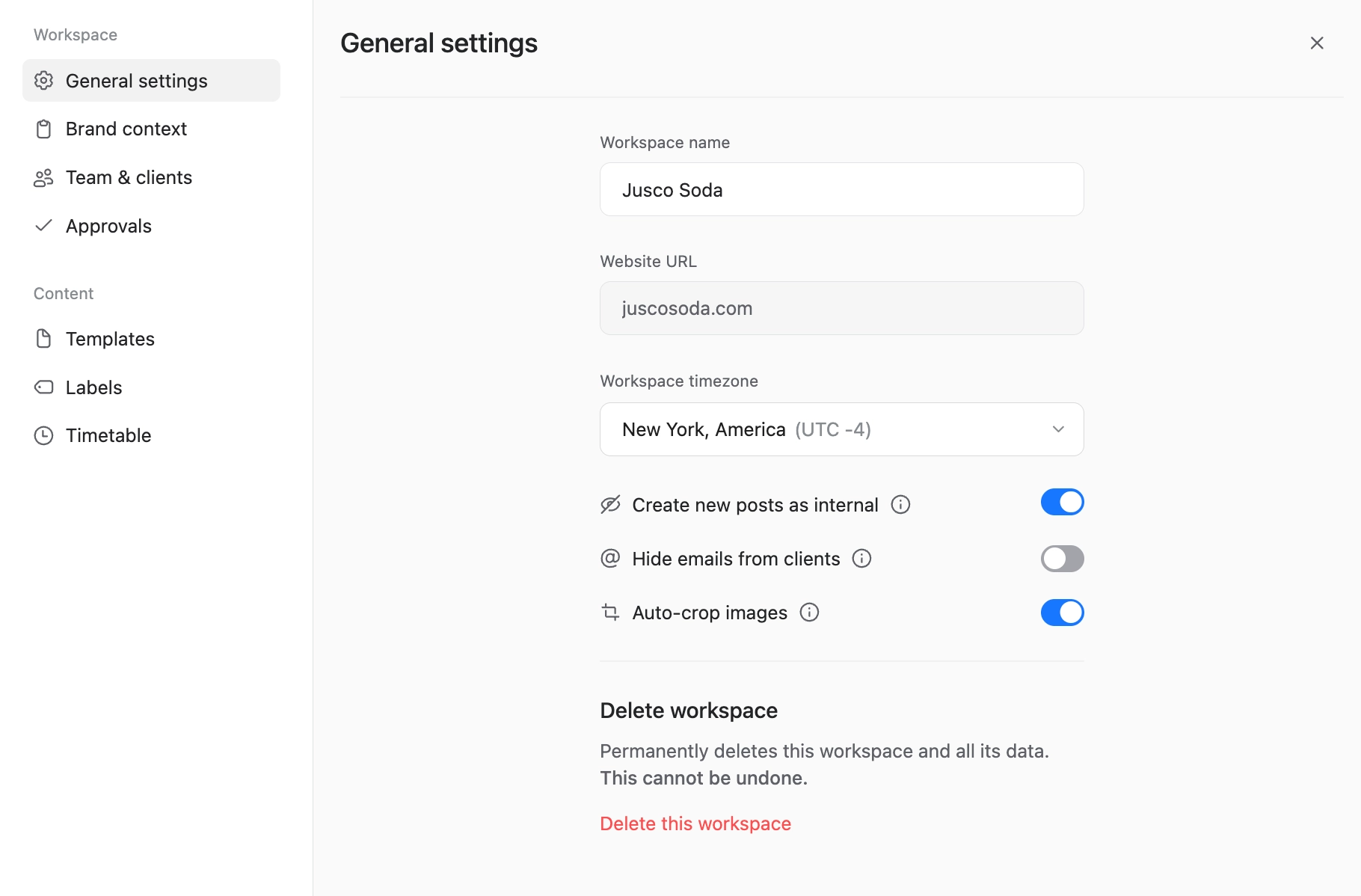
If you’re running an agency, the first call is this: a new workspace for every client, brand, or location — never one shared workspace for multiple clients. Connect that client’s channels to it, add your team, and invite one contact from the client’s side as an approver.
This is the setup that holds up at any size. Agencies on Planable range from a handful of client workspaces to dozens, and the point of starting this way is that it works the same at client 3 as it does at client 30.
Many give their own agency’s social accounts a workspace too — 42% do. It’s a great way to test the initial setup and stress-test workflows on your own accounts.
“As an agency, I have multiple clients, and the Workspaces feature of Planable lets me create an individual Workspace for each of my clients and assign a specific person from that organisation as an Approver for the Workspace.” — Robert Tedge, Founder (G2 review)
A separate Planable workspace for each client, brand, or location.
Step 2: The right approval setting for each client
Every workspace has its own approval setting, and the best-run agencies pick it deliberately instead of leaving the default:
Optional approval — fine for a trusted, low-maintenance client where the team has full authority to post.
Required approval — the default for any client where something going out unreviewed would be a real problem: new accounts, sensitive industries, or anyone who’s asked to see everything first.
Multi-level approval (Enterprise) — used when more than one person needs to sign off before a client ever sees it, such as an internal QA step ahead of the client’s own review.
A workspace’s approval setting, chosen deliberately per client: optional, required, or multi-level.
The setting does real work: in workspaces that use Optional approval, just 39% of posts get approved before being published. So if a client keeps missing posts or approving late, changing the setting is the way to go. 42% of agency workspaces end up on Required or Multi-level approval.
“It’s genuinely easy to separate clients into workspaces. Mapping out a content plan is simple, and being able to shuffle posts around and see everything visually just works.” — Damon Walsh, Agency Owner (G2 review)
Agencies invite the client as an approver as soon as they turn on Required or Multi-level — and see noticeably more client participation (68–80%) than workspaces left on Optional (41%).
Beyond Team and Client roles, you can also granularly decide who has permissions to do what. Each person in the workspace can have their own specific set of actions to view content, approve, edit, publish, see analytics data, and reply to comments & DMs.
Per-person permissions in a workspace, controlling who can view, approve, edit, publish, see analytics, or reply to comments and DMs.
Step 3: Planning and creating content as a team
If you’re building out a content calendar, plan at least two weeks ahead, not the day before it’s due — the best-run workspaces typically run 14 to 30 days out, and more than half plan two weeks or more ahead.
Use the calendar view as your default (two-thirds of saved views in Planable end up being one). Keep Campaigns visible on the timeline, and keep important dates in sight by syncing external calendars. Planning is easier when you have the context right next to the posts themselves, instead of in a separate doc.
“My team is able to plan everything in advance, so there’s no one rushing for a design or to change the content. It has made things much calmer… No one has to work overtime to get the content out.” — Jemaimah Mustapha (G2 review)
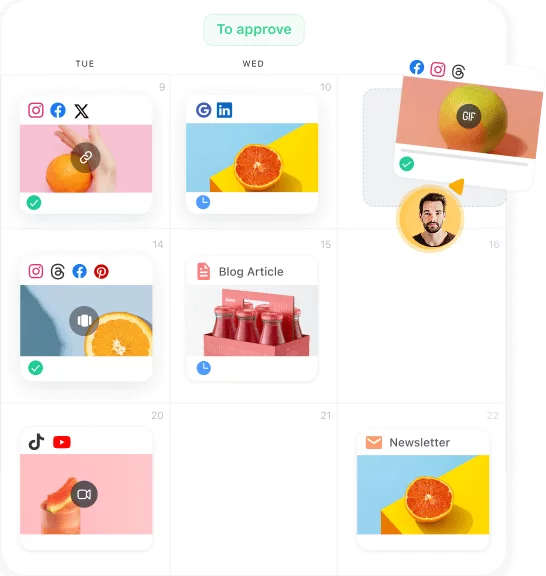
The calendar view, with campaigns kept visible on the timeline while planning ahead.
Build most posts once and adapt them per platform rather than drafting separately for each channel — it’s how two-thirds of posts get made on Planable, and it’s the fastest way to keep a month of content moving.
“I find Planable really easy to use, which saves me a ton of time in managing eight social media pages. I love the ability to schedule posts ahead with an algorithmically suggested time, eliminating the guesswork… having everything done in less than five minutes per post is amazing.” — Laura Bang, American Dream (G2 review)
Planable post editor showing one post adapted across multiple social platforms
Keep feedback inside the team until a post is actually ready: let comments go back and forth on drafts, and mark anything still rough as an internal post so it never accidentally reaches a client view. In well-run agencies, a little over half of all team comments stay internal for exactly this reason.
“Before using Planable, our team relied on spreadsheets, endless email threads, and screenshots to manage posts and client feedback — which often led to version control issues and delays. Now, everything is centralized… This has cut down our feedback loops significantly and improved our efficiency.” — Béla Krankovics, Digital & Technology Director (G2 review)
Internal comments on a draft marked internal, kept out of the client’s view until it’s ready.
Step 4: Sending it to the client — without an email thread
Once a post clears internal review, approval gets requested directly in Planable instead of exported anywhere. Agencies decide upfront who has the final say: team-only for low-stakes clients, client alongside the team for most accounts, or entirely the client’s call when that’s what they’ve asked for.
“My clients LOVE the layout and find it super easy to use for approval and making comments on posts. I will continue using it, as it has saved me from receiving 300 emails back and forth for changes…” — Alicia S., Owner / Digital Marketing Professional (G2 review)
Requesting approval directly in Planable, with team-only, client, or combined sign-off options.
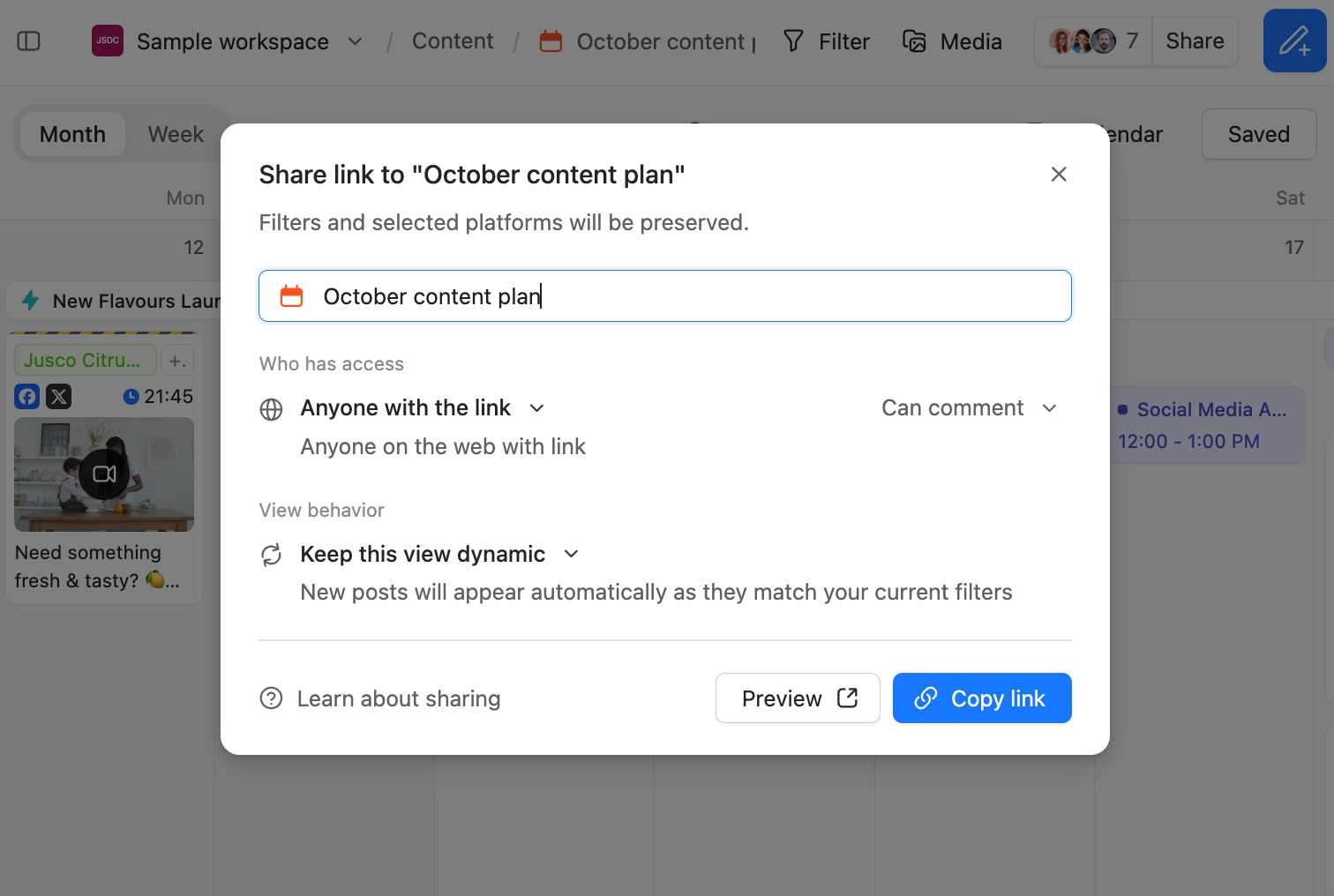
For a client who shouldn’t need a login at all, a public calendar link goes out instead of a user invite. It works for a calendar, feed, grid, or list view, with comments optionally turned on so the client can still react to specific posts. Seven in ten agencies use this, usually alongside client accounts rather than instead of them.
“I can give a preview to my clients of what posts will actually look like on different platforms and devices. I also like that it doesn’t require my clients to make an account to view the posts I share with them.” — Julian D., Director (G2 review)
A public calendar link shared with a client, viewable without creating a Planable account.
Approval reminders handle the chasing, and auto-schedule on approval sends an approved post straight onto the calendar without anyone opening the scheduler a second time. Together, these two settings are what take an approval loop from days down to hours — close to a third of posts in well-run workspaces get approved within 24 hours of being sent.
“I LOVE the auto-schedule upon approval feature. Nothing irks my nerves more than having to go back in to schedule a post once content has been approved.” — Megan Larkins, CEO (G2 review)
Approval reminders and auto-schedule-on-approval, turning a sent post into a scheduled one without extra steps.
Step 5: Publishing automatically
Once a post is approved and auto-schedule is on, there’s nothing left for you to do — it goes out on its own. Add a manual publishing step back in, and you lose the time you just saved in Step 4.
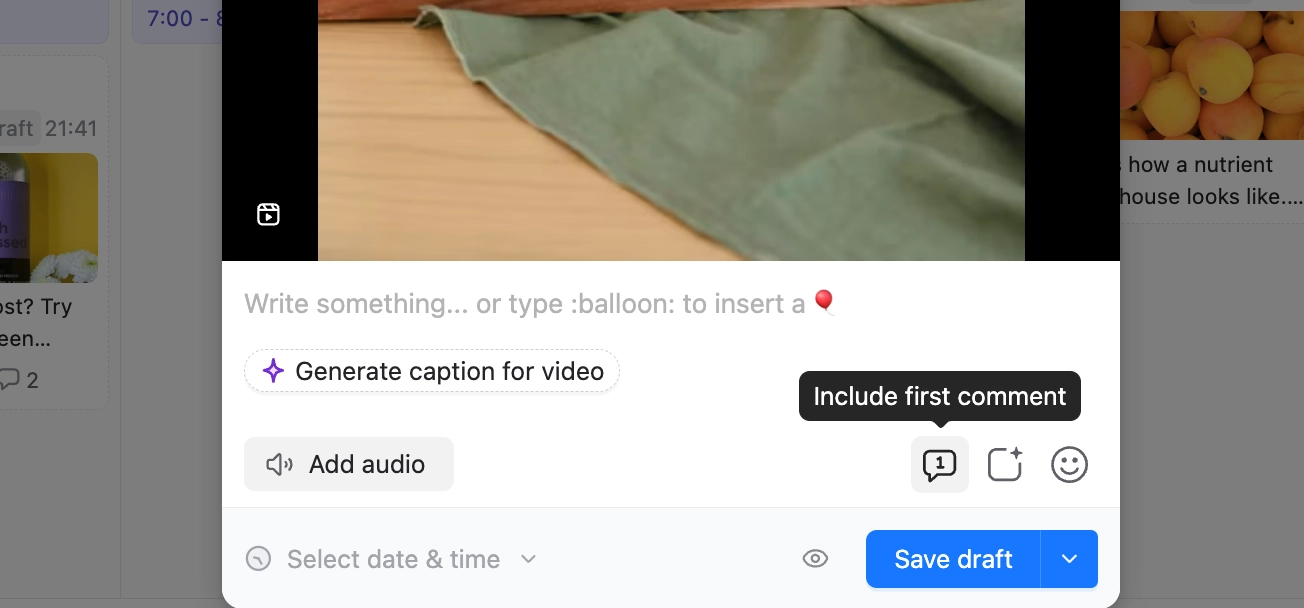
You can include first comments, audio (for TikToks and Instagram Reels), location, and tags from the beginning.
The post composer, with first comment, audio, location, and tags all set from the start.
For very specific features that are only available on the native platforms, you can choose to publish a post via the mobile app. Which means you’ll get a notification at the time of scheduling on your phone, so you can finish the post and post natively.
Set up folders in the Media Library from day one, before the uploads pile up — a typical workspace gets 110 uploads every six months, and most agencies never organize them. It’s the cheapest habit to get right early.
“I can publish to many platforms, and the integrations with Canva and other content tools make syncing easy and straightforward.” — Shawn Wilborne, Lid Vizion (G2 review)
The Media Library, organized into folders before uploads pile up.
Step 6: Reacting and engaging with Social Inbox
Agencies turn on Social Inbox for any client whose comments and DMs need a reply, not just a post that goes out. It brings comments and DMs from Instagram, Facebook, LinkedIn, and TikTok into the same place as the post itself, instead of switching between four native apps to do it.
In practice, it’s usually one person’s job — in about seven in ten accounts that use it, a single team member handles the whole inbox. It’s also an Instagram-first tool for most agencies: roughly 8 in 10 incoming comments and DMs come through Instagram, so that’s where to point a client’s attention first if they’re deciding what to connect.
Most agencies start with the basics — replying to comments and marking conversations done cover most of what people actually use it for. They add the rest (liking, hiding, saving for later) as the workload grows. It’s a $9/workspace/month add-on ($90/year), turned on per client rather than across every workspace by default.
“I really like the followings features : – having all of the social media platforms are in the same place – the new engagement feature – the analytics – the comment section to interact with clients – the mock-up pages – the calendar view” — Virginie Delrieu (G2 review)
Social Inbox, with comments and DMs from Instagram, Facebook, LinkedIn, and TikTok in a single view.
Step 7: Reporting with Analytics, without extra work
Turn on the Analytics add-on and you get a live, cross-channel view of every client — reach, engagement, growth, and post performance across Instagram, Facebook, LinkedIn, TikTok, and the rest, in one dashboard you can check any time instead of waiting for an export.
The Analytics dashboard, with reach, engagement, growth, and post performance in one cross-channel view.
When it’s time to report, build the breakdown your client actually cares about: pick the metrics and the time range, bring in competitor data if they’re tracking rivals, and send it out as a branded PDF or a shareable link — no screenshot-filled deck to rebuild from scratch.
Building a client report: metrics, date range, and competitor data, exported as a branded PDF or shareable link.
“I am able to flip through multiple clients easily. I can also grab the analytics I want and see what is working and not working readily, versus using Meta and clicking through numerous pages to get what I need.” — Magdalena Drabczynski, Founder (G2 review)
58% of agencies using Analytics are pulling reports regularly, not just from time to time. Analytics is also an add-on that can be turned on per workspace for $14/workspace/month ($140/year).
Step 8: Seeing the bigger impact with Social Listening
Social Listening watches the conversation beyond a client’s own posts — mentions of their brand, their competitors, and the topics around their industry, pulled from the web, YouTube, X, Reddit, and social.
Social Listening tracking brand mentions across the web, YouTube, X, Reddit, and social.
This feature is more appealing to agencies with clients with bigger brands that get mentioned in many conversations and benefit from close monitoring and replying, or clients that invest in a strategy of joining trending industry conversations to gain visibility.
Competitor monitoring is useful when clients are watching their brand’s share of voice, audience perception, and are looking to address common complaints appearing in competitor mentions.
Competitor monitoring in Social Listening, tracking share of voice and recurring complaints.
The real payoff is feeding what gets learned back into Step 3 (the content strategy) — a complaint that keeps surfacing, a competitor angle gaining traction, a format resonating outside the client’s own feed — turns into next month’s content plan, not just a report nobody acts on.
Social listening is an add-on that starts $99/workspace/month ($990/year), for 1 brand, 3 topics, and 3 competitor keywords. More advanced setups are available for Enterprise plans.
Step 9: Adding the next client without starting from scratch
If you’re adding a second client, don’t reinvent the wheel. Agencies keep the same approval type for 80% of new client workspaces, and only personalize more specific settings like labels and connected channels.
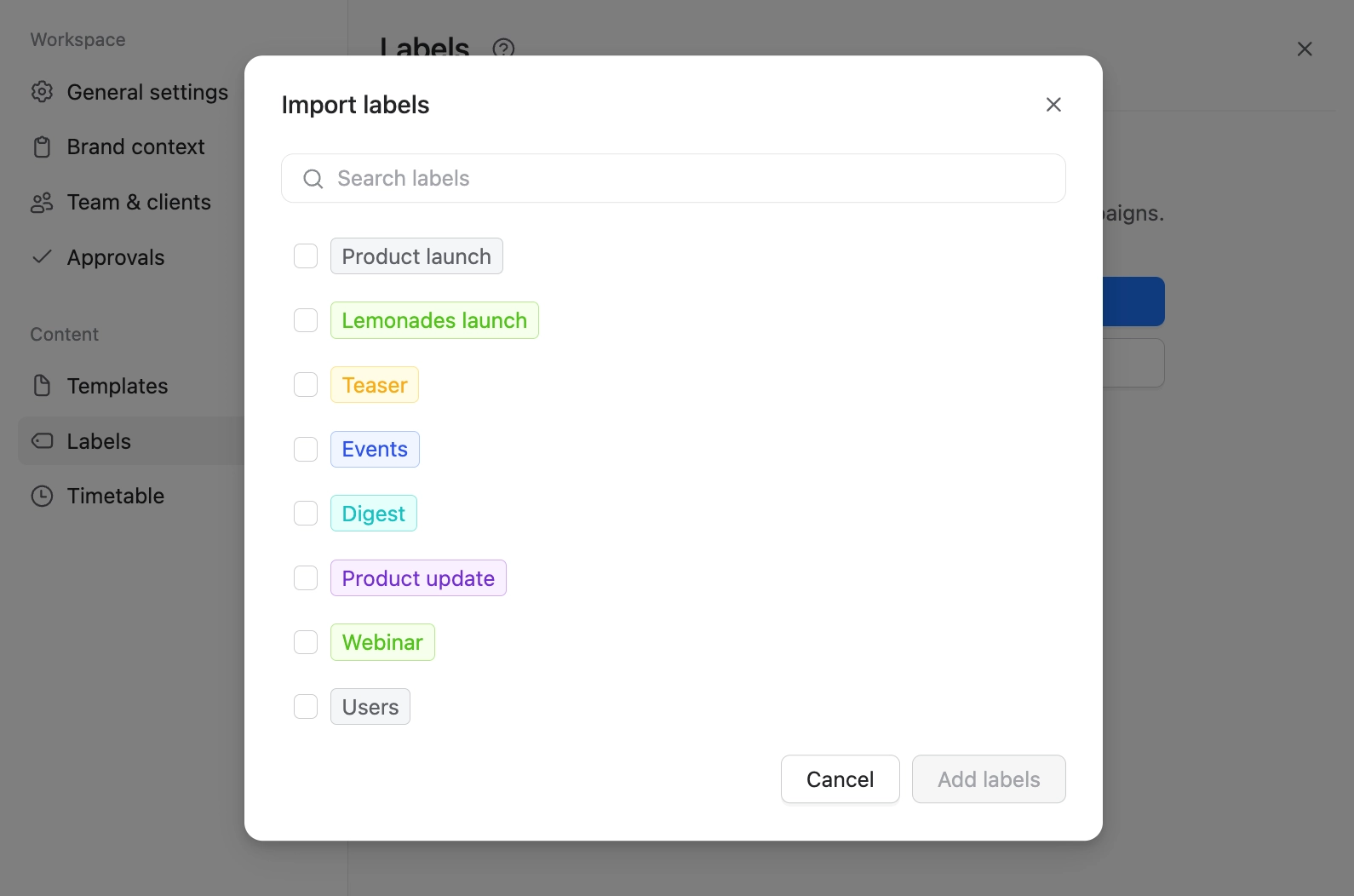
Setting up a new client workspace, with the approval type carried over from an existing client.
Most of the setup happens right inside the new-workspace wizard — connecting pages and inviting someone usually happen at creation, and most new client workspaces are fully running (channels connected, a post made, an approval done) within 30 days.
The new-workspace wizard, connecting channels and inviting an approver during setup.
Agencies already running multi-level approval elsewhere carry the structure into the new workspace — how many levels, team before client — then adjust the actual approvers to match this client.
“It’s allowed us to take on more clients and take out any human errors in the actual posting.” — Jaden Quigley (G2 review)
Step 10: Connecting Planable to the rest of the stack
For technically advanced agencies, where the team’s stack goes beyond Planable itself, the Public API opens things up to pull content into a custom dashboard, push it in from another tool, or pull Planable activity into the agency’s CRM. The public API is included on Pro and Enterprise.
The Planable MCP does the same thing for AI tools specifically. Official Claude and ChatGPT connectors enable agencies to work with AI to draft posts, check what’s pending approval, or pull a report without opening Planable at all.
Everyday tools are covered too: Canva connects straight into the post editor, so a design comes in without a separate export-and-upload step. Slack brings approval and comment notifications into the channels the team already watches. And Zapier and Socket connect Planable to thousands of other apps without writing code — trigger a new draft when a brief lands in a form, or notify a client’s own tools the moment a post goes live.
Planable’s integrations, connecting Canva, Slack, Zapier, Socket, and the public API to the rest of the stack.
Step 11: Picking the plan that covers what’s needed
Once an agency needs client approvers and Required approval, the plan choice comes down to this. Basic and Pro share the same core workflow — workspaces, drafting, scheduling, optional approval — but the pieces that make client work possible live on Pro and above.
Feature
Basic ($39 /workspace /month)
Pro ($59 /workspace /month)
Enterprise
Pages per workspace
4
10
Custom
Posts per workspace, per month
60
150
Custom
Storage (shared across the company)
10 GB
50 GB
Custom
Views
Feed, calendar
Feed, calendar, grid
+ list view
Approval options
None, optional
None, optional, required
+ multi-level approval
Client approvers in the workspace
Not available
Included
Included
Bulk approval requests
Not available
Included
Included
Public API access
Not available
Included
Included
Pricing
Fixed
Fixed
Custom — talk to sales
Pages per workspace
Basic ($39/workspace/month)
4
Pro ($59/workspace/month)
10
Enterprise
Custom
Posts per workspace, per month
Basic ($39 /workspace /month)
60
Pro ($59 /workspace /month)
150
Enterprise
Custom
Storage (shared across the company)
Basic ($39 /workspace /month)
10 GB
Pro ($59 /workspace /month)
50 GB
Enterprise
Custom
Views
Basic ($39 /workspace /month)
Feed, calendar
Pro ($59 /workspace /month)
Feed, calendar, grid
Enterprise
+ list view
Approval options
Basic ($39 /workspace /month)
None, optional
Pro ($59 /workspace /month)
None, optional, required
Enterprise
+ multi-level approval
Client approvers in the workspace
Basic ($39 /workspace /month)
Not available
Pro ($59 /workspace /month)
Included
Enterprise
Included
Bulk approval requests
Basic ($39 /workspace /month)
Not available
Pro ($59 /workspace /month)
Included
Enterprise
Included
Public API access
Basic ($39 /workspace /month)
Not available
Pro ($59 /workspace /month)
Included
Enterprise
Included
Pricing
Basic ($39 /workspace /month)
Fixed
Pro ($59 /workspace /month)
Fixed
Enterprise
Custom — talk to sales
Analytics ($14/workspace/month or $140/year), Social Inbox ($9/workspace/month or $90/year), and Social Listening ($99/workspace/month or $990/year) are paid add-ons available on either plan, enabled per workspace — so an agency can add reporting, inbox management, or listening only where a client is paying for it, rather than across every account.
Prices are per workspace, billed monthly; annual billing is available at a lower effective rate. Enterprise has no published price — it’s negotiated per account based on workspace count and the features needed.
All workspaces come with unlimited users, so pricing never keeps you from involving everyone relevant right into the platform. That makes scale actually work and keeps exports, screenshots, and email threads from reappearing as “small part of the workflow, just this once”.
Who this is for
Planable fits agencies running at least a handful of client accounts at once — on this setup, that’s anywhere from 3 workspaces to dozens. The ones still approving every post by email, or tracking in a spreadsheet which client saw which draft, are exactly who Steps 1 through 11 solve this for.
Two roles in particular get the most out of it:
Agency owners and brand leads who need client work to look consistent and professional without personally reviewing every post. The approval settings and public calendar links exist so oversight doesn’t require being in the weeds.
Operations and account managers who own the actual handoffs: onboarding a new client workspace, chasing a slow approval, keeping internal notes away from a client’s eyes. They need that to keep working as the client list grows, without hiring more coordinators to hold it together.
It’s a weaker fit for a single-location business with one social account and no outside approvers. Most of what’s covered here is built around managing several client relationships at once, not running one brand’s own feed.
FAQs
Do I need a separate workspace for each client, and how is it billed?
Yes — one workspace per client or brand, billed per workspace. Basic runs $39/workspace/month with 4 pages and 60 posts/month; Pro runs $59/workspace/month with 10 pages and 150 posts/month. Both include unlimited team members per workspace.
How does a client approve a post, and do they need a Planable account?
Invite them as a client user with approve permission, then request their approval; they work through it in their own approvals view. A public link lets anyone view and comment on a post without an account, but the person who clicks approve does so from a signed-in Planable account.
Can I keep internal comments and drafts hidden from the client?
Yes. Client membership (available on Pro and above) combined with internal posts and internal comments keeps anything marked internal out of a client’s view. In the product usage data, 48% of agencies use internal posts, and 55% of all team comments are internal.
Can the team approve something internally before it goes to the client?
On Pro, keep a post internal while the team reviews it, then switch off the team-only view and request approval once it’s ready for the client. A separate internal sign-off step before the client’s own approval step (true multi-level approval) is an Enterprise feature.
How do I get a slow client to actually approve something?
Turn on approval reminders at the workspace level; 43% of agencies in the data already do. Pro also includes bulk approval requests, so a backlog of drafts can go out for sign-off in one action instead of one by one.
Can I share a calendar with a client without giving them a full account?
Yes. Public view links work for a calendar, feed, grid, or list, with comments optionally turned on. Seven in ten agencies do this, usually alongside — not instead of — inviting the client as a user.
How do I report results back to clients?
The Analytics add-on ($14/workspace/month or $140/year) builds reports that go out as a PDF or a shareable link carrying the agency’s own branding. It’s active for 54% of agencies in the data, and most of those generate or download reports on a regular basis.
See it on your own client list
None of this requires rebuilding how an agency already works. The fastest way to know if it fits is to set up one real client workspace, invite that client as an approver, and see how long the first approval actually takes.
“Planable has been the best software I have ever used. Each of my clients works with a team and I can seamlessly work with their team to develop content and get it scheduled and approved. I have recommended it to no less than 20 orgs.” — Mikaela Shafer (G2 review)
Monica leads product marketing at Planable. She owns go-to-market for new features and shapes how Planable fits into the broader SE Ranking product family. She joined in 2023 as Planable's first product marketer, built the function from scratch, and now runs the team's competitive intelligence program. With a background in product management and Romania's startup scene (How To Web, MVP Academy), she writes about competitor analysis, product launches and marketing workflows from the builder's side. Before Planable, she spent almost five years managing Orange Fab Romania, Orange's startup acceleration program, where she supported 40 startups and helped generate over €2.2M in commercial value.







 Creation
 Scheduling
 Planning
 Social Inbox
 Collaboration
 Analytics
 Approval
 Social Listening