If your Instagram keeps disconnecting, your scheduler swallows the post and silently fails, your support ticket has been “with the team” for a week, or your monthly bill creeps up every time you add a channel, you’re not the only one running out of patience with...
Redesign For multi-location brands
all your locations, one content flow
For multi-brand companies
content collaboration at scale
For agencies
impress your clients and take on more
“The team loved it from the start. Planable helps us overview the entire marketing efforts.“
Managing content for multiple brands means every client has its own voice, tone, and guidelines, and keeping that consistent across 10 or 15 accounts is where things start slipping.
Claude lets you save each brand’s instructions as a project or skill, so every post it drafts already sounds like that client, not a generic template.
That’s the foundation. On top of it, the Planable MCP connector handles the coordination layer (pulling data, drafting posts, surfacing blockers, building reports) through plain conversation. Connect your Planable account once, give Claude the right skills, and the busywork takes care of itself.
This article covers everything Claude can do when connected to Planable, and the 6 skills that make each workflow faster.
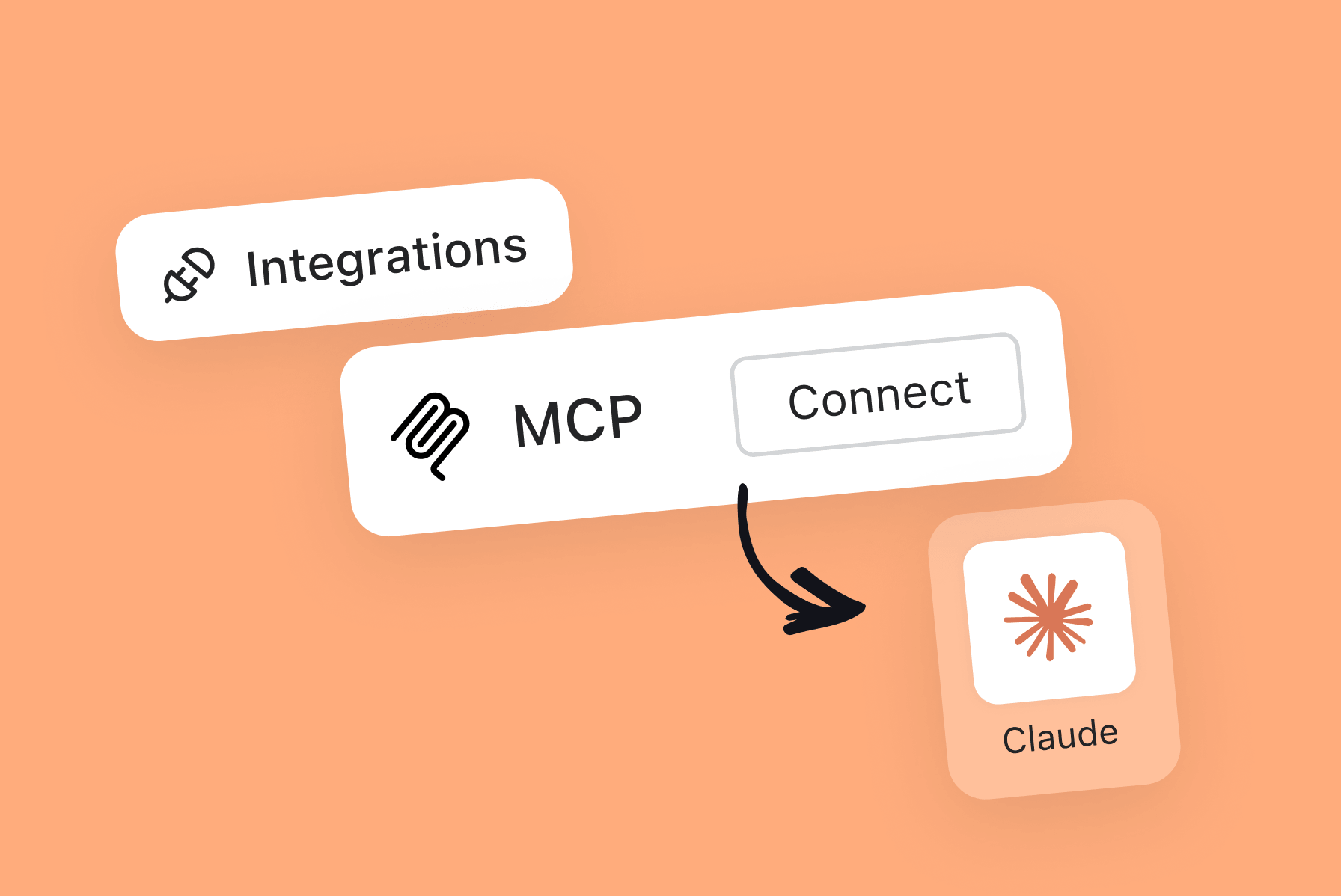
MCP (Model Context Protocol) is a standard that lets AI tools connect to external apps and act on your behalf. The Planable MCP connector is the bridge between your Planable account and Claude.
Once connected, Claude has live access to your workspaces. It can read posts, check approvals, pull analytics, create drafts, leave comments, and more — all through conversation, without you opening Planable.
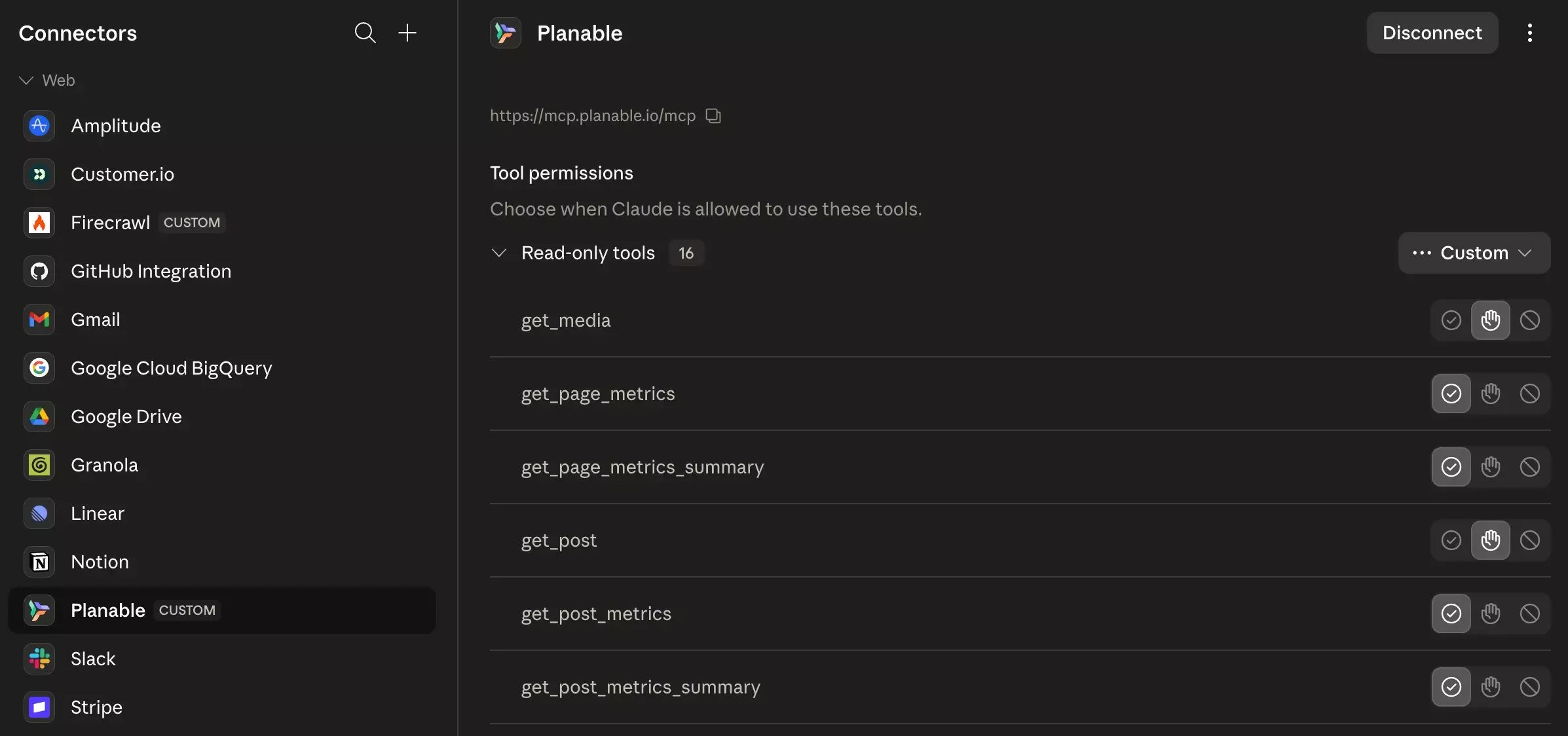
Think of it as giving Claude a read/write key to your account. Your plan, your workspace permissions, and your role-based access all still apply, Claude can only do what you can do.
What Claude can do with Planable: the full capability map
Here’s exactly what becomes available once the Planable connector is active.
Browse your account structure
Claude can navigate your full Planable account (companies, workspaces, connected pages, labels, and members) so every request lands in the right place without you specifying IDs or opening the app.
List all companies and workspaces you belong to
Get workspace details including whether Analytics or Social inbox add-ons are active
List connected social pages within any workspace
List workspace members and their roles
List available labels for tagging posts
Get post counts by workspace for quick overviews
Read and review content
Claude can browse your content calendar, inspect individual posts, and read internal and external comments, giving you a full picture of what’s in progress without switching tabs.
List posts in any workspace filtered by status (scheduled, draft, published, errors), approval state, and date range
Read full post content, media attachments, labels, and approval history on individual posts
List internal team notes and external client comments on any post
Spot posts going live without approval, posts with publishing errors, or drafts with no date set
Create and edit content
Claude writes and places content directly into Planable as drafts. You review and approve, Claude handles creation.
Create a draft post on a single platform page
Create a synced group post across multiple platforms at once (Instagram + LinkedIn + Facebook, for example), all kept in sync
Attach media via public URLs (up to 10 items per post), or upload directly to the workspace media library
Add a first comment (for Instagram and other platforms that support it)
Add internal team notes directly on a post at creation
Create new labels for the workspace
Manage approvals
Claude can move posts through your approval workflow, checking what needs sign-off, approving, rejecting, and leaving feedback, without you opening each workspace.
Leave internal notes or public comments to explain feedback
Work with the media library
Claude can browse, retrieve, and upload media to your workspace library.
List media assets in the workspace library
Get details on a specific media item (type, dimensions, processing status)
Upload new media from public URLs to the library
Pull analytics
Claude can access your Planable analytics data (by page, by post, and aggregated across platforms) and use it to build custom reports, spot patterns, and compare client performance.
Get per-page metrics: audience, impressions, engagement, engagement rate, and platform-specific data (Instagram reach, TikTok profile views, etc.)
Get aggregated page metrics across all pages in a workspace
Get per-post metrics: impressions, views, engagement, likes, comments, shares
Get aggregated post metrics summaries
Refresh metrics from source platforms before pulling a report
Analytics access requires the Analytics add-on on the workspace. Claude checks whether it’s active before attempting any analytics calls.
The 6 Claude skills for Planable
Skills are pre-built instruction sets inside a Claude project. They standardize how Claude runs specific Planable workflows, so you don’t have to restate the same process every time.
What Skills do
Turn a repeatable Planable workflow into a consistent, reusable playbook
Reduce variability in outputs by enforcing the same steps and constraints each run
Keep the workflow instructions in one place (the Skill), instead of repeating them in every prompt
Requirements and data sources
4 Skills require the MCP connector to run (for direct integration-based actions).
2 Skills can also run from a CSV export (useful when you don’t have MCP access or prefer an offline flow).
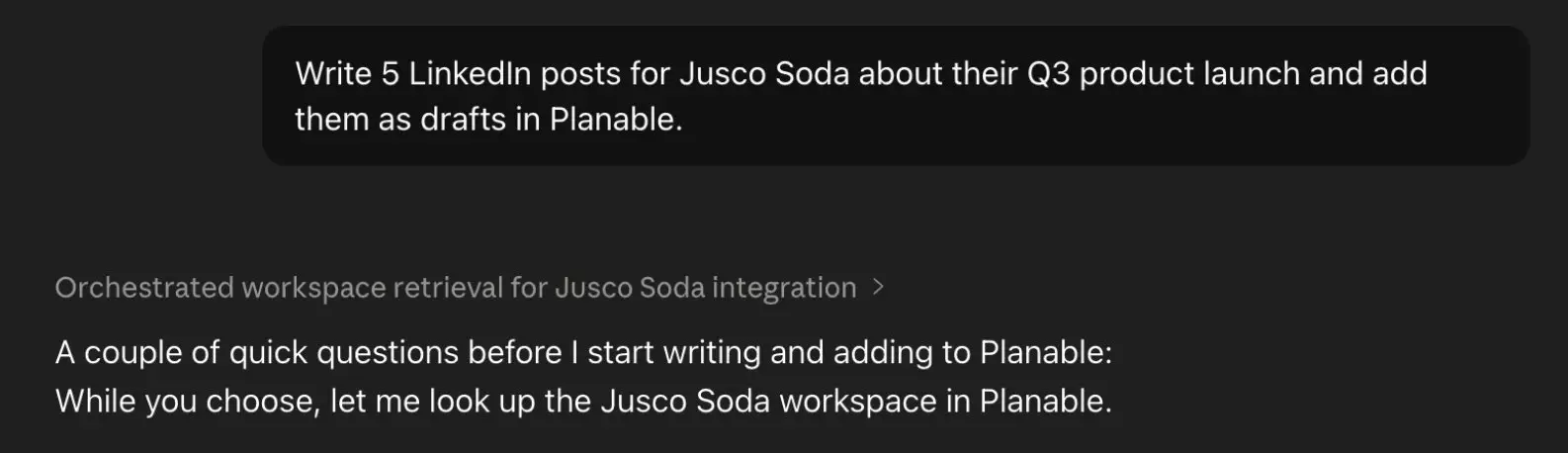
Give Claude a brief (topic, platform, number of posts, tone) and it writes the content and drops it into Planable as drafts. It previews before creating, flags validation issues (Instagram requires media, for example), and handles grouped posts across platforms in one go.
Best for: Social media managers building out a week’s content for multiple clients.
Prompt example: “Write 5 LinkedIn posts for [Client] about their Q3 product launch and add them as drafts in Planable.”
Using Planable MCP to draft a batch of posts in Claude
2. Pending approvals roundup
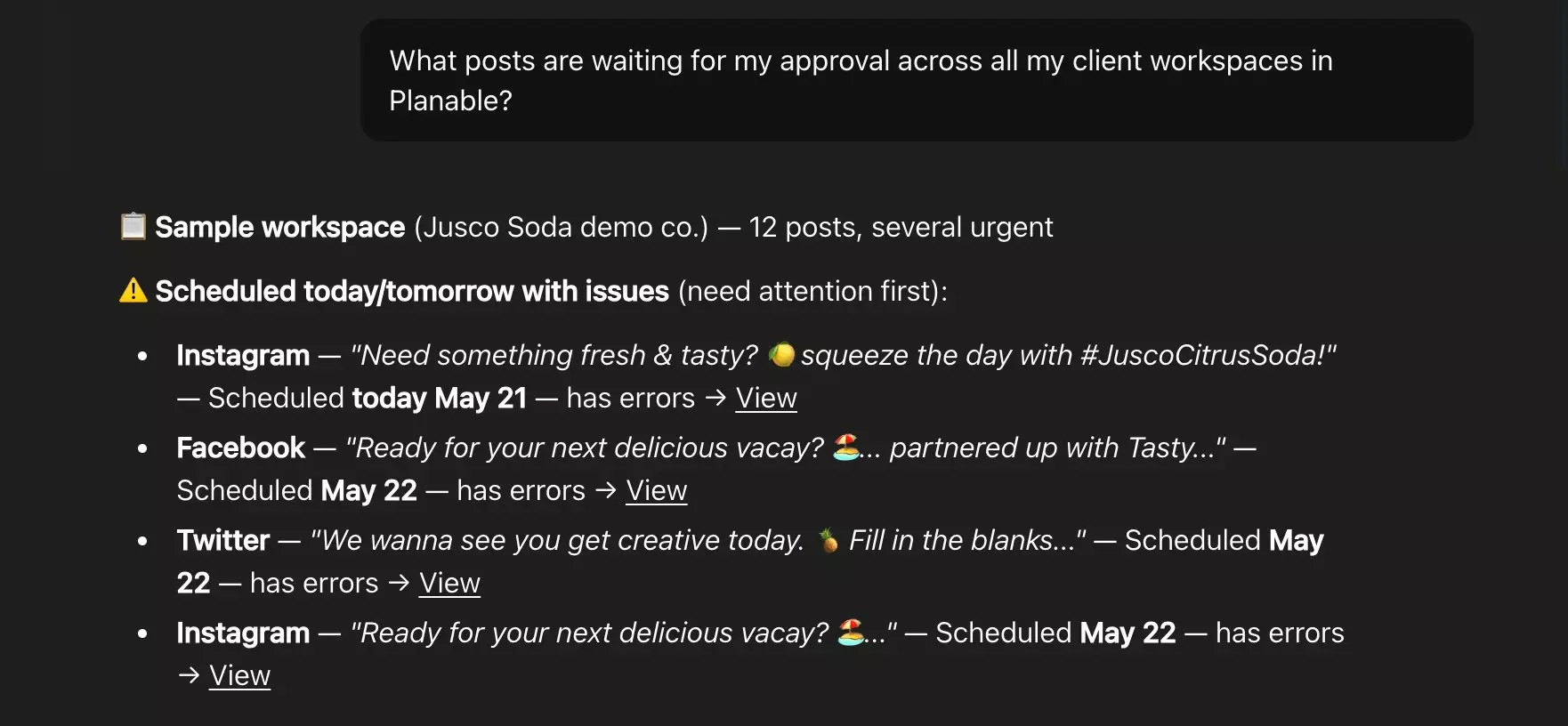
One prompt. A full picture of everything waiting for sign-off across all your client workspaces. Posts going live in 48 hours without approval get flagged first. Publishing errors flagged separately.
Best for: Daily check-ins. Ask once instead of opening every workspace.
Prompt example: “What posts are waiting for my approval across all my client workspaces in Planable?”
Using Planable MCP to create a pending approvals roundup in Claude
3. Monthly performance summary
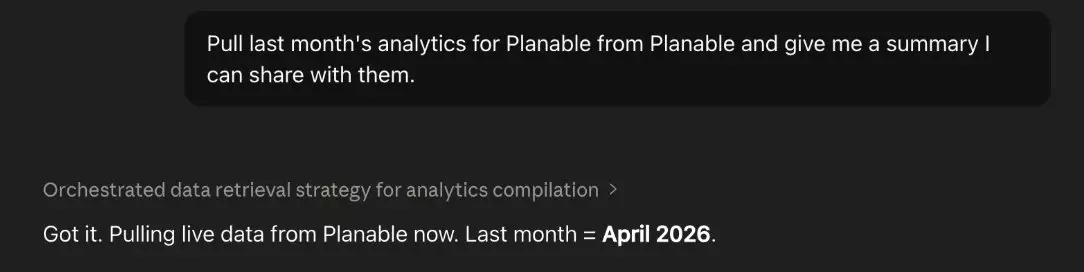
Claude pulls live analytics from Planable (or parses an uploaded CSV) and builds a client-ready HTML report: KPI cards, platform breakdowns, top 5 posts, context on what worked and what didn’t.
Best for: Operations managers and account leads who prep client reports monthly.
Requires: Planable MCP connector or a CSV export from any analytics tool
Prompt example: “Pull last month’s analytics for [Client] from Planable and give me a summary I can share with them.”
Using Planable MCP to generate a monthly performance summary in Claude
4. Content calendar audit
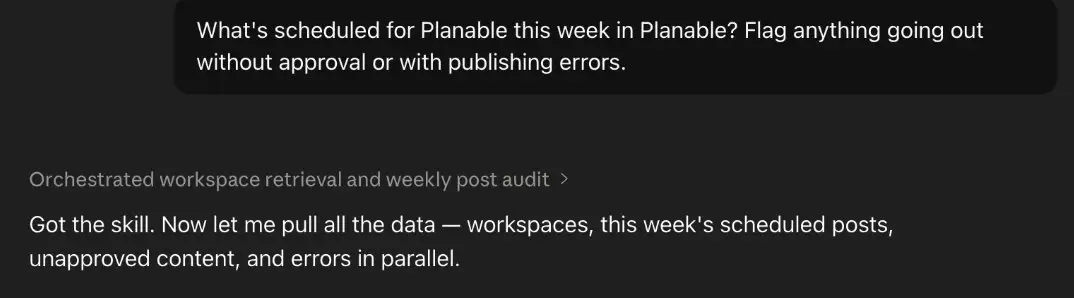
Ask what’s going out this week and Claude maps the full schedule: what’s approved, what’s a draft, what has no date, what has publishing errors, and where there are gaps. It can draft fill-in content for empty slots.
Prompt example: “What’s scheduled for [Client] this week in Planable? Flag anything going out without approval or with publishing errors.”
Using Planable MCP to audit the content calendar in Claude
5. Cross-client metrics overview
One report across every client. Claude loops through all workspaces, ranks them by engagement rate, impressions, or posts published, and flags top performers, most improved, low-activity accounts, and notable drops.
Best for: Operations managers and agency leads doing monthly reviews.
Prompt example: “How are all my clients performing this month? Rank them by engagement rate and flag any that are underperforming.”
Using Planable MCP to review cross-client metrics in Claude
6. Content pattern intelligence
Not a report on what happened, but a brief on what to try next. Claude ranks your top posts across 3 lenses, reads the actual content to find recurring patterns, and delivers 3 testable hypotheses for your next content batch.
Best for: Social media managers who want to improve content quality, not just track numbers.
Requires: Planable MCP connector or a CSV export from any analytics tool
Prompt example:“Here are my top 20 posts from the last 30 days, ranked by engagement rate [paste CSV or connect Planable]. For each post, note the format, topic, and hook type. Then find 3 recurring patterns in the top 10 that don’t appear in the bottom 10, and turn each pattern into a testable hypothesis I can try in my next content batch.”
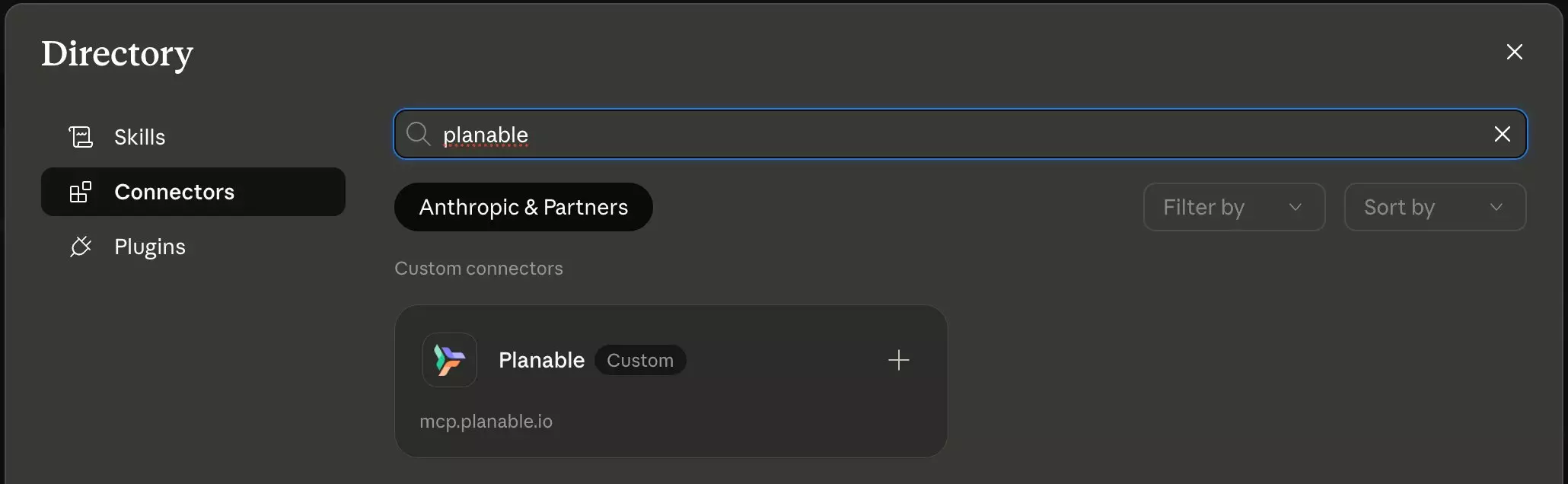
Plan note: Skills require a Claude Pro, Max, or Teams plan. The Planable MCP connector is available on all Planable plans. On team or org Claude accounts, you’ll need admin access to add a custom connector.
Permissions and session details
Claude can only do what you can do in Planable. Your plan limits, workspace roles, and add-on access all apply. Connections expire after 8 hours of inactivity and refresh automatically. Authorization lasts 180 days, after that, reconnect. You can review or revoke access at any time from your Planable account settings.
Who this is for
The Planable MCP connector is built for teams managing multiple clients or locations, not single-account users who only need basic scheduling.
The people who get the most out of it:
Social media managers handling 5–15 client accounts who spend more time chasing approvals and switching workspaces than creating
Operations managers and account leads who prep client reports, run weekly status checks, and want to surface blockers faster
Agency leads who want a quick read on overall client health without opening everything manually
If your workflow involves multi-workspace oversight, recurring reporting, or approval queues, this is where the Planable MCP earns its place.
FAQs
What is the Planable MCP connector?
The Planable MCP connector is an integration that gives Claude read and write access to your Planable account. This lets Claude work with real Planable data (projects, posts, comments, etc.) instead of relying only on what you manually describe in chat.
What can Claude actually do once connected?
Claude can browse your workspace and account structure, read and create posts, manage approvals (approve, reject, comment), work with your media library, and pull analytics data. The full list is in the capability map section above.
Does Claude publish posts, or just create drafts?
Claude creates posts as drafts in Planable. Publishing goes through Planable’s normal approval and scheduling workflow. Claude brings the content in, your team still reviews and approves it.
Do I need a Planable account to use these skills?
Four of the six skills require an active Planable account with the MCP connector. The MCP is available on all Planable plans. The monthly performance summary and content pattern intelligence skills also work from a CSV export, no Planable account required.
Which Claude plan do I need?
Skills require a Claude Pro, Max, or Teams plan. On team or org accounts, you’ll need admin access to add a custom connector.
Does the connector work with tools other than Claude?
Yes. The Planable MCP connector is compatible with any MCP-enabled AI tool, including ChatGPT and Gemini. The 6 skills in this article are built specifically for Claude projects.
What data does Claude access?
Claude can access the workspaces your Planable account has permission to view: post content, approval status, scheduled dates, comments, media, labels, and analytics. Analytics access requires the Analytics add-on on the relevant workspace.
How long does the connection last?
Connections expire after 8 hours of inactivity and refresh automatically. Authorization is valid for 180 days — after that, you’ll need to reconnect.
Can I use multiple skills at once?
Yes. Install all 6 in the same Claude project. Claude picks the right one based on what you ask.
What social platforms does Planable support?
Facebook Pages, Instagram, LinkedIn, X/Twitter, TikTok, YouTube, Pinterest, Google Business Profile, and Threads. The skills work across all connected platforms in your workspaces.
Monica leads product marketing at Planable. She owns go-to-market for new features and shapes how Planable fits into the broader SE Ranking product family. She joined in 2023 as Planable's first product marketer, built the function from scratch, and now runs the team's competitive intelligence program. With a background in product management and Romania's startup scene (How To Web, MVP Academy), she writes about competitor analysis, product launches and marketing workflows from the builder's side. Before Planable, she spent almost five years managing Orange Fab Romania, Orange's startup acceleration program, where she supported 40 startups and helped generate over €2.2M in commercial value.








 Creation
 Scheduling
 Planning
 Social Inbox
 Collaboration
 Analytics
 Approval
 Social Listening